iPad 1.0.0 · Desktop 0.1.0
PaliCAD lets you draw dimensioned 2D sketches, turn them into 3D parts, and arrange those parts into a design. Start with a simple mounting plate, then explore tools for holes, rounded edges, hollow bodies, threads, and more.
This guide takes you from an empty document to a saved model. “Click” also means tap on iPad. For detailed instructions on individual tools, see the full PaliCAD wiki.
Start a new document
When PaliCAD opens, the title screen offers New document, recent documents, and Open document. Click or tap New document to begin a blank project.
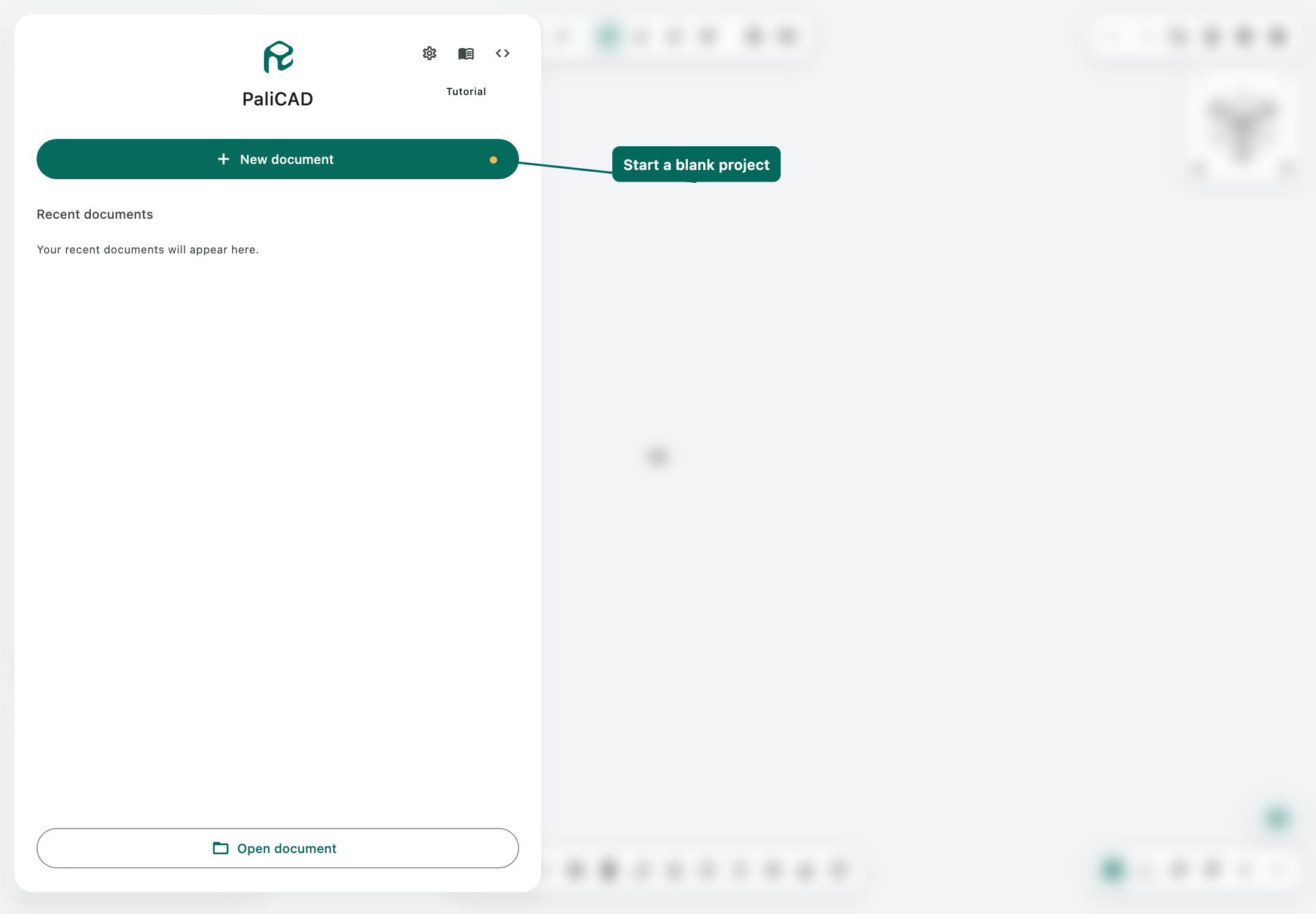
The title screen closes to reveal the workspace and its three coloured default planes. These are flat reference surfaces for drawing your first sketch.
Find your way around
The main controls surround the modelling area:
- Upper left — Browser: name your project and organize sketches, planes, and bodies. Eye icons show or hide items. Buttons on the top of the browser let you import files such as meshes and 2D sketch files or reference images, create folders in your browser, create new planes, or new sketches
- Top centre — Selection, Move, and Measure: choose whether you are selecting whole objects, faces, edges, or planes. Use the move tool to move objects in the scene, and measure tool to extract information about edges, faces, objects in the scene.
- Bottom centre — Modelling tools: Contains sketch tools while drawing; 3D tools after leaving sketch mode.
- Upper right — Document controls: Undo, Redo, Open, New, Save, and Settings. The navigation cube below them offers an alternative way to change your camera orbit and position.
- Lower left — Views: saved views, paint, section analysis, and joints.
- Right-side tool panel: instructions and options for the active tool, followed by Apply and Cancel.
- Lower right controls: Grid, axes, camera projection mode, x-ray toggles, and zoom in out buttons
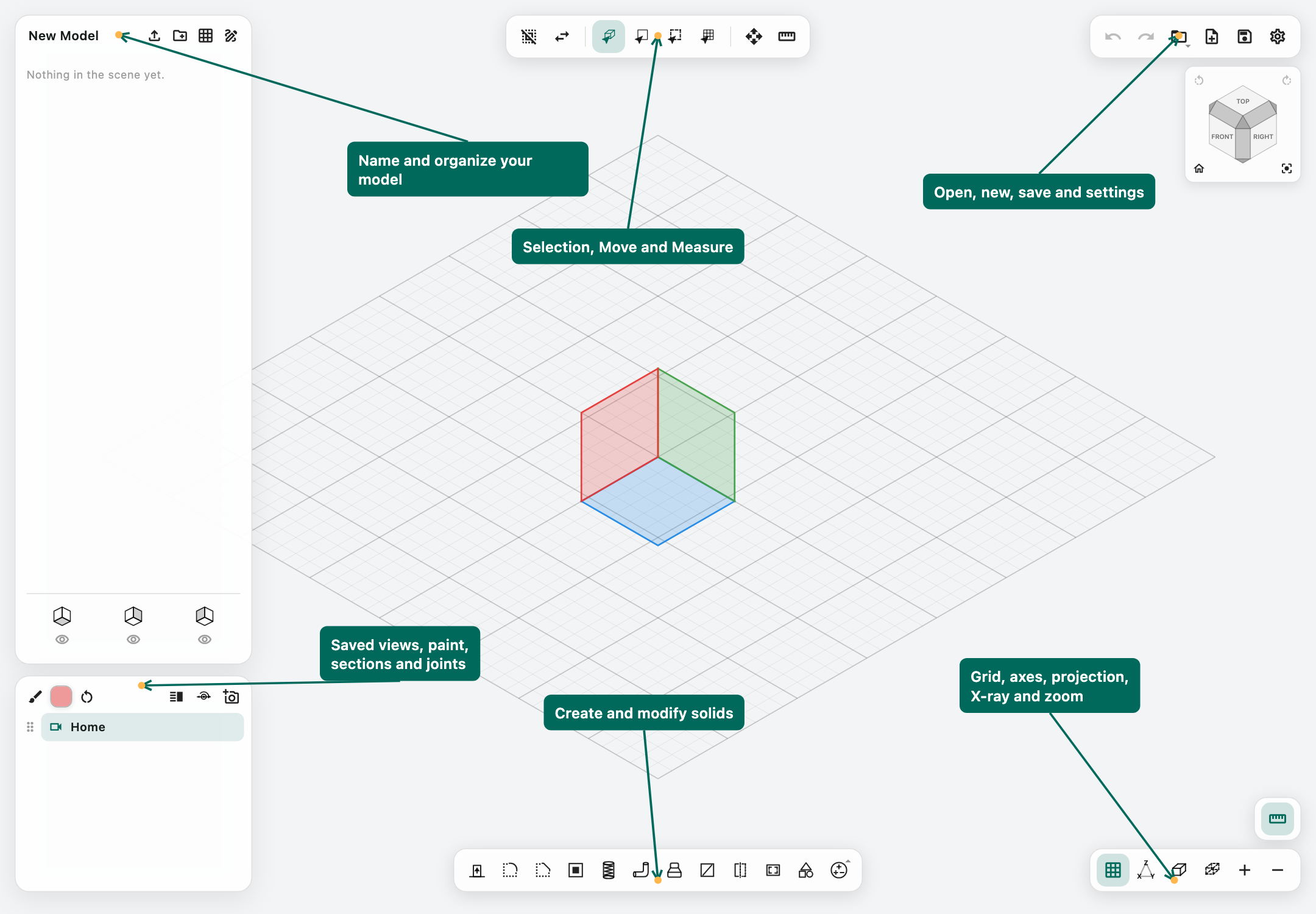
This is the initial view of a new document: the three default planes are visible, with no sketches or solid bodies yet.
Make your first model
Create a 90 × 50 mm plate, 8 mm thick, with a 24 mm round hole. The hole can be anywhere comfortably inside the rectangle for this exercise.
1. Name the document and start a sketch
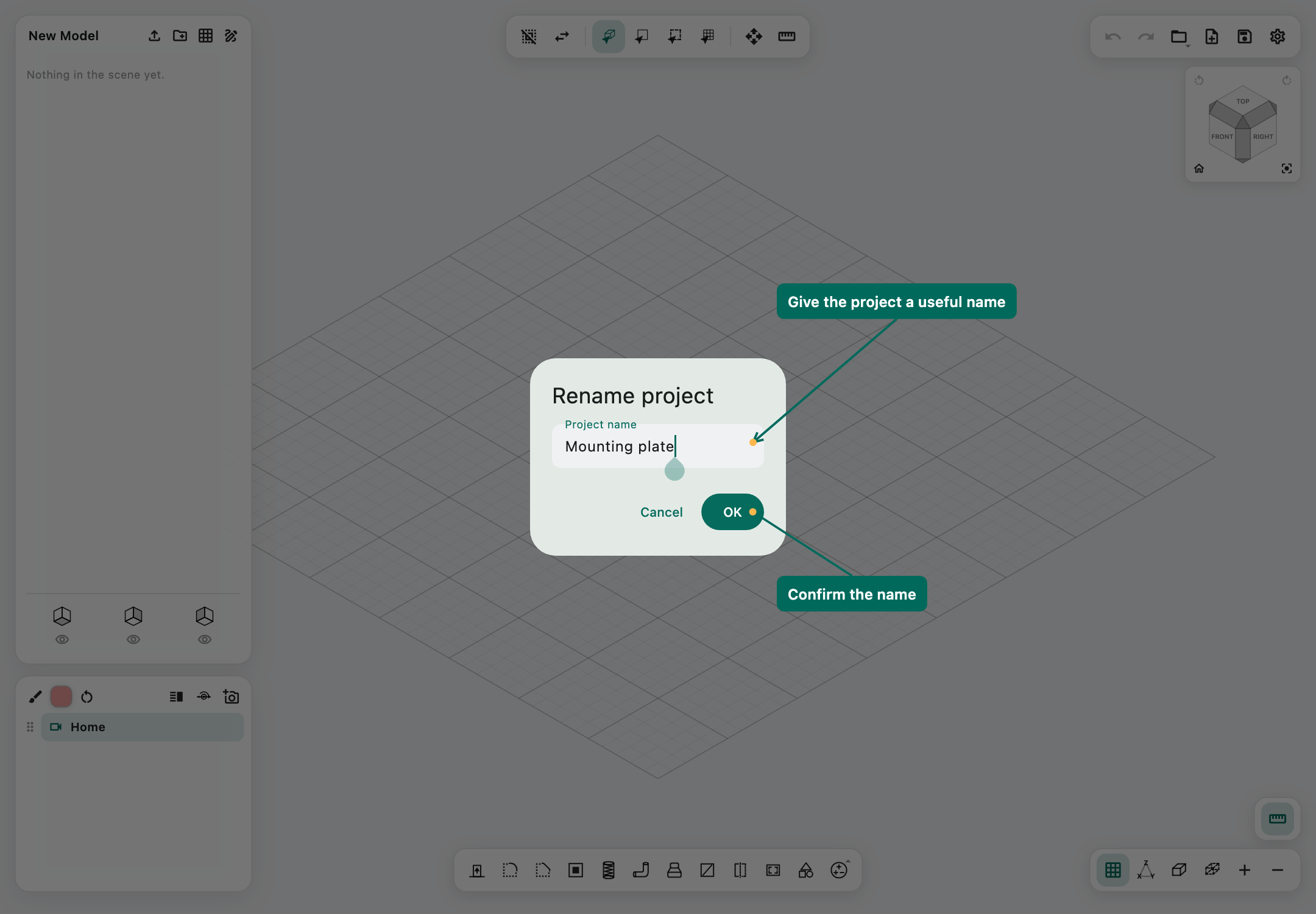
Click New Model at the top of the browser and name the project Mounting plate.
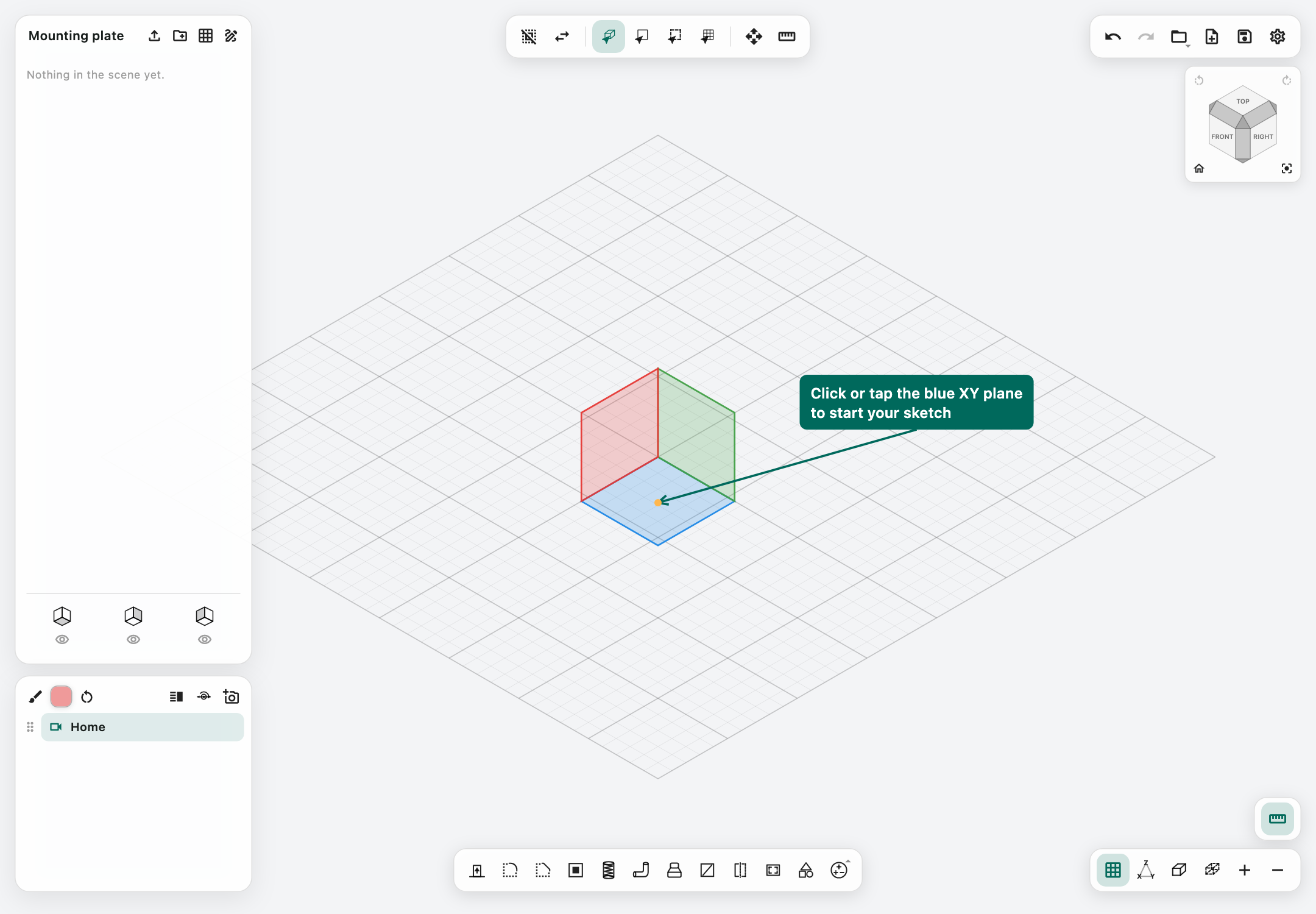
Click or tap the blue XY plane directly in the scene, as shown below. This opens sketch mode automatically as long as this was the first document since you opened the application. The camera aligns with the plane, and the bottom toolbar changes to drawing tools.
2. Draw the plate outline
Choose Rectangle in the bottom toolbar. Place the first corner, then set the displayed width and height to 90 mm and 50 mm. Confirm the opposite corner to complete the rectangle.
Use the dimension fields for exact sizes. On a keyboard, Tab switches applicable fields and Enter confirms the current step. On iPad, enter values with the numeric keypad and confirm with ✓; also confirm the drawing point when its nearby checkmark appears.
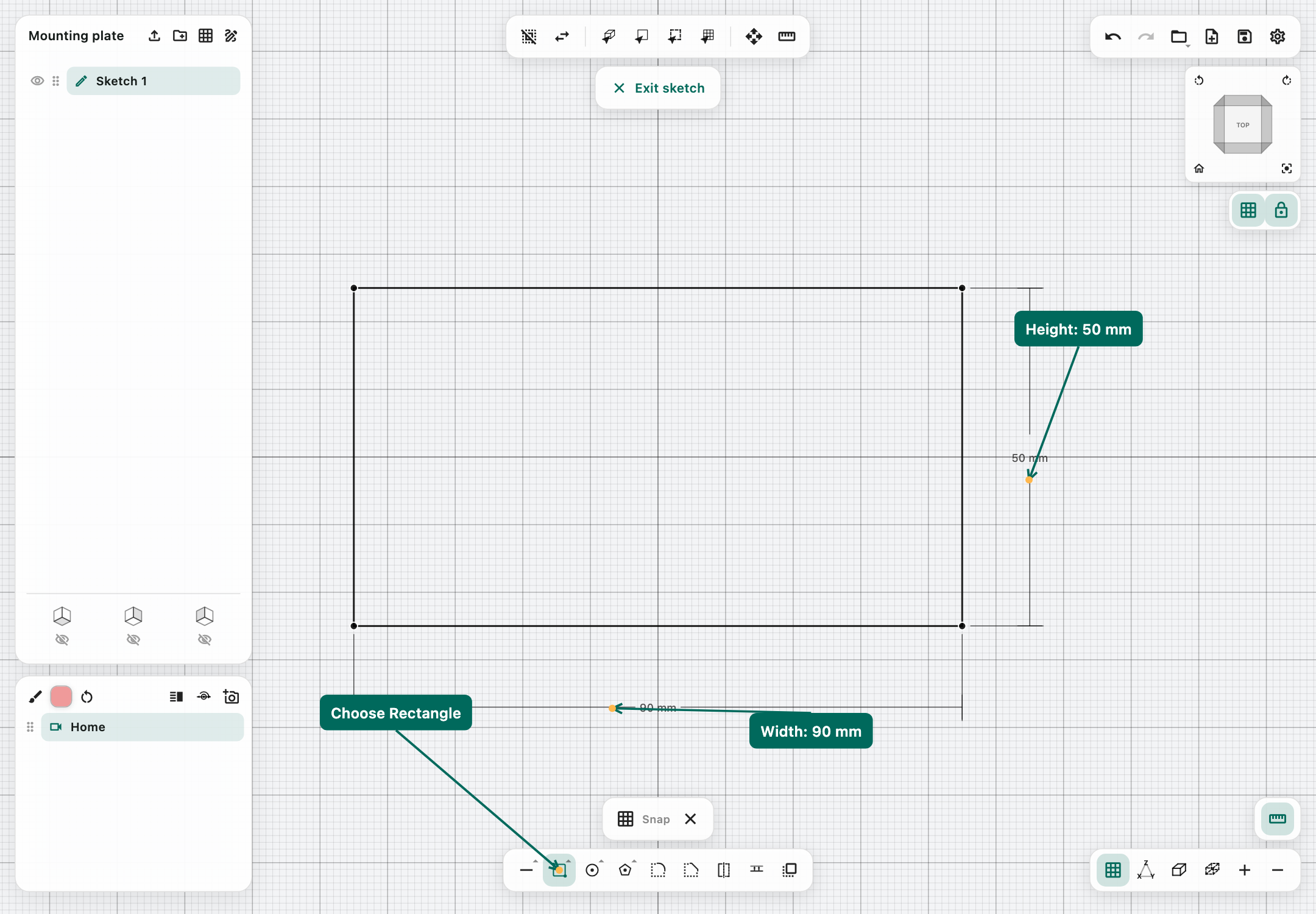
After confirming the opposite corner, your outline should look like this.
3. Add the hole
Choose Center circle, place its centre inside the rectangle, and set its diameter to 24 mm. Confirm the circle. Keep it clear of the rectangle's edges.
Right-click or long-press a shape-family icon to choose another variant if needed.
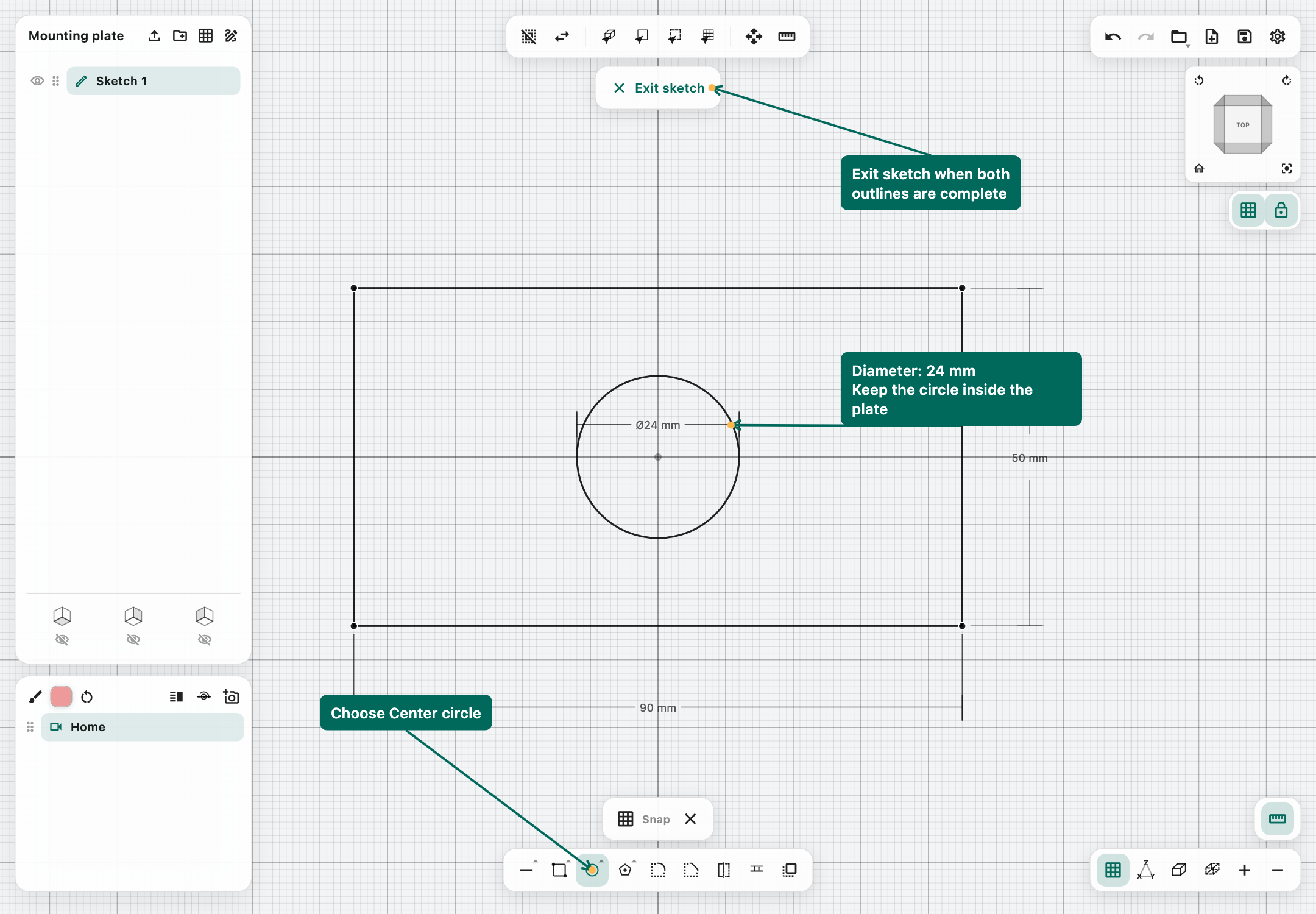
Your sketch should now contain these two closed outlines.
4. Turn the sketch into a solid
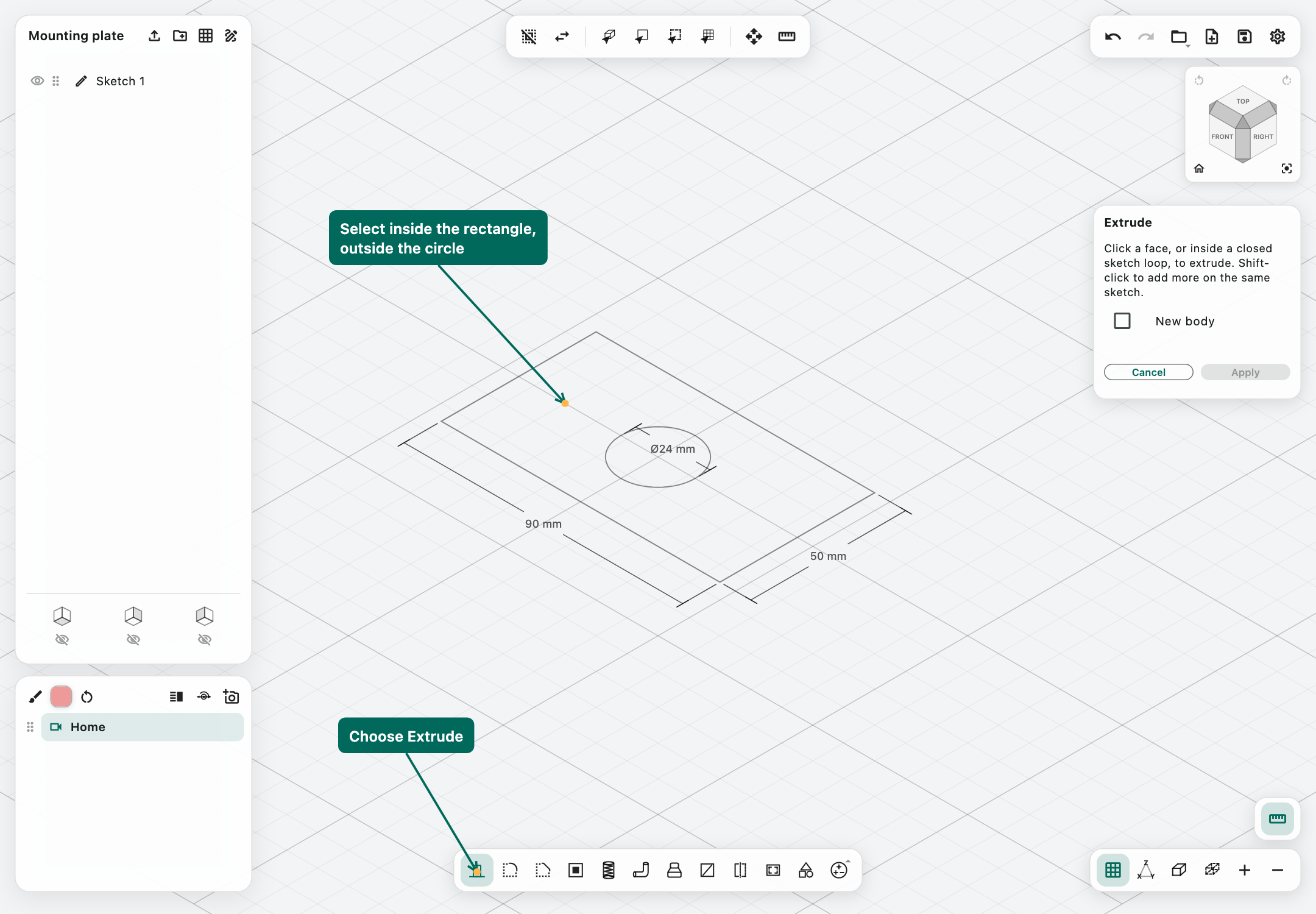
Choose Exit sketch, then activate Extrude, the leftmost tool in the bottom 3D toolbar.
Click inside the rectangle but outside the circle. This selects the plate region with the circle excluded. Clicking inside the circle instead would select a round part.
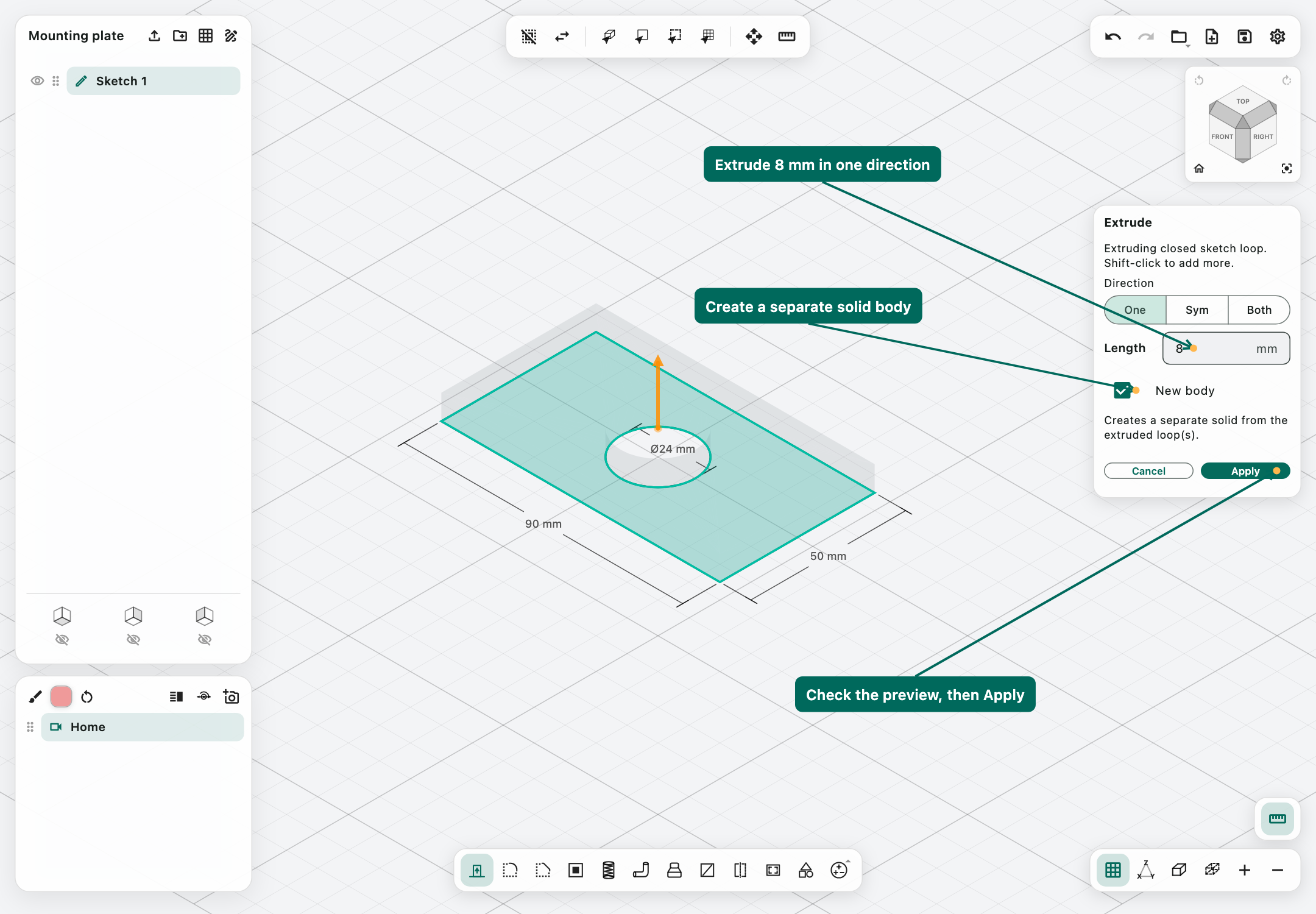
Set the direction to One, enable New body, and enter 8 mm for Length. Check that the preview shows a plate with a through-hole, then choose Apply. On iPad, confirming the tool's numeric keypad may already apply the operation; if the panel closes and the body appears, it is complete.
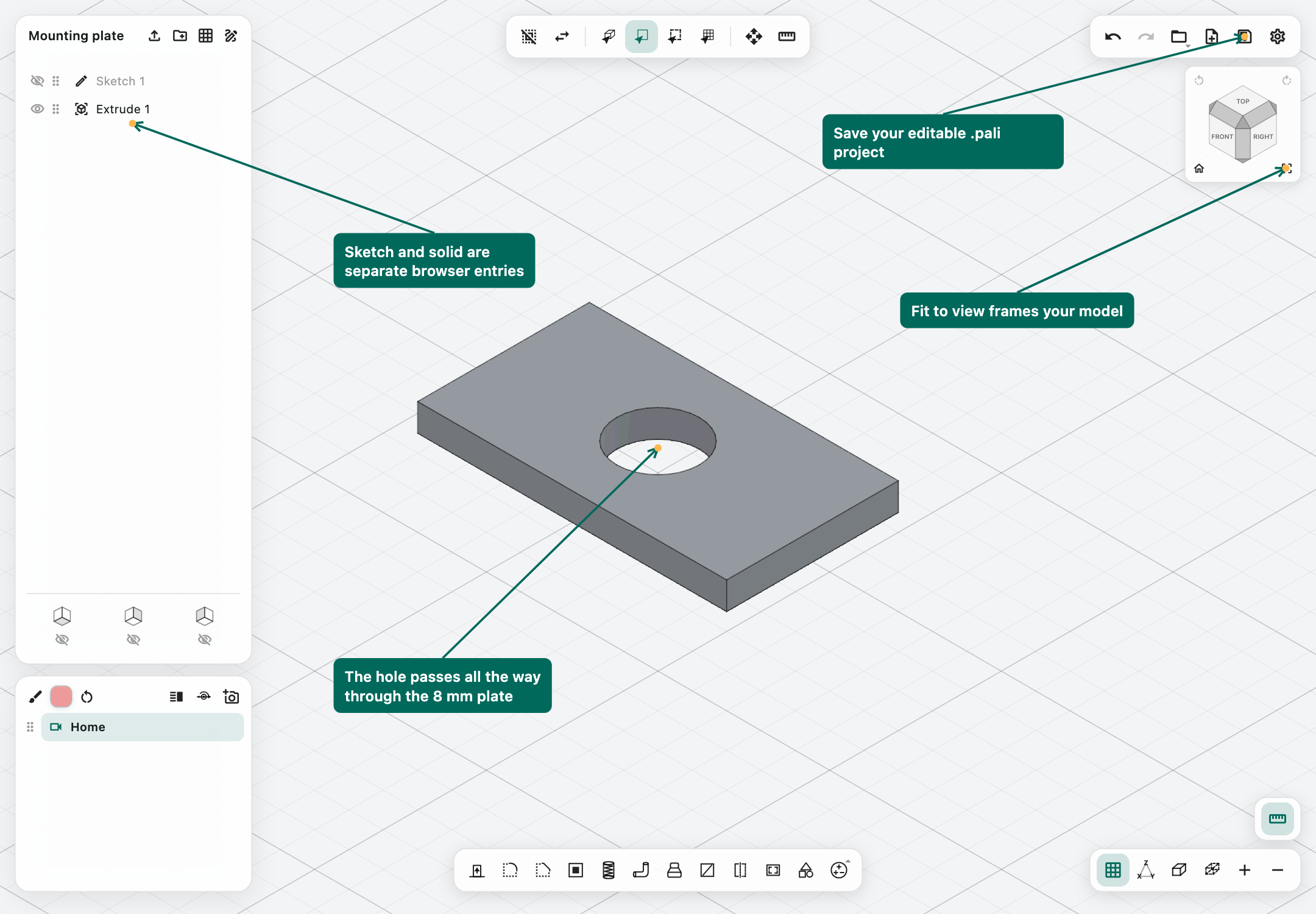
The sketch and solid are separate browser entries. Hide the sketch with its eye icon if its lines obscure the plate.
5. Inspect and save
Orbit the model to check its thickness and hole. Use Fit to view beneath the navigation cube if the model is difficult to see. Measure in the top toolbar lets you inspect dimensions.
Choose Save in the upper-right toolbar and save as Mounting plate.pali. Save manually at least once so autosave has a destination. Keep the .pali file as your editable original.
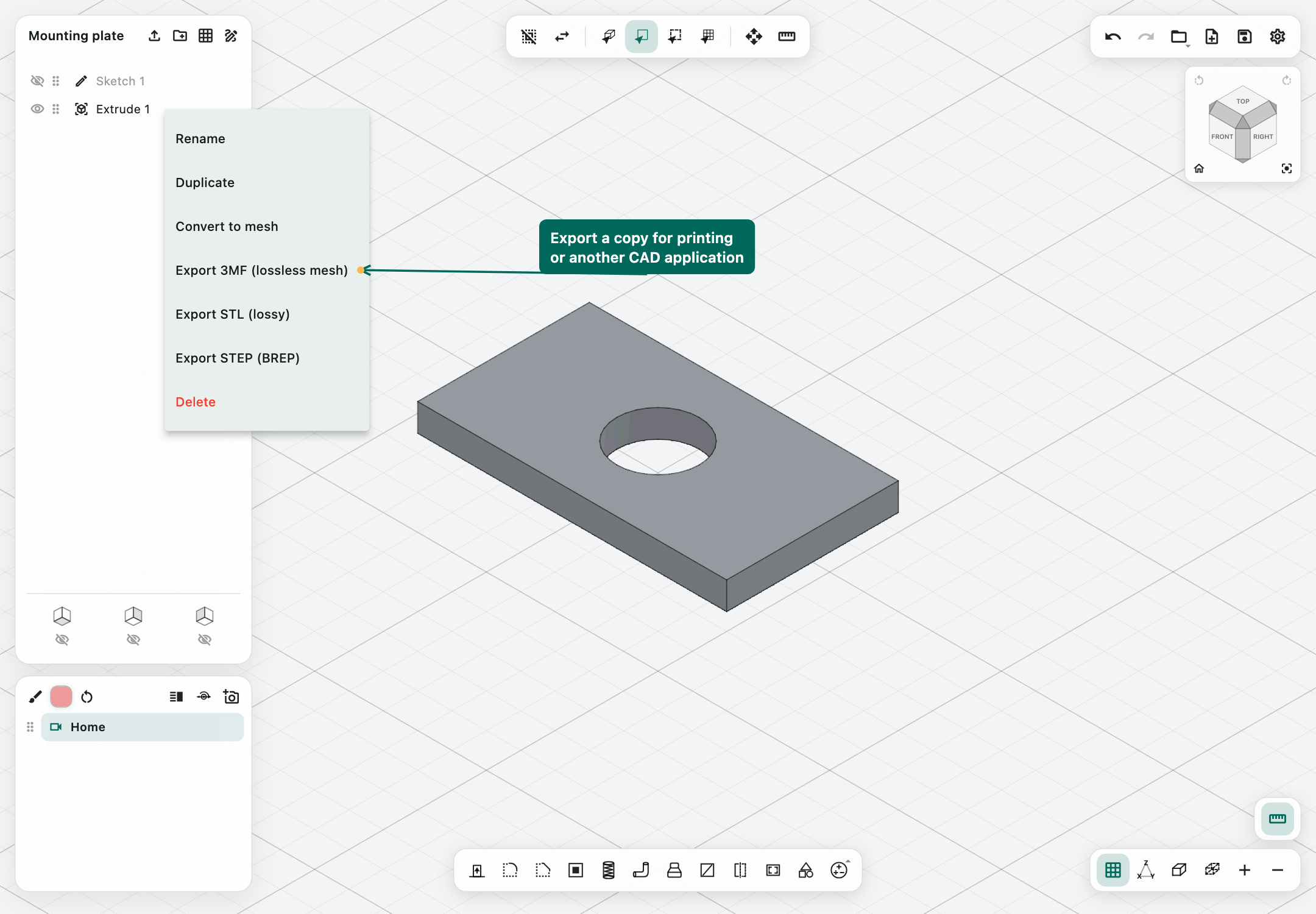
To export the plate, right-click or long-press its body entry in the browser and choose Export 3MF, Export STL, or Export STEP.
Essential controls
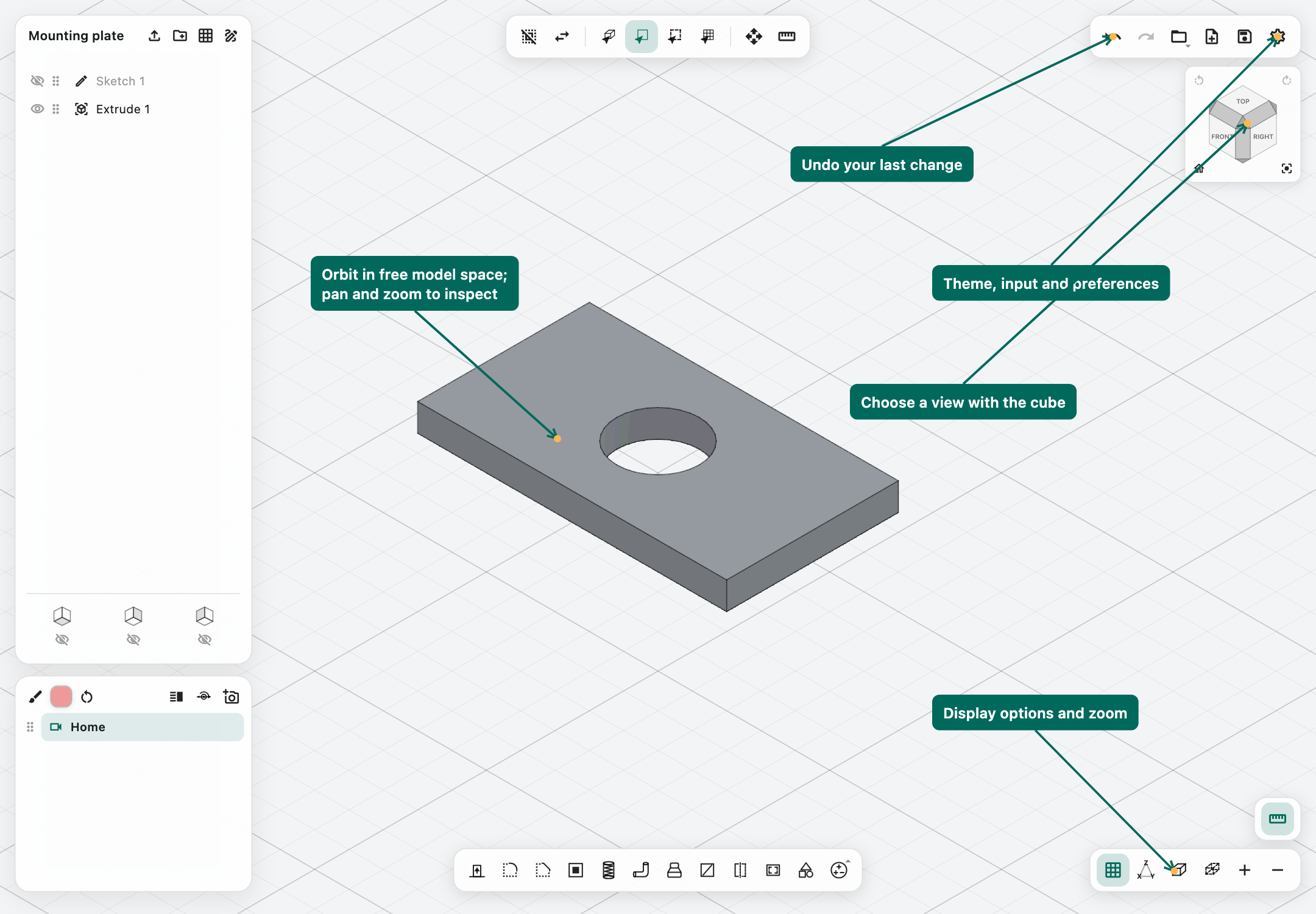
- iPad: drag in free 3D model space with one finger or Pencil to orbit; use two fingers to pan and pinch to zoom. Sketch drawing and active tool handles take priority over navigation.
- Mouse: primary-button drag orbits, right/middle-button drag pans, and scrolling zooms.
- Undo: use the curved arrow at the top right, or ⌘/Ctrl + Z. ⌘/Ctrl + S saves.
- Settings: the gear opens input preferences, theme, autosave, mesh quality, and keyboard shortcuts. The default theme follows your device.
What you can build next
- Sketch profiles: lines, splines, rectangles, circles, ellipses, and polygons, with tools such as offset, mirror, project, fillet, and chamfer.
- Create solids: Extrude, primitives, Pipe, and Loft between two compatible profiles on parallel planes.
- Modify parts: round or bevel supported edges, hollow bodies, add threads to compatible cylindrical surfaces, and move, rotate, scale, mirror, or split objects.
- Combine parts: Union joins material, Subtract removes one body's volume from another, and Intersect keeps their overlap. Loft creates a separate body; use Union to join it afterward.
- Inspect and present: measure geometry, paint faces or bodies, give whole bodies transparency, save camera views, inspect sections, and explore sliding or rotating joints.
- Exchange files: open native projects with Open; add STEP, STL, 3MF, 2D DXF, or reference images with Import. Export solids as STEP, STL, or 3MF, and sketches as DXF.
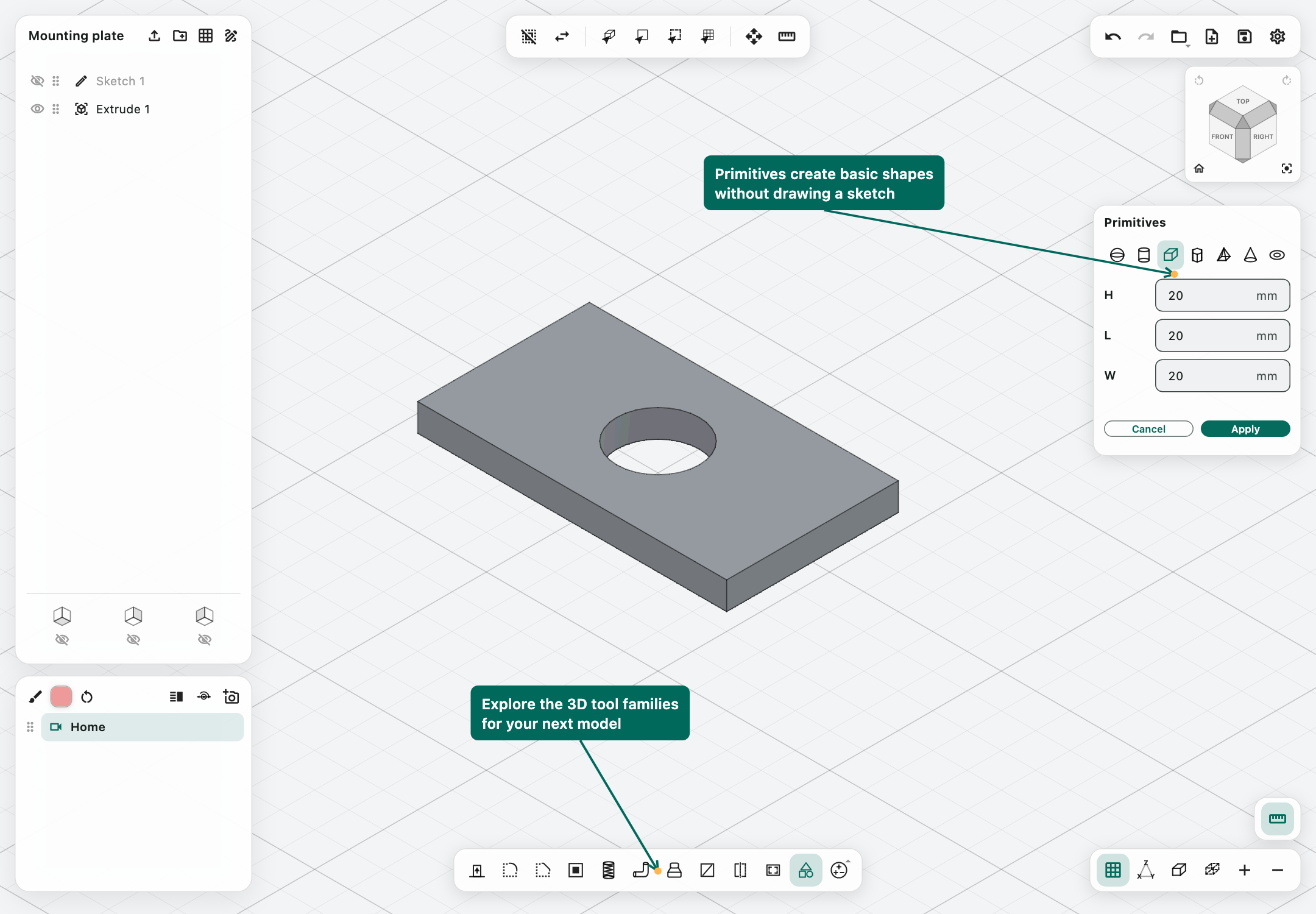
For another starting point, explore Primitives to create a basic shape directly.
Know the current limits
PaliCAD currently uses direct modelling: editing an earlier sketch does not automatically rebuild later solid operations. Its Pali Ijo kernel preserves supported native CAD surfaces, but complex intersections, blends, hollowing, and imported geometry can still encounter unsupported cases.
STL and 3MF contain triangle meshes and do not restore original sketches or smooth CAD features when reimported. STEP supports editable CAD exchange, with limitations on supported contents. Joints provide motion controls, not engineering simulation.
Save useful milestones as separate copies. If a tool rejects an operation, cancel it, check the selected geometry and dimensions, and try a simpler construction. See the wiki's troubleshooting section for help, or start the Tutorial from the title screen.