Desktop 0.1.0 · iPad 1.0.0
Guide checked against the project source on 23 September 2026.
PaliCAD is a direct modelling CAD application for creating dimensioned sketches, building solid parts, arranging assemblies, and inspecting designs. Its geometry engine, Pali Ijo, stores supported native solids as boundary representations (BREPs), with triangle meshes generated for display.
This guide covers the current user interface. It distinguishes features available in PaliCAD from capabilities available only in the kernel. Screenshots show the real application widgets with demonstration geometry and explanatory overlays; window proportions, native file dialogs, and touch controls vary by device.
Reading conventions: “Click” also means tap unless a mouse-specific action is stated. “Right-click” means a secondary mouse click; on iPad, long-press where supported. Apply commits an operation. Cancel discards its unfinished preview. A field labelled mm expects millimetres unless you explicitly enter another supported unit.
Your first model
A useful first exercise is a rectangular plate with a circular hole.
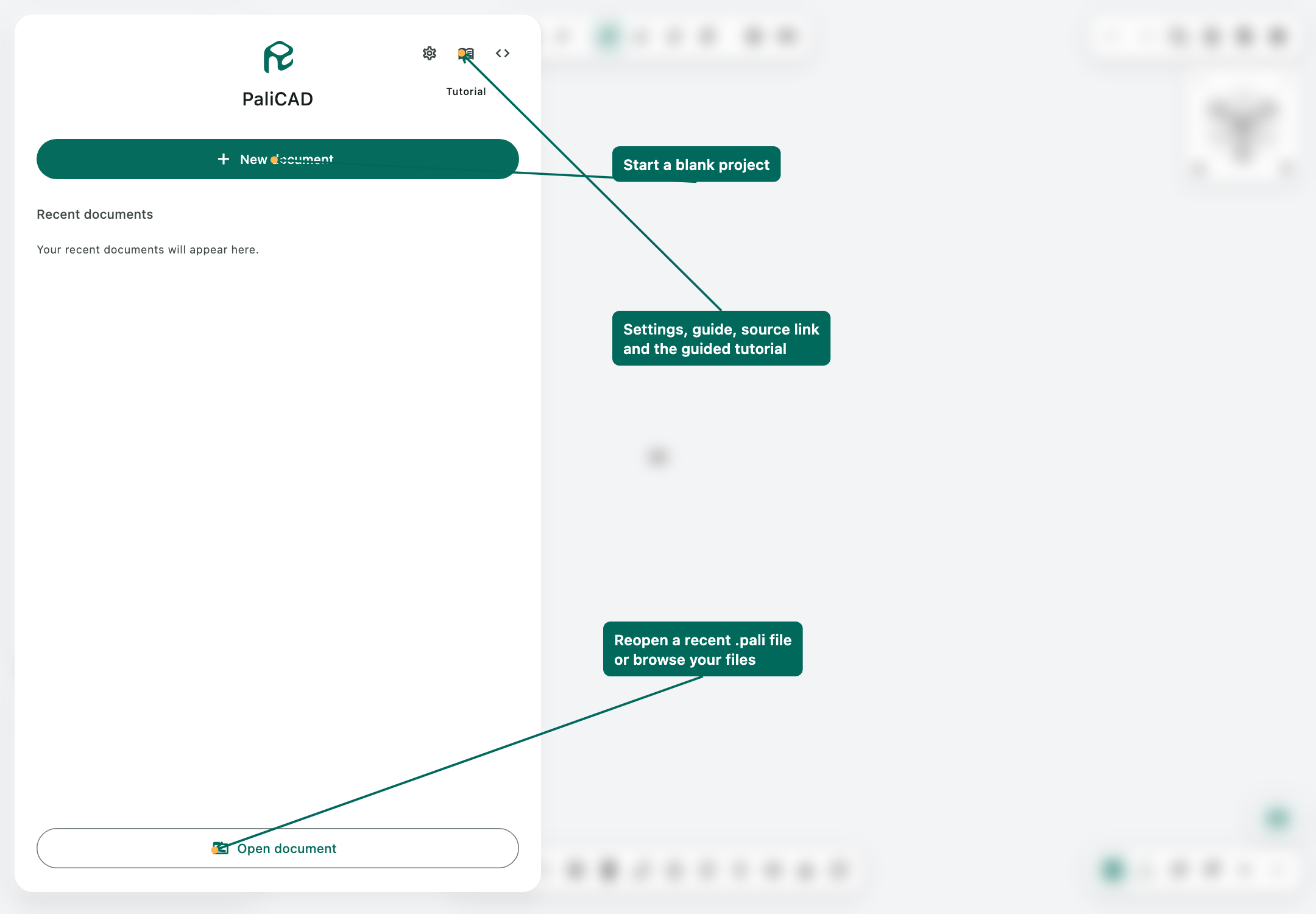
- On the title screen, choose New document.
- Click the project name (Where it says "New Model" at the top left of the screen. In the browser widget and name it Mounting plate.
- Select the XY Plane, which is the blue plane on the scene. It should automatically open to sketch view, if not, then click Add sketch which is the rightmost button in the top of the browser widget, near where you just named the file.
- Choose the Rectangle tool in sketch mode, which is the second from the left tool in the centre bottom toolbar. Place the first corner, then enter a width and height, such as 100 mm × 60 mm. Apply and confirm the shape.
- Choose Center circle, next to the rectangle tool. Place its centre inside the rectangle and enter a 12 mm diameter.
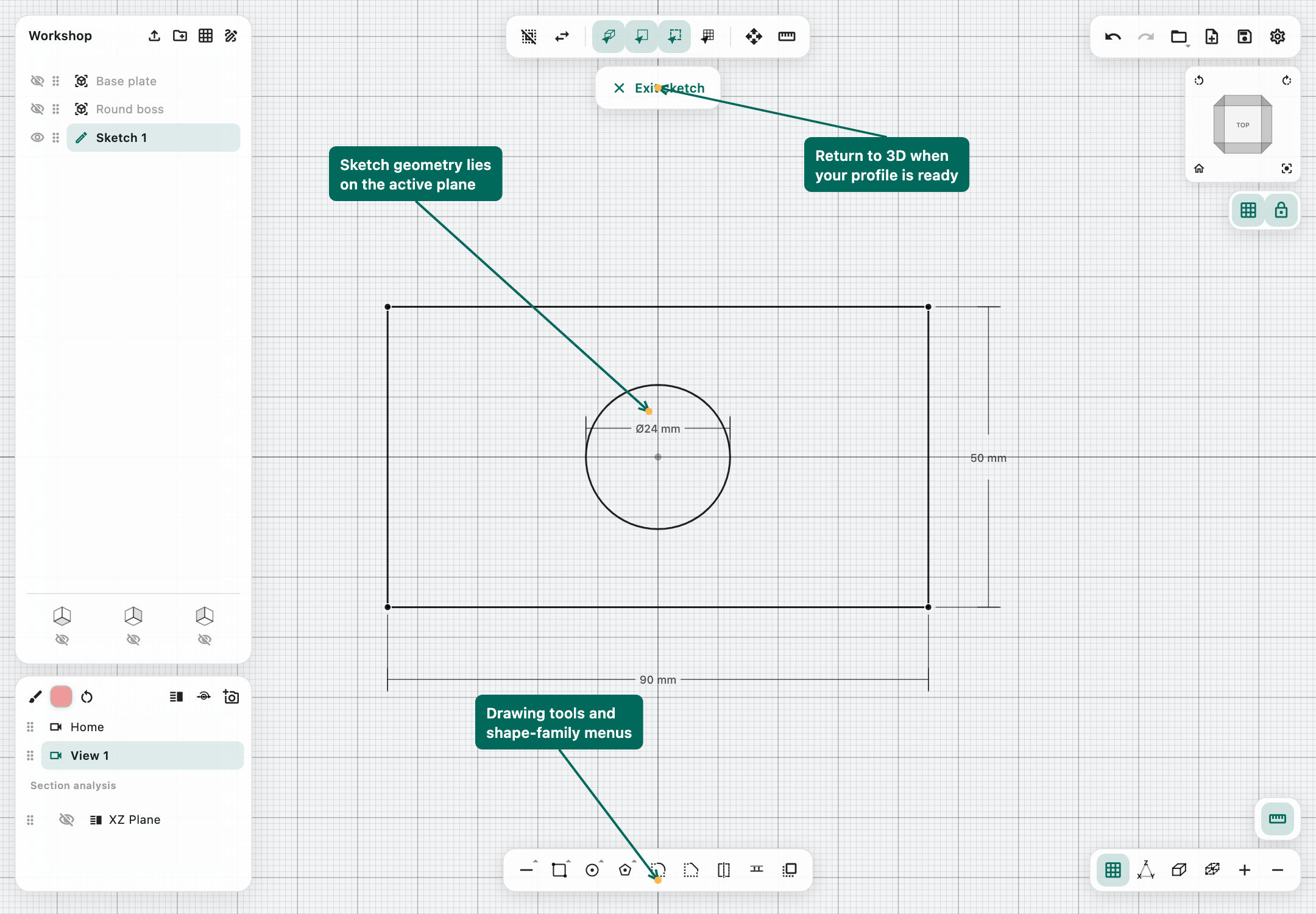
- Finish sketch editing with the Exit Sketch button to return to the 3D workspace.
- Activate Extrude, the leftmost tool in the 3D toolbar in the bottom centre. Click the region between the rectangle and circle. The inner circle should remain a hole in the selected region.
- Set Length to 8 mm, select New body, and choose Apply.
- Use the navigation cube and Fit to view to inspect the result.
- Save it as Mounting plate.pali.
Note: On a touch device, placing a drawing point can leave a candidate point and a nearby confirmation checkmark. Position it, enter dimensions if needed, and confirm before advancing to the next point.
This exercise demonstrates a central distinction: the sketch is the 2D source geometry, and the body is the resulting 3D object. They are separate browser entries. PaliCAD does not provide a conventional feature-history tree that automatically rebuilds every later solid operation when you edit an earlier sketch. That is the difference between parametric and direct modelling, PaliCAD in its current state only supports Direct Modeling.
The workspace
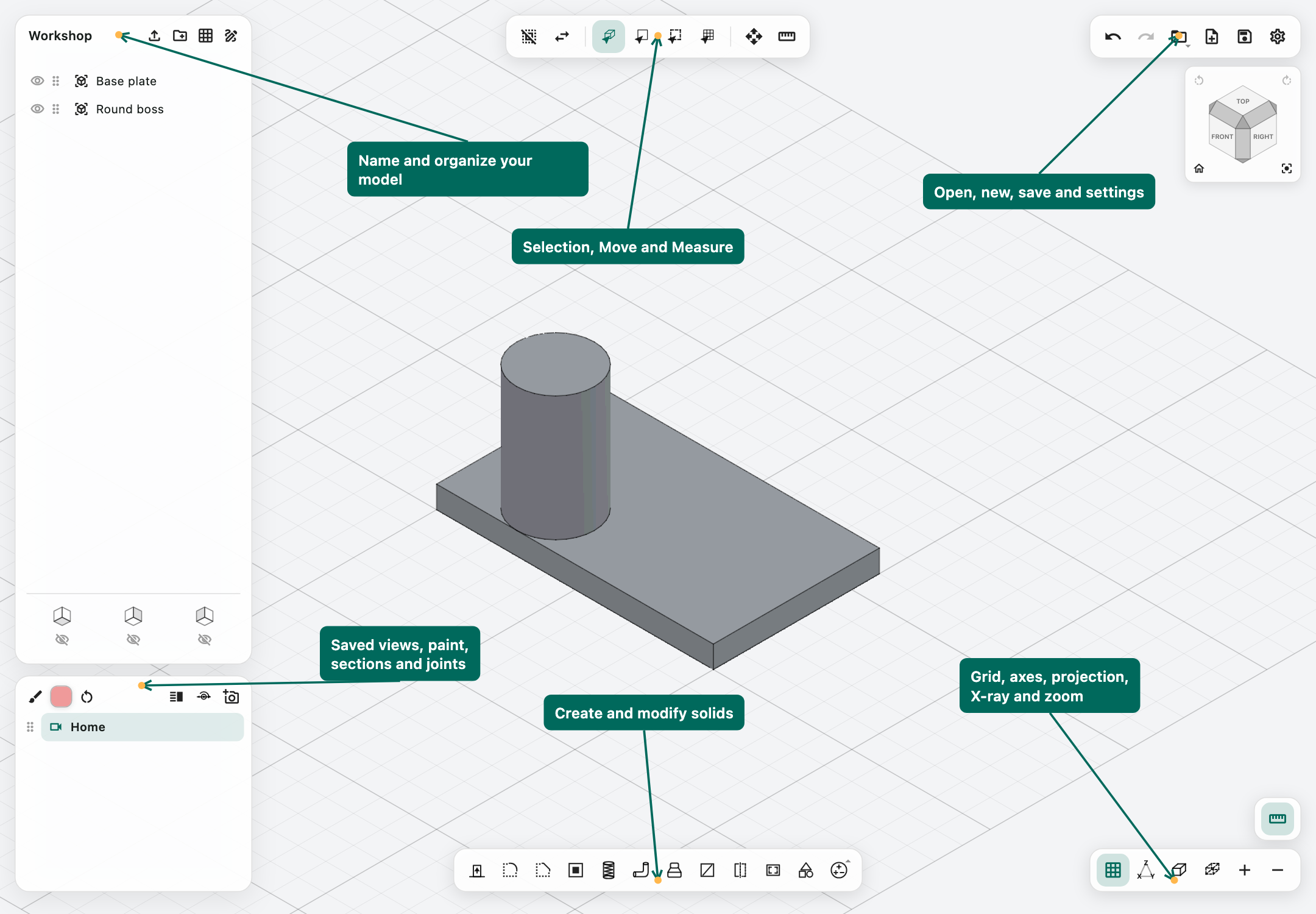
The workspace keeps modelling controls around a central 3D viewport.
- Upper-left browser: the project name, imported objects, folders, construction planes, sketches, and solid bodies. Its header contains Import, New folder, Add construction plane, and Add sketch.
- Lower-left Views widget: saved camera views, section analyses, joints, painting controls, and the current paint colour.
- Top-middle toolbar: clear/invert selection, object/face/edge/plane selection, Move, and Measure. Its options adapt to sketch mode.
- Bottom-middle toolbar: 3D modelling tools or 2D sketch tools, depending on the active mode.
- Upper-right document controls: Undo, Redo, Open, New document, Save, and Settings.
- Navigation cube: named views, angled views, Home, Fit to view, and view rotation controls.
- Right-side tool panel: instructions, dimensions, options, and Apply/Cancel for the active operation. Additional tools appear here in touchscreen mode including a shift lock to mimic holding the shift key, and a delete button to mimic clicking backspace or delete.
- Lower-right controls: grid, XYZ text, projection, X-ray, zoom, and additional sketch/touch actions.
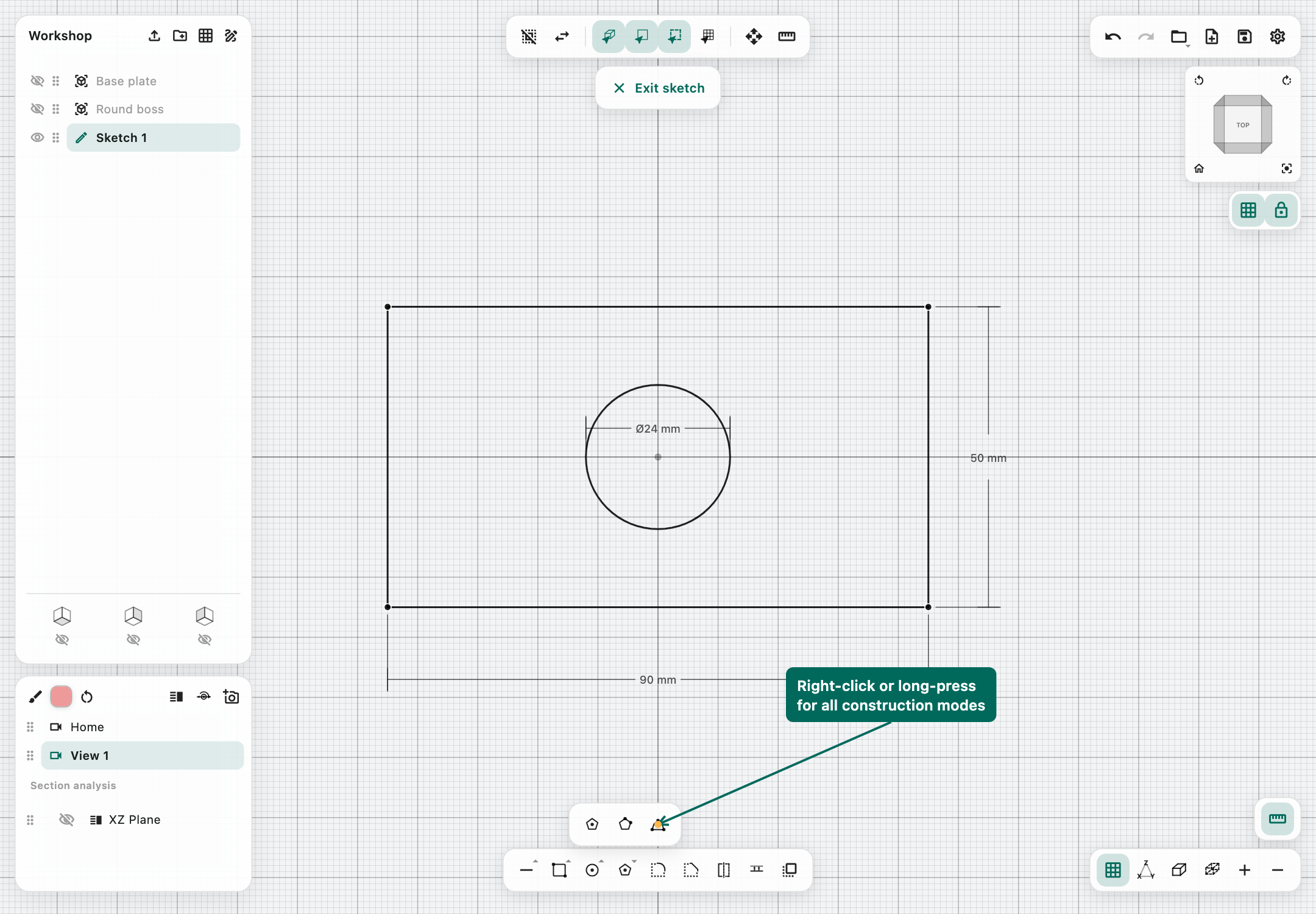
Hover over an icon with a mouse to see its tooltip or long press on a touchscreen. A small triangle on a tool family indicates additional modes. Right-click or long-press the family button to open those modes; an ordinary click activates its current primary tool. The last selected variant is remembered as the family's primary action for the session.
The centre toolbars wrap into multiple rows when space is limited. The browser remains visible; there is no separate collapsed-browser workflow to learn.
Documents, naming, saving, and recovery
New and open documents
New document starts an empty project containing the three origin planes and a Home view. If an existing document has unsaved work, respond to the save/discard prompt before replacing it.
Use Open document on the title screen, a recent-document entry, or the workspace's Open control to open a .pali project. The title screen shows up to ten recent files. A recent-file entry is a reference to a file, not a second copy of it; moving or deleting the original can make the entry unavailable.
Open only loads a native project. Import adds interchange geometry or a reference image to the current project.
Name the model and its parts
Click the project title, initially New Model, to open Rename project. Give the whole document a useful name. Rename individual sketches, bodies, folders, and user planes through their browser context menus.
Saving to a newly chosen filename updates the document name from that filename after the save succeeds. For example, saving as Trailer frame.pali updates the displayed model name to Trailer frame. Subsequent ordinary saves and autosaves use the current file destination; changing a browser item's name does not rename the document file.
Good names describe purpose: Chassis, Left rail, Axle bracket, Window opening, or Mounting holes. Generated names such as Extrude 1 are convenient during construction but become harder to follow in a large assembly.
Save and keep separate versions
Use Save, or ⌘S on Mac / Ctrl+S on a PC keyboard. The first save asks for a filename and destination. Later saves update that file. This build's toolbar exposes Save, not a separate Save As command. To branch an already saved project, duplicate its .pali file in Finder, Explorer, or Files and open the duplicate.
On iPad, the system document picker manages the destination. Choose a location you can find again in Files. Wait for the operation to finish before closing the app or moving the file elsewhere.
Use separate filenames for design milestones, such as Trailer frame v01.pali and Trailer frame v02.pali, when you want durable alternatives. Autosave and Undo do not constitute a versioned backup system.
What a .pali file preserves
.pali is PaliCAD's native, versioned, JSON-based project format.
A native document preserves the project name and hierarchy, body geometry and placement, available BREP data and display meshes, sketches and their dimensions, construction planes, reference-image data, visibility and browser order, paint colours, saved views, section entries, and joints. It also carries the writing app's version/platform stamp.
Temporary selections, in-progress tool sessions, runtime caches, and the Undo/Redo stack are not a saved modelling history. Opening a file from a newer unsupported schema requests a newer app rather than guessing how to read it.
Keep the .pali original even after exporting a printing or exchange file. Reimporting a STL or 3MF does not recreate its original sketches, views, or analytic surfaces.
Autosave and Undo/Redo
Autosave is enabled by default, every 5 minutes. It requires a file destination, so save a new project manually at least once. It skips unchanged documents and defers while an operation or mutable preview makes the scene unsafe to save, then retries after the scene settles.
Autosave updates the current file. It is not a sequence of historical versions and does not replace an independent backup.
Use the curved-arrow buttons for Undo and Redo. The default history limit is 25 steps, adjustable from 1–100 in Settings. Undo history is held in memory and is not restored when you reopen the document. Increasing it can increase memory use on complex models.
Import and export
Import geometry into an existing project
- Choose Import in the browser header.
- Select a supported file in the system picker.
- Allow the loading operation to finish; use its cancellation control if you need to stop.
- Inspect the imported entries in the browser, measure a known dimension, and rename or organize them.
- Save the resulting project as
.pali.
The supported picker extensions are STL, 3MF, STEP/STP, DXF (2D DXF Only), and reference-image formats. Not every feature of every external file is supported: a file extension identifies a container, not a guarantee that all possible contents can be interpreted.
Choose the right format
STEP (.step, .stp) — editable CAD exchange. Supported native bodies retain boundary geometry such as planes and cylinders instead of becoming triangle-only objects. Multi-part imports are supported, but general STEP assembly occurrence graphs are not. Some curves require a checked approximation during exchange. A STEP file exported from a mesh-only body is faceted; the file extension does not restore smooth analytic surfaces.
3MF — mesh exchange and printing. PaliCAD writes millimetre units, shared vertices, and can pack multiple visible solids into a single file. The UI calls it lossless mesh: this means preservation relative to the tessellated mesh, not preservation of the original analytic CAD representation. Do not assume another application's materials or assembly semantics will round-trip identically.
STL — basic triangle exchange. STL does not encode a unit system. PaliCAD works in millimetres; a receiving program that assumes inches can import the same numeric coordinates at the wrong physical size. STL also lacks the native project structure and paint information. Prefer 3MF when you want explicit mesh units, or STEP when you need supported CAD surfaces.
DXF — 2D sketch exchange. DXF export uses sketch-plane coordinates in millimetres. An imported DXF is placed as sketch geometry on a chosen plane or face, with placement controls. It is not a full drawing-sheet, annotation, or arbitrary 3D-DXF implementation.
Export one object or several
Right-click/long-press a solid's browser entry and choose Export 3MF, Export STL, or Export STEP. For a sketch, use Export DXF.
To export a collection, open Settings → General → Export and choose the button for visible solids as 3MF or visible solids as STEP. The label reports the count. Visibility matters, including hidden parent folders: hide items you want excluded before exporting.
After export, verify a known size in the receiving application. This is especially useful with unitless STL files and files that have passed through several programs.
Reference images
Import can also read PNG, JPG/JPEG, GIF, WebP, BMP, TIFF/TIF, and HEIC/HEIF, subject to the platform's image decoder. The imported result is a reference image, not automatically traced sketch geometry.
Choose a plane or face and use the image placement controls to position, size, and orient the image. Set W/H or drag resize handles; Uniform scale links the dimensions to preserve its aspect ratio. The XYZ arrows/rings and position/rotation fields adjust placement, with a changeable point of rotation. Orient image in its browser context menu returns to placement editing. Keep an image behind a sketch while tracing outlines, and hide it when it obscures selections. A known dimension in the picture is needed if you want a meaningful physical scale; pixels alone do not establish a CAD dimension.
The browser and construction planes
Organize the project
The browser is an object tree, not a chronological feature history.
- Click an entry to select or activate the relevant item.
- Use its eye icon to show or hide it. Hidden objects remain in the document.
- Create folders for related parts. Folder visibility affects their contents.
- Use drag handles to arrange entries.
- Expand/collapse folder contents to simplify the tree.
- Most listings in the browser have a right click accessible sub-menu: Duplicate makes another item; Rename changes its label; Delete removes it.
Available context commands available via right click or long press on a touchscreen depend on the item. A sketch can expose Edit sketch, Assign to plane/face, and Export DXF; a solid exposes solid exports and Convert to mesh; planes can start sketches or section analyses. Built-in origin planes have different restrictions from user-created planes.
Do not use Convert to mesh merely to hide edges or change shading. It changes the body's geometric representation and gives up its analytic BREP. Duplicate or save a copy first if you need an independent mesh workflow.
Origin planes
Every new document has XY, XZ, and YZ planes. Their tiles are at the bottom of the browser. Select a tile to choose that plane; its eye control toggles the plane's visibility.
The origin planes define useful perpendicular sketch references. They are different from the ground-grid display and the optional X/Y/Z text labels: hiding one of those visual aids does not delete the model's coordinate system.
Create a construction plane
Choose Add construction plane and follow the panel:
- Face or plane: select an existing planar reference and Apply.
- Create plane from 2–3 edges: choose edges that define a valid plane.
- Create a midplane: choose two parallel faces; Apply creates a plane halfway between them. Opposite cylinder caps are a useful example.
Name the new plane and use Move to translate or rotate a user plane when you need an offset or angled sketch reference. A curved face is not generally interchangeable with a planar sketch support.
Create, reopen, or reassign a sketch
Select a plane or suitable planar face, then choose Add sketch. PaliCAD aligns the camera to the sketch plane and locks the sketch view for 2D work.
Selecting a sketch in the browser can select it in the 3D workspace without entering its editor. Use Edit sketch to edit its geometry. Assign to plane/face… changes a sketch's location through an explicit selection; check its orientation and placement before confirming.
A sketch created on a face can have a supporting user plane that is initially hidden. This keeps the viewport clear without deleting the reference.
Camera, display, and selection
Orbit, pan, and zoom
With desktop input, drag the primary mouse button in navigable model space to orbit. Drag the right or middle button to pan. Shift + primary mouse drag also pans outside sketch selection's marquee behaviour. Scroll to zoom; reverse the direction in Settings if it feels backwards. On a desktop trackpad, scrolling/pan gestures are used for zooming.
A tool's active gizmo or sketch interaction takes precedence over camera motion. Finish or cancel that interaction if a drag is editing geometry instead of navigating.
On iPad, use one finger or Pencil to orbit in model space, and two fingers to pan and pinch to zoom. In a locked sketch view, drawing and selection replace orbiting. Unlock the sketch view only when you need to inspect its placement in 3D.
Navigation cube, Home, and Fit to view
Click a labelled cube face for an orthogonal view; cube edges and corners provide angled orientations. The cube itself can be dragged to orbit. Its rotate controls are enabled for applicable face-aligned views.
Home recalls the document's Home view. Fit to view frames the scene's solids for inspection. These are different actions: a saved camera composition can be useful even when it does not include every object.
If you seem to have lost your model, try Fit to view, inspect visibility, and check for small or distant objects affecting the overall bounds. A very large scene can require more zoom travel than a small part.
Display controls
- Grid: shows/hides the ground grid in 3D, or the sketch grid while sketching. It is a display aid and not a physical surface.
- XYZ text: shows/hides the scene axis labels. It is off by default.
- Orthographic / Perspective: orthographic removes perspective size change and is useful for checking alignment; perspective gives a depth-oriented presentation. Switching projection changes the camera and not dimensions.
- Shaded / X-ray: shaded view shows solid surfaces; X-ray reveals otherwise hidden edges through translucent surfaces. X-ray is an inspection mode, separate from a painted object's transparency.
- Zoom + / −: for stepping the camera in or out without a gesture.
- Sketch dimensions: toggles measurement labels during sketch work.
Selection modes
Use the top toolbar to choose Object, Face, Edge, or Plane before selecting geometry. The highlighted item tells you what the next operation will use.
Object selects a whole body. Face selects a surface region. Edge selects boundaries used by tools such as Fillet and Chamfer. Plane selects construction references. A triangle mesh has different surface information from a native cylinder, even if the two look similar.
Use Shift-click for additional selections where the current operation supports them. On a touch device, the Shift lock control supplies the same modifier. Use Clear selection or Shift+Esc to start fresh; Invert selection or Shift+Tab reverses the applicable current selection.
Each tool can change the selection mode it needs. Read the tool's prompt: “target, then tool” for Subtract is different from “plane, then body” for Split.
Sketching
Enter and leave sketch mode
A sketch belongs to one construction plane. Create it from a selected plane/face, or reopen it with Edit sketch. The view initially looks squarely at that plane. The sketch view's lock control keeps drawing planar and prevents accidental orbiting; unlock it to inspect the sketch in 3D, then relock to resume planar work.
Use Exit sketch to return to modelling. Closing a drawing tool with Done or Cancel is not the same as leaving the sketch editor.
Precise input, units, and snapping
Place an initial point, then use the live dimension field to set the next length, width, height, diameter, or angle. Tab cycles/reselects applicable drawing fields; Enter confirms the active step. Read the field label carefully: circle input is a diameter, while Fillet uses a radius.
Length fields support arithmetic and a trailing unit. Examples include 25.4, 2 in, (14 * 12) in, 17 ft, 1.5 m, and (100 - 2 * 8) mm. Internal coordinates are always millimetres. An expression's trailing unit applies to the expression as a whole; use one unit per expression rather than assuming mixed-unit terms are understood.
On the touch numpad, tap the unit control to switch between millimetres and inches; long-press it to switch the metric pair mm/m or the imperial pair inch/ft. Confirm with ✓. A keypad associated with a modelling tool can confirm that tool's pending Apply action, so check its current values before pressing it.
There are two distinct snapping aids:
- Grid snap: the drawing snap control rounds placement to the chosen grid increment. Its default increment is 1 mm, and grid snap is initially off.
- Snap to vertices & curves: attracts drawing to existing geometric features; it is on by default and controlled in General settings.
Showing a grid does not automatically enable snapping. Shift or Shift lock supplies the active tool's angle/distance constraints. Move's default Shift increments are 1 mm and 11.25°.
Select and edit sketch geometry
With Select, click edges or vertices to toggle them; click empty space to clear. Drag a selection rectangle to select multiple sketch elements. Shift supplies additive selection where supported. The clear and invert controls also work in sketch context.
Use Delete/Backspace, or the touch Delete button, to remove selected sketch geometry or a selected measurement. If a text field is active, Backspace edits the text instead.
A shape drawn over another shape is not necessarily a clean extrusion profile. Ensure boundaries meet, avoid duplicate overlapping edges, and check the actual filled region you select for Extrude. An open line is suitable for a path but does not alone define a solid extrusion area.
Line
Choose Line in the line/spline family. Place the starting point, position or dimension the next point, and confirm. Continue placing connected segments as needed. Finish the chain with the available confirmation control; return to its first point when you need a closed outline.
Use length and angle entry for a known segment rather than relying on visual alignment. An unfinished candidate point is not committed geometry until confirmed.
Spline
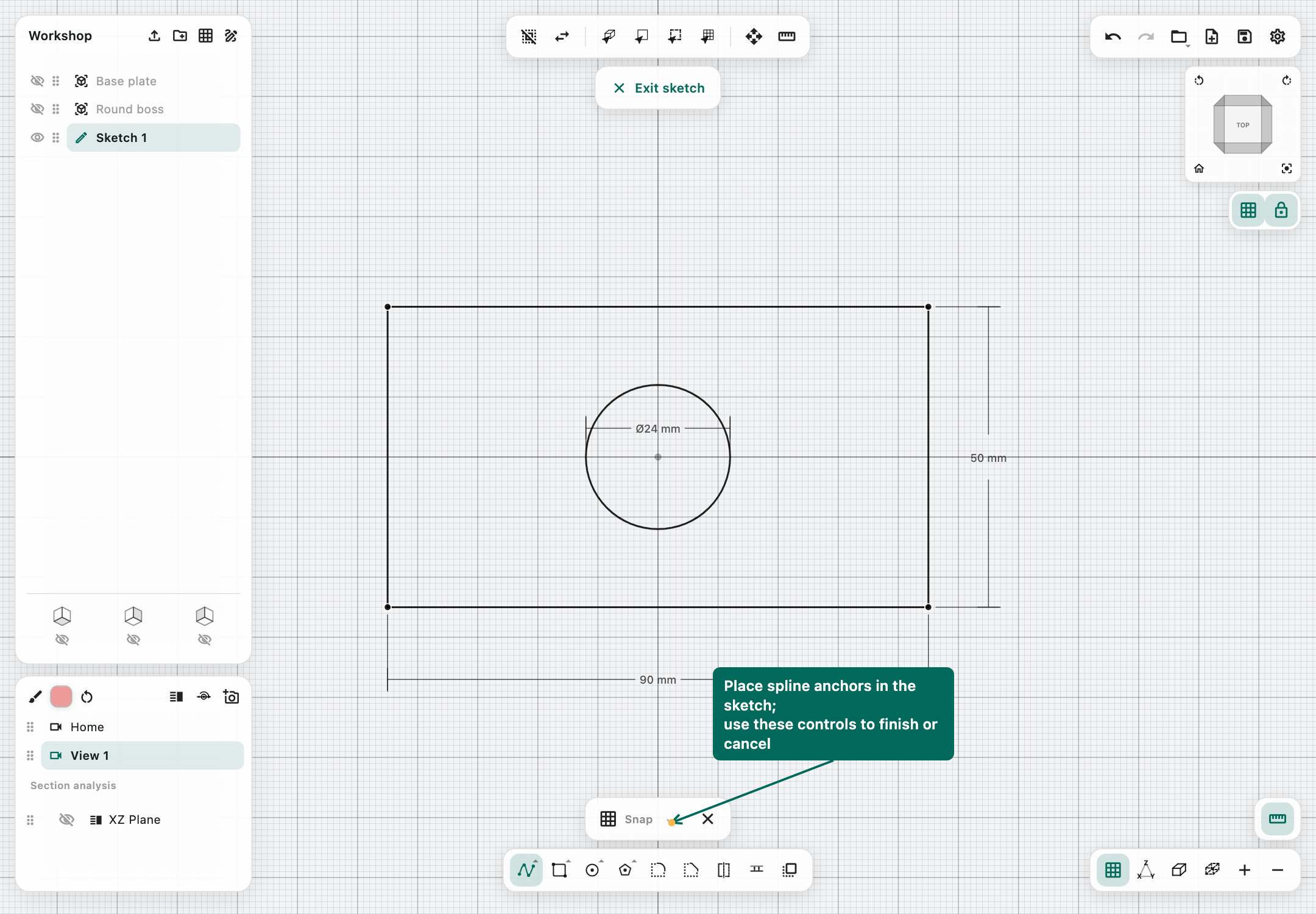
A spline is a chain of cubic Bézier segments with anchors and tangent handles.
- Open the line family's secondary menu and choose Spline.
- Place the first anchor.
- Use the + control to arm placement of another anchor.
- Place additional anchors and drag their handles to shape the curve.
- Close back to the start for a closed outline, or confirm an open chain for a path.
- Apply/confirm when the curve is ready.
When add-point mode is not armed, interaction can adjust existing anchors and handles instead of adding points. This is intentional and differs from repeatedly placing line endpoints. Use as few anchors as needed for a smooth shape.
Rectangle
The standard Rectangle uses opposite corners. Place the first corner, set width and height, and confirm the opposite corner. It is aligned to the sketch's local axes.
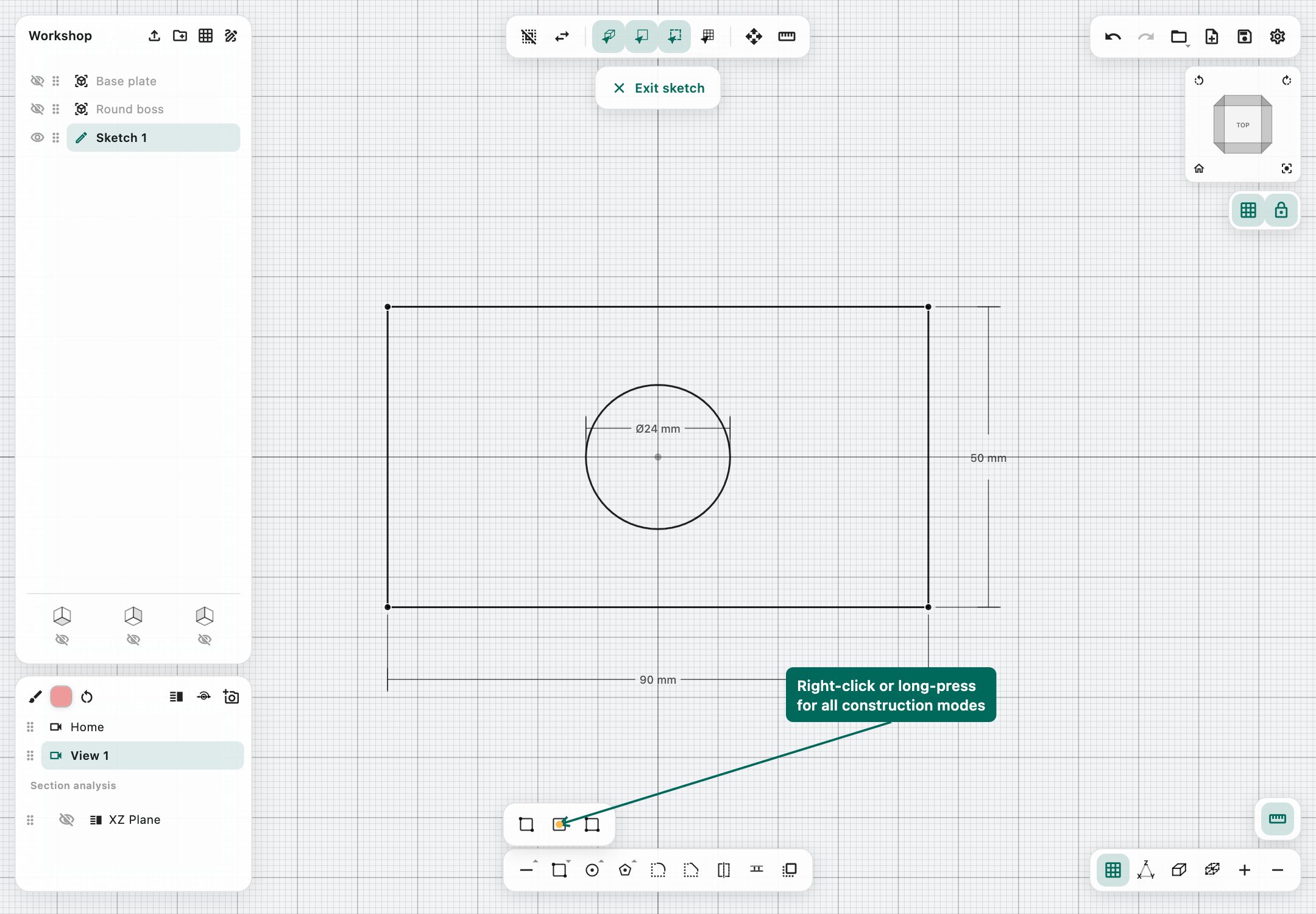
Centre rectangle
Open the rectangle family and choose Center rectangle. Place the centre, then set the extents. Use this for symmetric plates or frames positioned about an origin or a known point. Enter the displayed full dimensions, following the field labels, rather than assuming the cursor distance from the centre is the final width.
Three-point rectangle
Choose 3-point rectangle. The first two points establish one side and its direction; the third establishes the perpendicular width. This creates a rotated rectangle without rotating an already drawn axis-aligned rectangle.
Centre circle
Choose Center circle. Place its centre and enter the diameter, or place a point on the circumference. A second concentric circle can define an annulus for a tube extrusion.
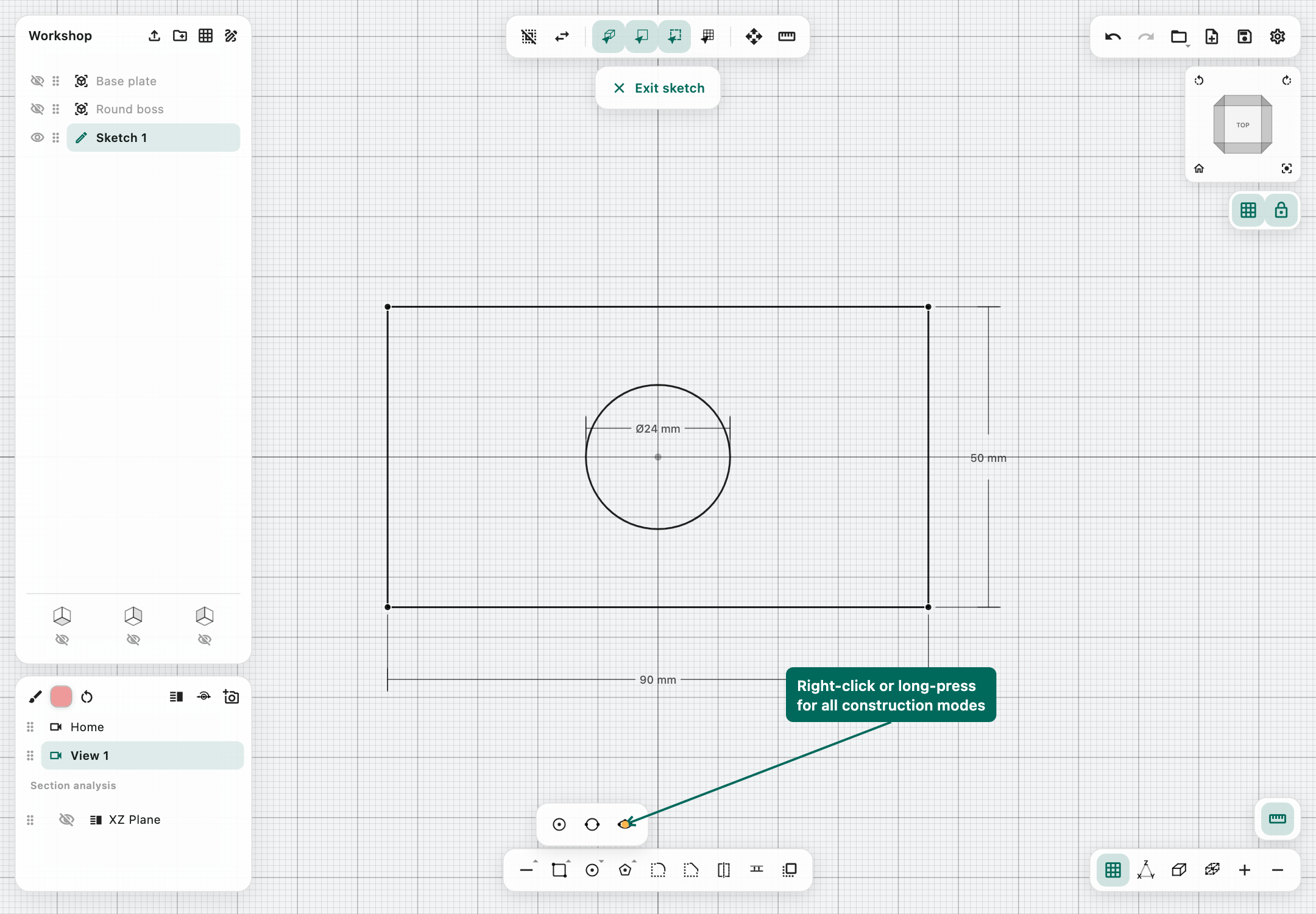
Two-point circle
Choose Two-point circle from the circle family. The two points are opposite ends of the diameter. This is useful when you know the circle's span but not its centre.
Three-point ellipse
Choose 3-point ellipse from the circle family. The first two points define the major-axis endpoints; a third rim point sets the minor axis. Use the live axis dimensions to control its proportions. This tool does not mean “a circle through any three points.”
Polygons
The polygon family exposes three constructions. Set the side count with its numeric and +/− controls; a polygon needs at least three sides.
- Center polygon: place the centre, then control its orientation and edge length. The displayed size is not automatically an across-flats dimension.
- Two-point polygon: the first two points define one edge; choose which side of that edge the regular polygon occupies and confirm.
- 3-point polygon: define an edge, then an independent width. This permits a stretched or compressed polygon rather than requiring a regular one.
For a hexagonal bolt head, a six-sided sketch or the six-sided Prism primitive is a useful starting point. Verify the across-flats measurement if that is the controlling design size.
Sketch chamfer
- Choose Chamfer in sketch mode.
- Click two edges that share a corner.
- Enter Distance, or drag the orange arrow.
- Apply.
The sketch chamfer uses equal setbacks. At a right-angle corner, that creates a 45° bevel. It changes the 2D outline; the 3D Chamfer tool changes edges on an existing solid and offers additional modes.
Sketch fillet
- Choose Fillet in sketch mode.
- Click two edges meeting at a corner.
- Set Radius or drag the purple arrow.
- Use Inverse fillet if the desired corner treatment is the opposite cut.
- Inspect the curve and Apply.
A radius must fit the neighbouring geometry. A large radius on short edges can consume or invalidate the corner; reduce it rather than repeatedly applying an impossible value.
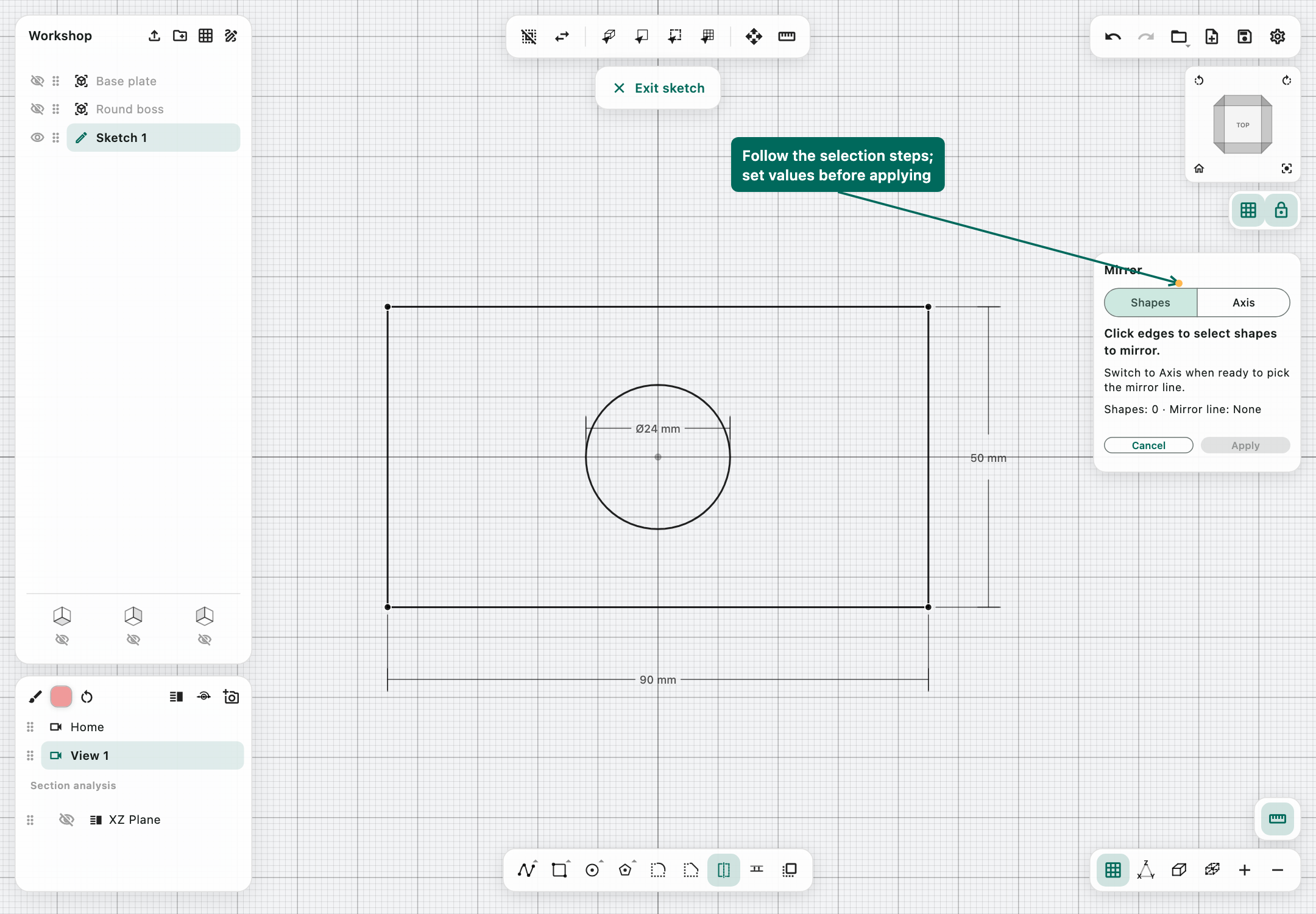
Sketch mirror
The panel separates the operation into Shapes and Axis.
- In Shapes, choose the geometry to mirror.
- Switch to Axis and pick the mirror line, or choose X = 0 or Y = 0.
- Inspect the ghost copies.
- Apply. The originals remain.
Here X = 0 is the line of zero local X coordinates, and Y = 0 is the line of zero local Y coordinates. These are sketch coordinates, not necessarily the same screen directions after orbiting.
Offset / Expand–Contract
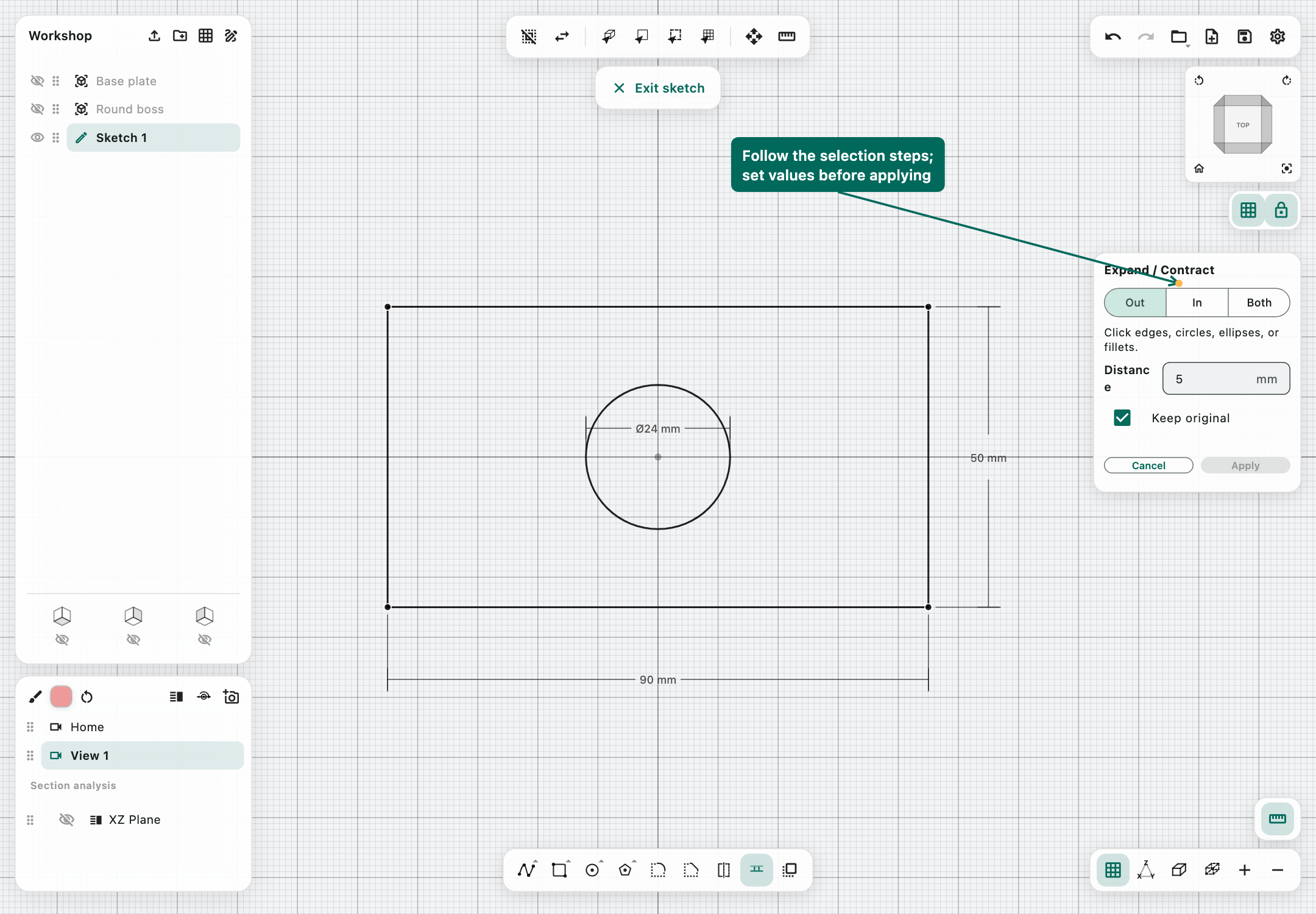
The offset tool moves selected sketch boundaries by a controlled distance. Choose Out, In, or Both, select edges, circles, ellipses, or fillet curves, and enter Distance. You can also drag its teal arrow.
Keep original retains the source geometry. It is useful for nested outlines such as a rectangular frame or a pipe cross-section. Turn it off when you want the offset to replace the selected geometry.
Offsets can fail when curves collapse, reverse, or intersect themselves. A 2 mm inward offset cannot always exist in a feature only 3 mm wide. Inspect all corners and resulting closed regions before extruding.
Project
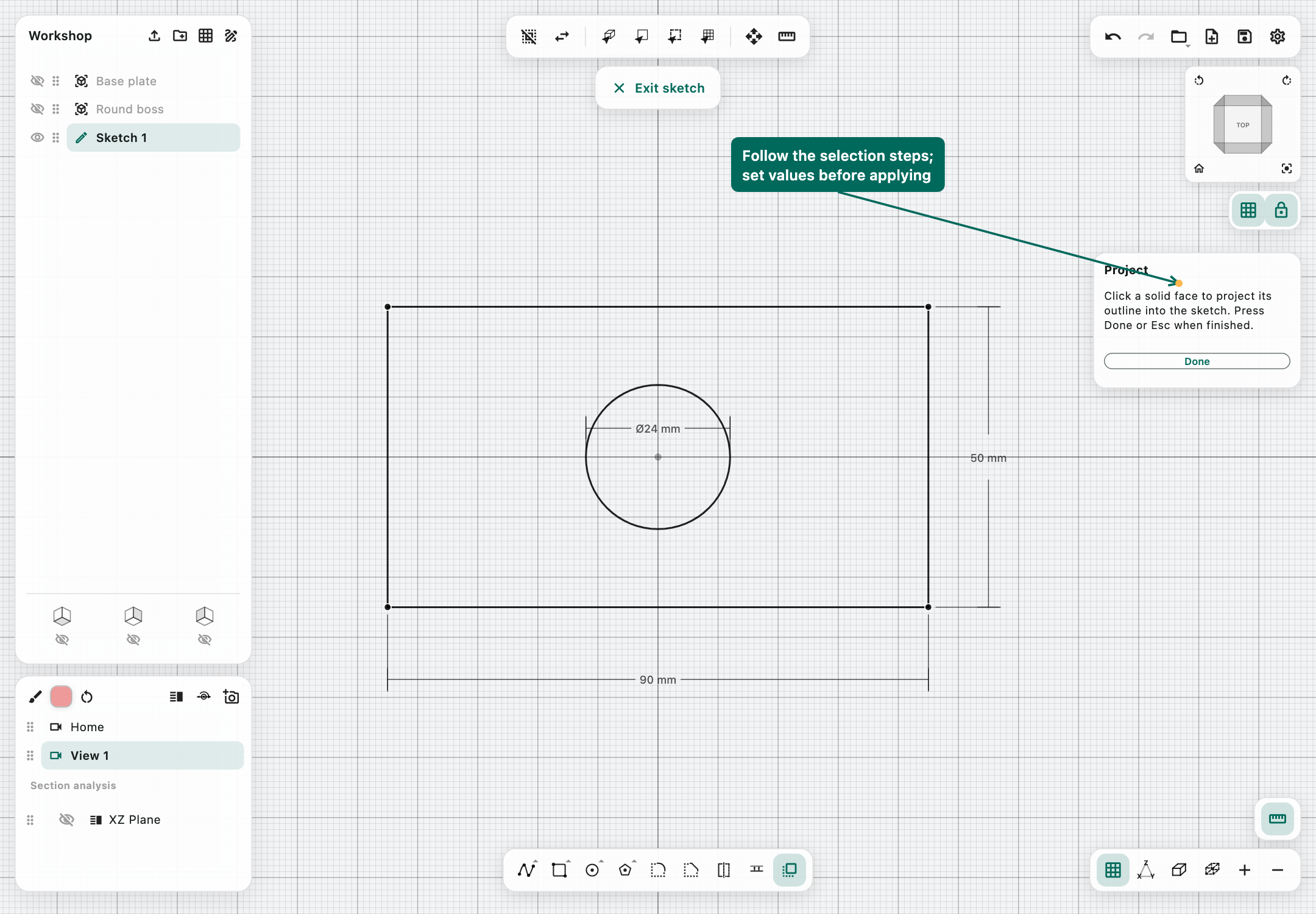
Project copies the outline of a selected solid face onto the active sketch plane.
- Edit the destination sketch.
- Keep the source body visible.
- Activate Project and click the source face.
- Inspect the resulting outline on the sketch plane.
- Use Done or Esc to leave the tool.
Projection is useful for matching a new cutout to an existing part. It creates sketch geometry; do not treat it as a live constraint that automatically follows all later edits to the source body.
Move sketch geometry
The main Move control adapts to sketch mode. Click a closed shape or connected lines, then drag the red/green arrows or enter local X/Y offsets. Use Preview to inspect the displacement, then Apply.
Moving geometry within a sketch is different from selecting the whole sketch in 3D and moving its placement. For a planar drawing edit, remain in sketch mode and use its local axes.
Resizing from a dimension
Measure can add persistent sketch labels. Where dimension editing is offered, selecting/editing a dimension starts a resize session. The highlighted point remains fixed; enter a value and confirm, or cancel to keep the previous size. This is direct geometry editing, not a general constraint solver with a fully constrained sketch state.
Additional registered sketch actions
The shortcut catalogue includes Polyline, Arc, and Rotate even though the main dock focuses on the shape families above. Assign a keyboard shortcut in Settings to access those registered actions when appropriate.
Polyline places successive connected points and finishes a chain. Arc uses start, through, and end points; three collinear points cannot define a valid circular arc. Rotate is an additional sketch action, but it rotates the sketch entities using a picked centre and a second point that determines the angle. It is not the main numeric Move/rotation panel, and is less developed than the primary sketch workflow. For controlled placement changes, prefer the main Move workflow on the whole sketch.
The registered Curve action is a legacy incomplete implementation that makes an offset polyline copy; it is not a production freeform-curve editor. Use Spline for editable curved outlines. These implementation limits are included here so the keyboard catalogue is not mistaken for a promise of a second complete drawing system.
Creating and modifying solids
The common tool workflow
Choose the appropriate tool and follow its selection prompt. Some tools use an existing selection immediately; others wait for one or more picks. Enter dimensions, inspect the preview when one is provided, then Apply.
During a geometry calculation, the panel may show progress/countdown and a cancel action. A lightweight outline or ghost preview is not always the final computed solid. In particular, Hollow has no live hollowed-solid preview. Wait for completion before judging the committed result.
An operation may produce several disconnected bodies. Those pieces appear as separate bodies when the operation's decomposition succeeds. A cavity inside one closed exterior is still part of that body, not an independent visible object.
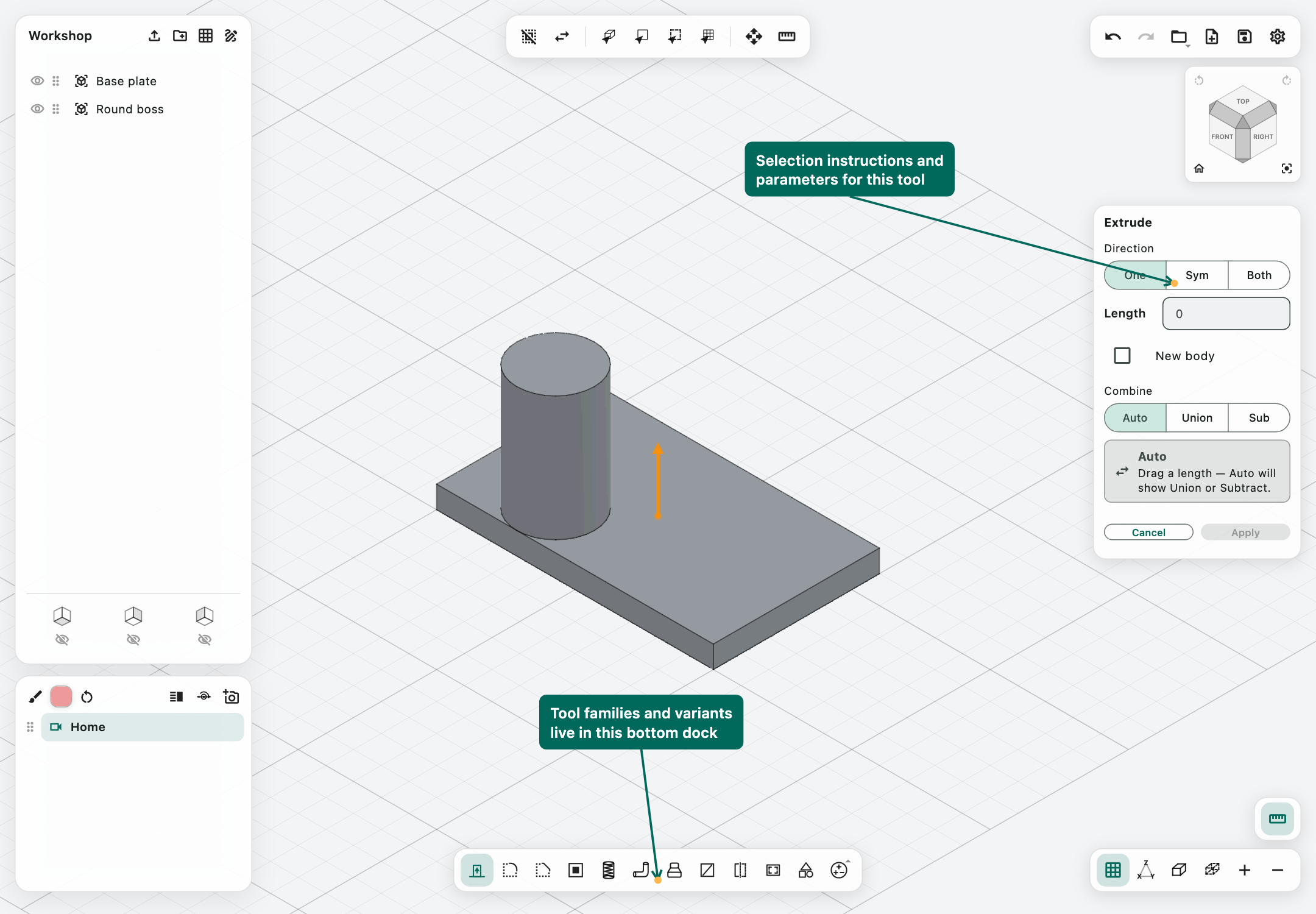
Extrude
Extrude gives depth to a closed sketch region or pushes/pulls a compatible planar face.
- Activate Extrude.
- Click a face or inside a closed sketch region. Shift-click adds/removes further regions from the same sketch.
- Set the extent mode and distance.
- Choose the result behaviour.
- Inspect the direction and affected material, then Apply.
Extent modes:
- One: one signed extrusion length.
- Sym: the entered Each side distance is applied on both sides. Entering 5 mm gives 10 mm total extent.
- Both: independent Side A and Side B distances.
Result choices:
- New body: creates separate extrusion geometry. For a face extrusion, the source body remains.
- Auto: resolves Union/Subtract from the extrusion interaction and shows a combine hint.
- Union: explicitly adds/combines material.
- Sub: explicitly subtracts material from the applicable target.
For a frame, click the narrow strip between its outer and inner boundaries, not inside the large empty centre. Zoom in when the material region is only a few screen pixels wide. Select the actual filled region around holes; the surrounding loop alone is not a complete description of the intended material.
A cut needs to pass into existing material. If Subtract has no useful overlap, check the arrow direction, length, placement, and selected body. Use explicit Sub when the intended result should not depend on Auto's inference.
Fillet
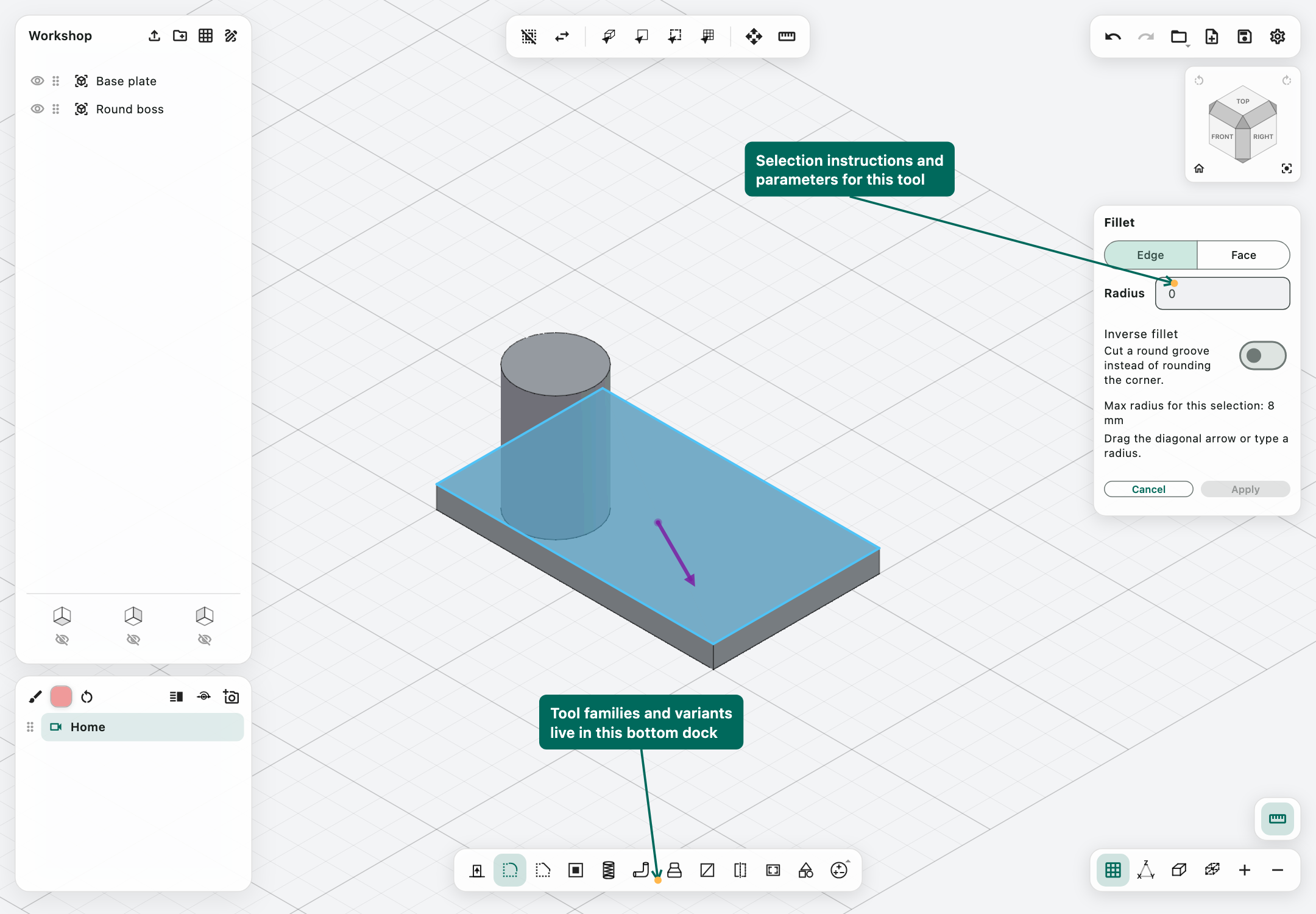
Fillet rounds selected solid edges or an applicable face boundary loop.
- Choose Fillet and select an edge, or use Face selection for a compatible face loop.
- Enter Radius, or drag the diagonal handle.
- Inspect the preview.
- Apply.
Inverse fillet makes the inverse round-groove treatment where supported. Multi-edge and whole-rim cases depend on compatible geometry, not merely the number of edges selected.
Use smaller radii near thin walls, holes, and closely spaced details. Apply major shape operations before small edge treatments when this simplifies the intersections. Not every arbitrary curved junction supports a fillet; see kernel limitations.
Chamfer
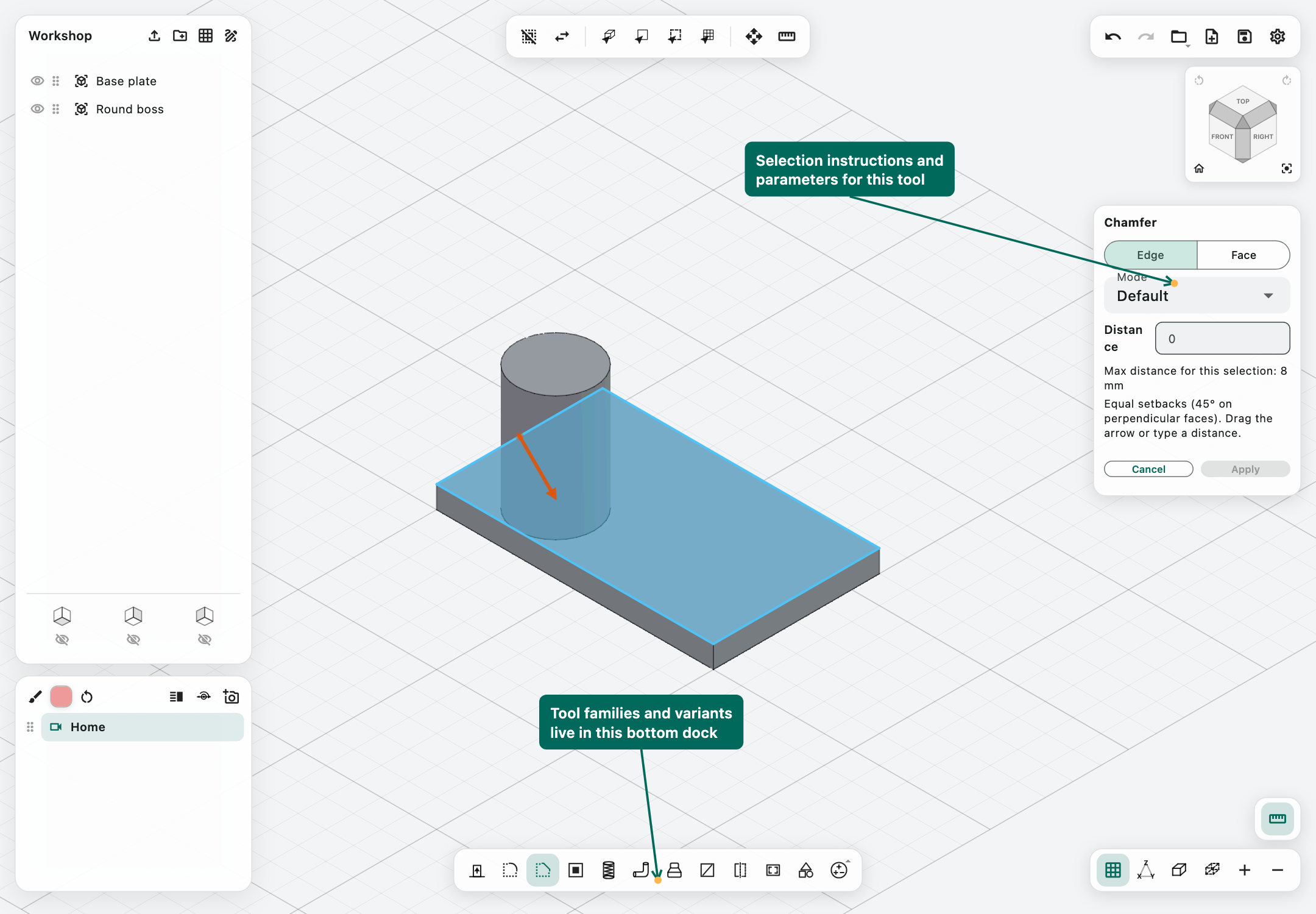
Chamfer replaces an edge with a bevel. Select an edge or compatible face loop, then choose a mode:
- Default: equal setbacks on the adjacent faces; for perpendicular faces, the bevel is 45°.
- 2 Distance: separate setbacks for the two incident faces, with numbered handles.
- Set Angle: a distance and an angle, with an arrow and angular control.
Use the preview to verify which incident face receives the first distance. For circular cap rims, the convention is cap first, wall second. Enter values that fit the remaining material, then Apply.
A mode change replaces the previous preview parameters. Do not interpret an old visible shape as a successful new calculation if the panel reports an error.
Hollow
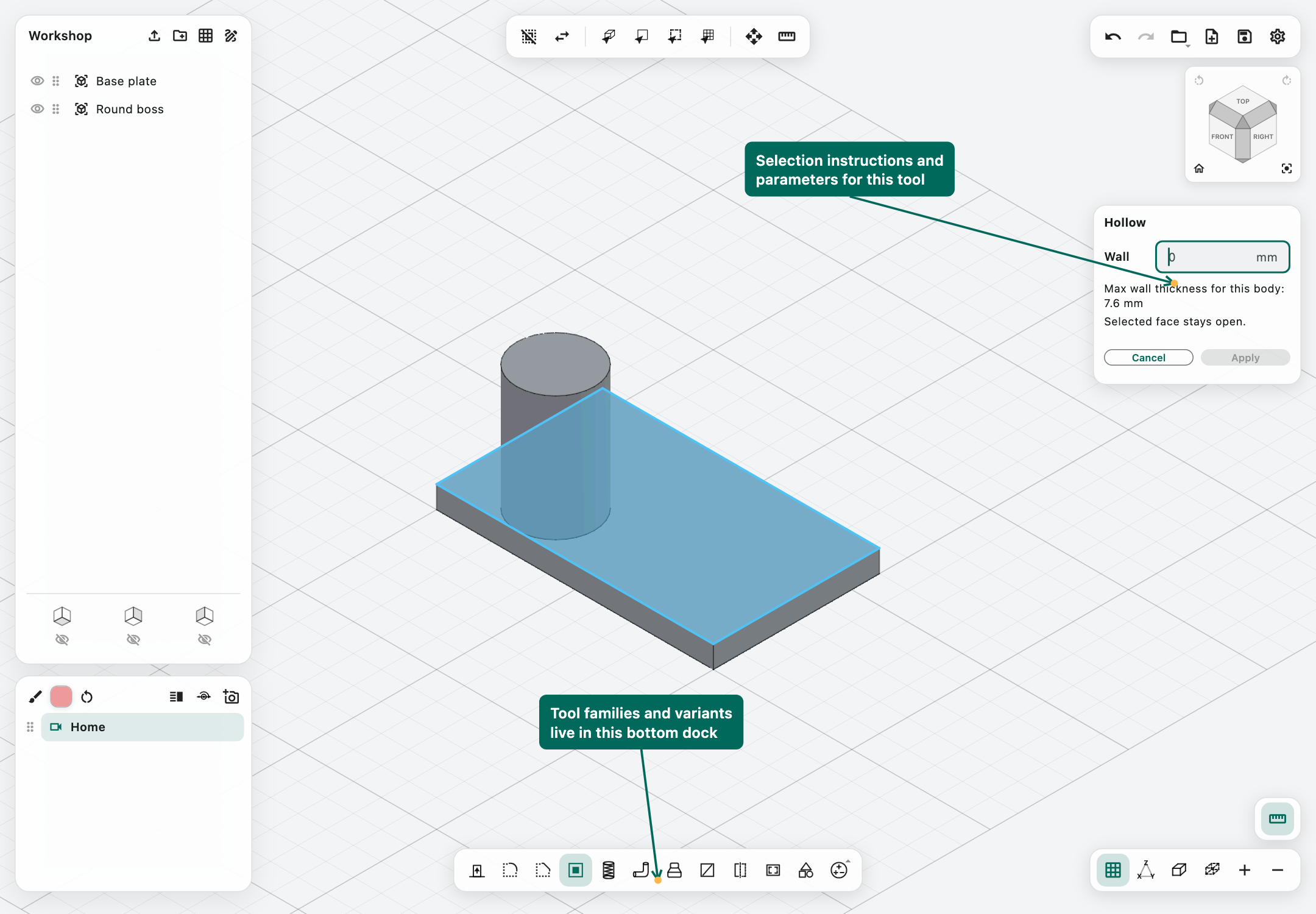
Hollow removes the interior of a compatible solid while leaving walls and opening the selected face.
- Activate Hollow and select exactly the face to open.
- Enter a positive Wall thickness.
- Check the selected face highlight and displayed maximum thickness.
- Apply and wait for the calculation.
The selected opening face remains highlighted during setup. There is no live hollowed-solid preview in this tool; the result appears after Apply succeeds. The displayed thickness limit is a useful bound, not proof that every offset within it is supported on a complicated shape.
For a small box, try 1 mm initially, then inspect it with a section analysis. If an offset would collapse a wall or create unsupported self-intersections, the tool can reject it while retaining the source.
Threads
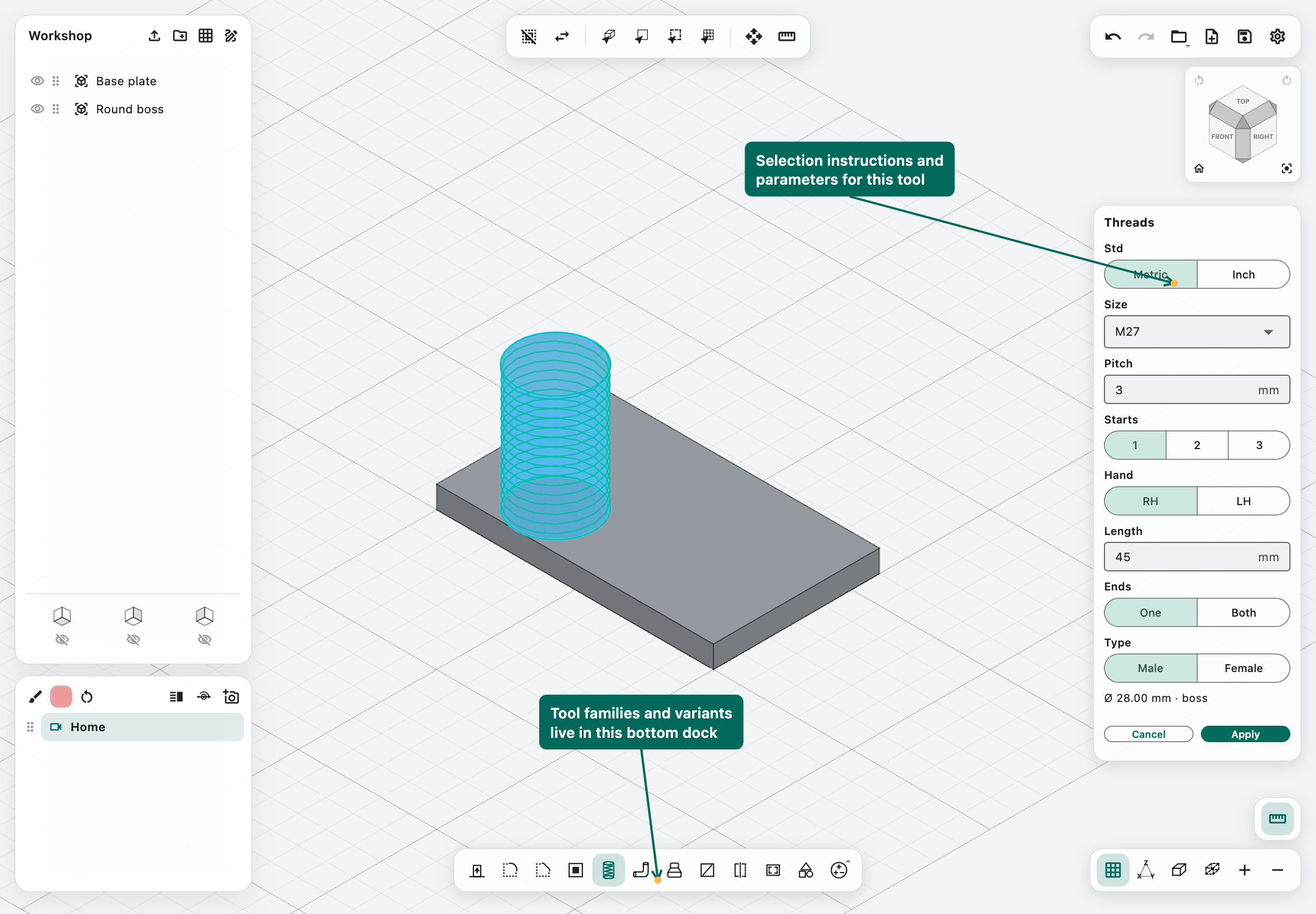
Threads creates geometric male or female threads on a recognized cylindrical wall. Click the outside wall of a shaft for an external thread, or the inside wall of a hole for an internal thread. A flat cylinder cap is not the thread surface.
The panel provides:
- Std: Metric or Inch.
- Size: a standard size from the supplied coarse-thread lists.
- Pitch: axial spacing in millimetres for metric input.
- TPI: threads per inch for inch input.
- Starts: one, two, or three thread starts.
- Hand: RH or LH.
- Length: threaded axial extent.
- Ends: One or Both.
- Type: Male or Female.
The detected diameter and boss/hole status are shown below the controls. PaliCAD chooses an initial nearby standard; verify it rather than assuming a randomly sized cylinder is already the correct nominal size. Internal threads need a suitable bore size for the selected standard.
Inspect the end selection and preview, then Apply. A thread is real geometry and can be much more complex than the smooth cylinder it replaces. More turns and starts increase work and memory use.
If no compatible wall is selected, the panel displays “No compatible surface selected”. Select a cylindrical wall to continue; this is normal selection guidance rather than a modelling failure.
Thread dimensions describe geometric profiles. Manufacturing clearance, printing allowance, and tolerance class remain design decisions. The current app panel does not expose the kernel's taper or gradual-runout parameters.
Pipe
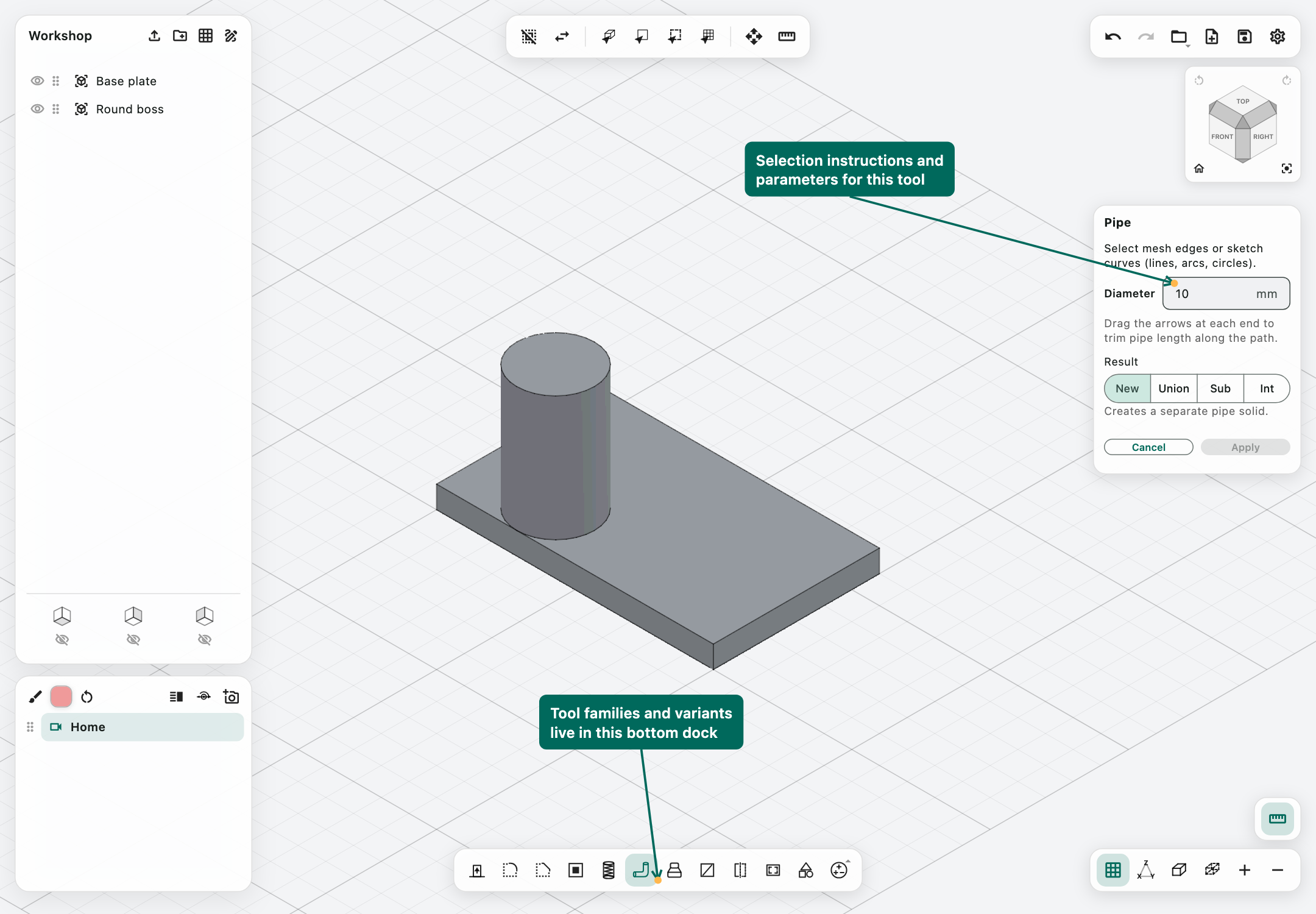
Pipe sweeps a circular section along selected mesh edges or sketch curves, including supported lines, arcs, and circles.
- Activate Pipe and select the path segments.
- Set Diameter.
- Drag the arrows at the path ends if you need to trim the swept length.
- Choose the Result mode and Apply.
New creates an independent body. Union, Sub, and Int combine the swept body with selected solids; without a specific selected target, the tool can use intersecting visible solids. Keep originals preserves inputs for the combine workflow.
The current PaliCAD panel exposes a diameter, not separate inside/outside diameters or a tube-wall field. The kernel's hollow-tube capability should not be mistaken for an extra control in this panel. For a tube-like part, use an appropriate annular extrusion or another supported hollowing/subtraction workflow.
Disconnected, reversing, sharply singular, or overly tight paths can fail. The swept section must fit around the path without invalid geometry.
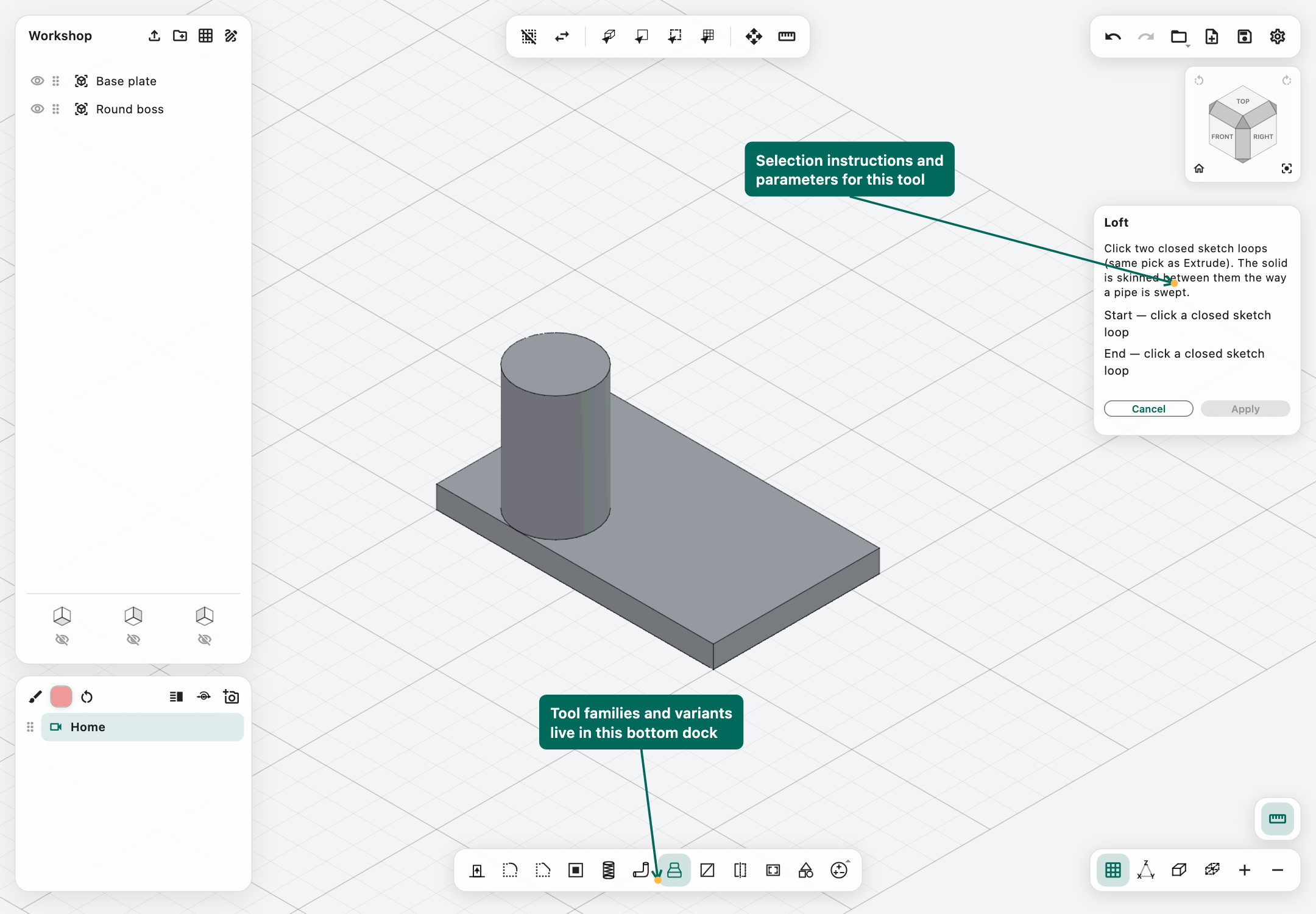
Loft
Loft creates a solid between two closed sketch regions.
- Prepare two sketches on separated, parallel planes.
- Activate Loft and click the first closed region.
- Click the second closed region.
- Verify the Start and End entries, including any holes.
- Apply.
Use corresponding outlines with sensible vertex/curve correspondence. A circle-to-circle loft of differing size can make a tapered transition; compatible polygonal sections produce ruled walls. Supported two-section cases can include paired holes.
The current app picks two sections. It is not a general multi-section, guide-rail, or arbitrary nonparallel loft editor. Mismatched topology, singular transitions, or unsupported correspondences can reject the operation.
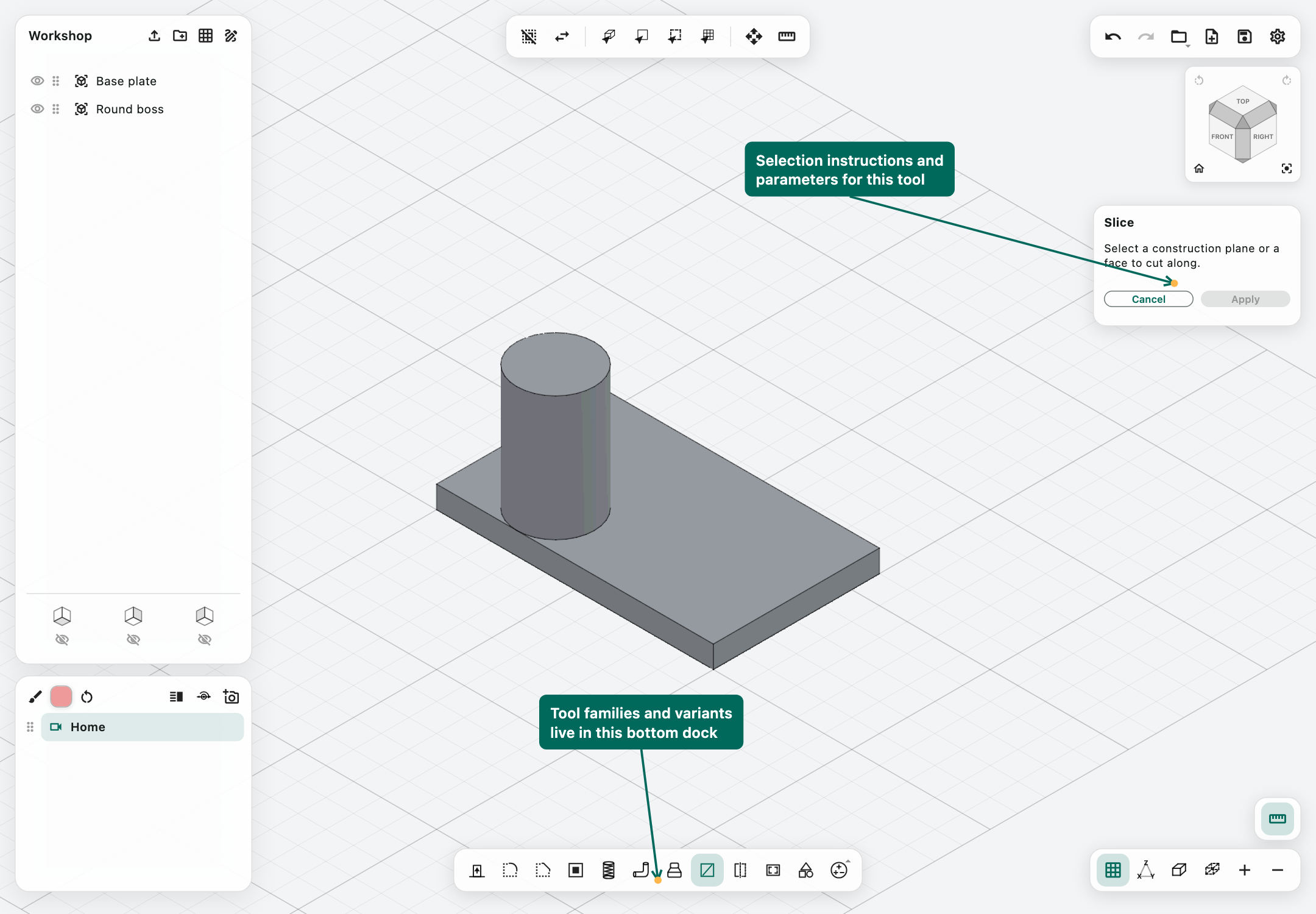
Split / Slice
The Split tool cuts a solid along a plane or suitable planar face and creates separate solid pieces.
- Activate Split.
- Select the cutting construction plane or face.
- Select the body to cut, following the panel's current prompt.
- Apply.
- Inspect and rename the resulting bodies in the browser.
The plane must intersect the body meaningfully. A face merely touching the exterior might not divide any volume. This operation changes geometry, unlike section analysis.
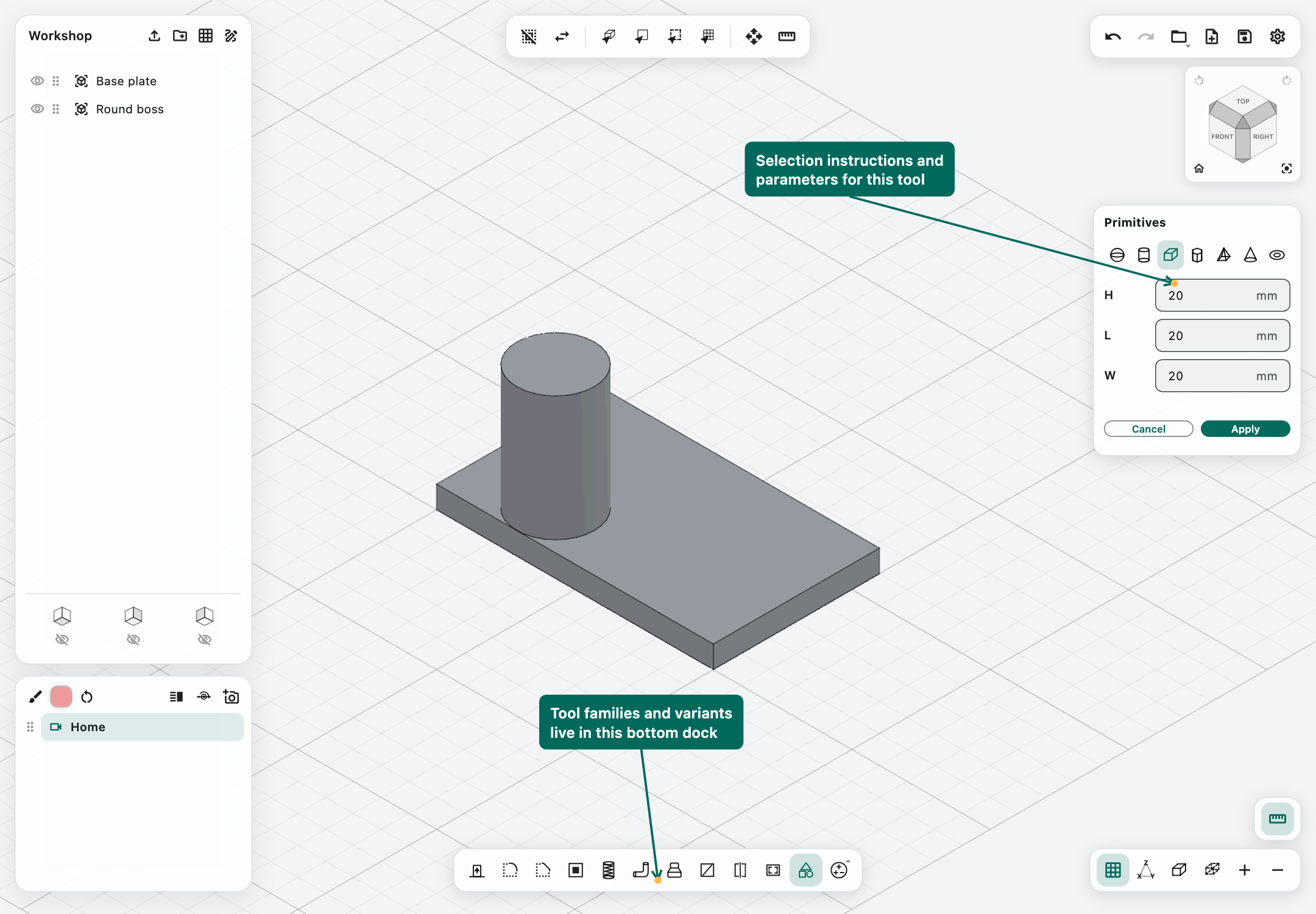
Primitives
Primitives creates simple starting solids without a sketch. Choose a shape in its panel, fill the relevant dimensions, then Apply. Use Move to place the result precisely.
- Sphere: diameter.
- Cylinder: diameter and height.
- Box: length, width, and height.
- Prism: polygon side count, diameter, and height.
- Pyramid: side count, diameter, and height.
- Cone: diameter and height.
- Donut / torus: outer diameter and tube diameter.
Dimensions must describe nondegenerate geometry. A torus's tube must fit its outer size; a prism/pyramid needs at least three sides. Use Measure to verify dimensions such as across-flats sizes that are not directly represented by the primitive's diameter field.
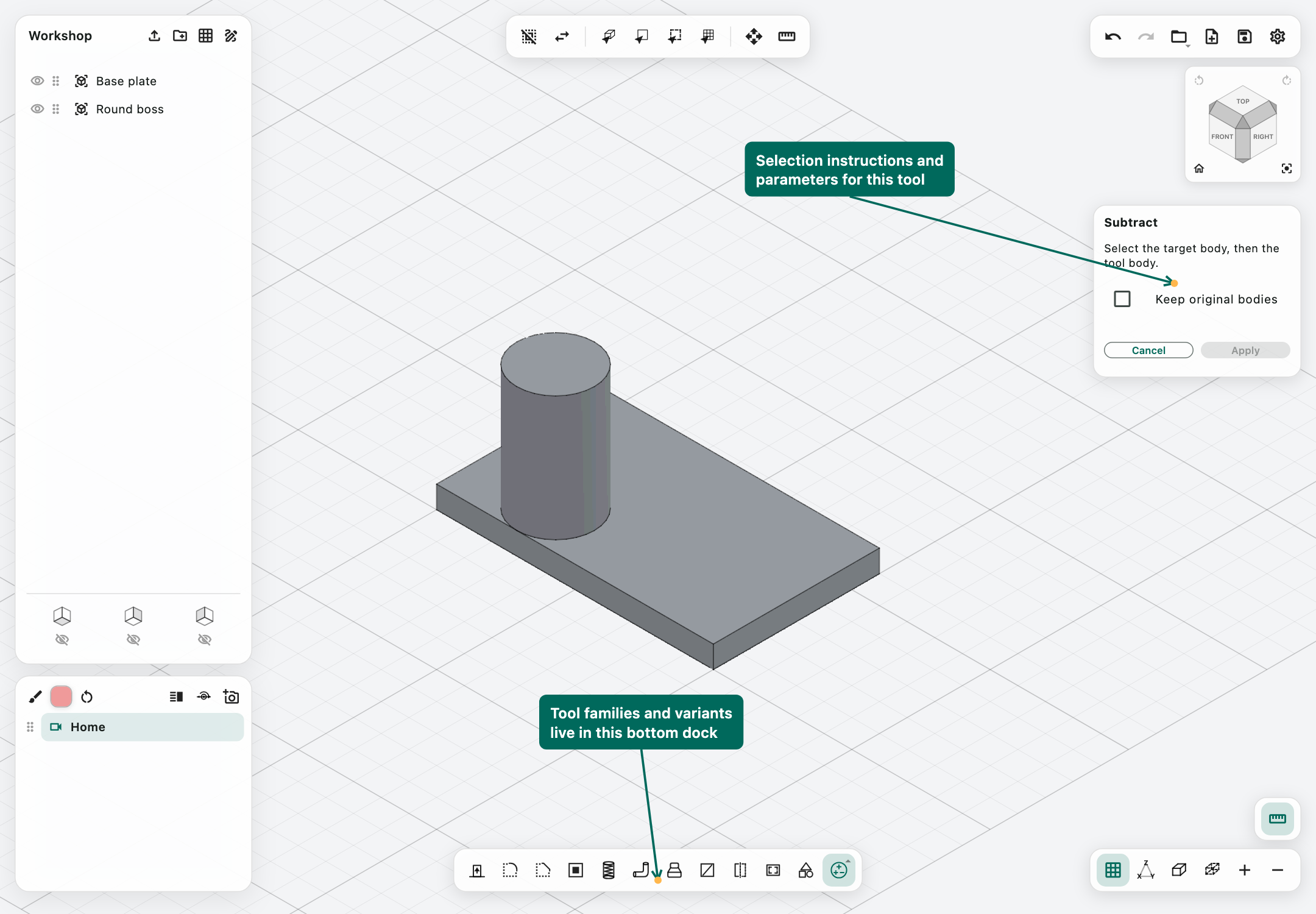
Union, Subtract, and Intersect
Open the Boolean tool family's secondary menu to choose the operation. These tools combine bodies, not merely their screen outlines.
Union retains the volume occupied by either body. It is useful for joining a boss to a plate. Truly disjoint material may remain multiple bodies; touching at only a point or edge is not a robust shared volume.
Subtract removes the tool body's volume from the target. Selection order matters: choose the target first, then the tool body. To bore a block, the block is the target and the cylinder is the tool. The opposite order asks a different question and may leave nothing.
Intersect retains only the overlapping volume. No overlap means there is no common solid to keep.
For all three:
- Activate the desired operation.
- Select Target, then Tool, and read the names shown in the panel.
- Set Keep original bodies if you need to retain the inputs.
- Inspect the intended overlap and Apply.
Keep originals is useful for reusable cutters and experiments, but retained objects can hide the visual effect of a result. Hide originals after applying if they occupy the same space.
Native BREP operations retain BREP when supported. Mixed BREP/mesh inputs may require an explicit conversion decision; do not assume that mesh conversion is lossless CAD editing. Complex thread/spline interactions can still fail despite both individual bodies being valid.
Move, scale, and mirror
Move and rotate in 3D
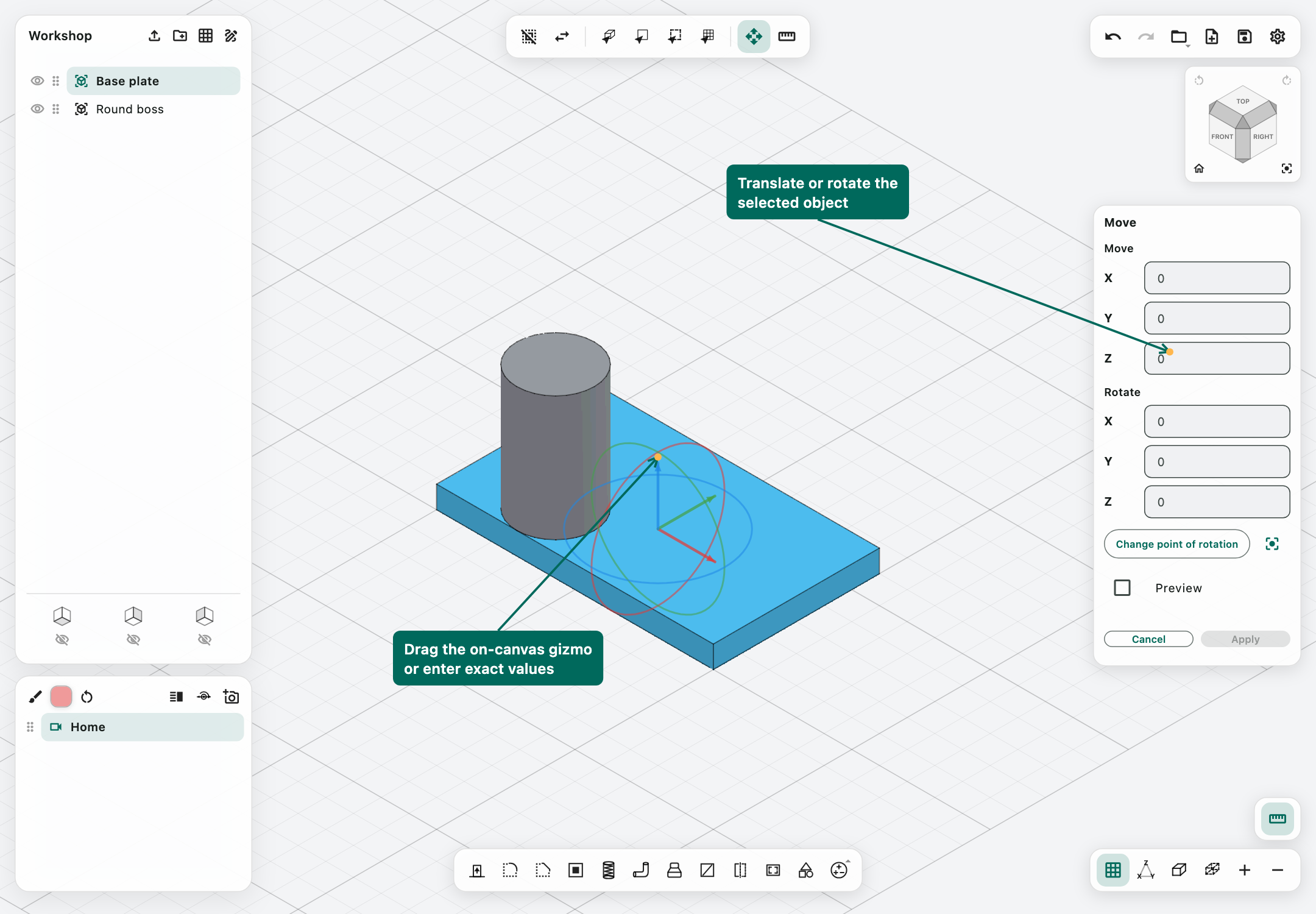
Select a solid body or user construction plane, then choose Move. Multiple compatible selections can be transformed together.
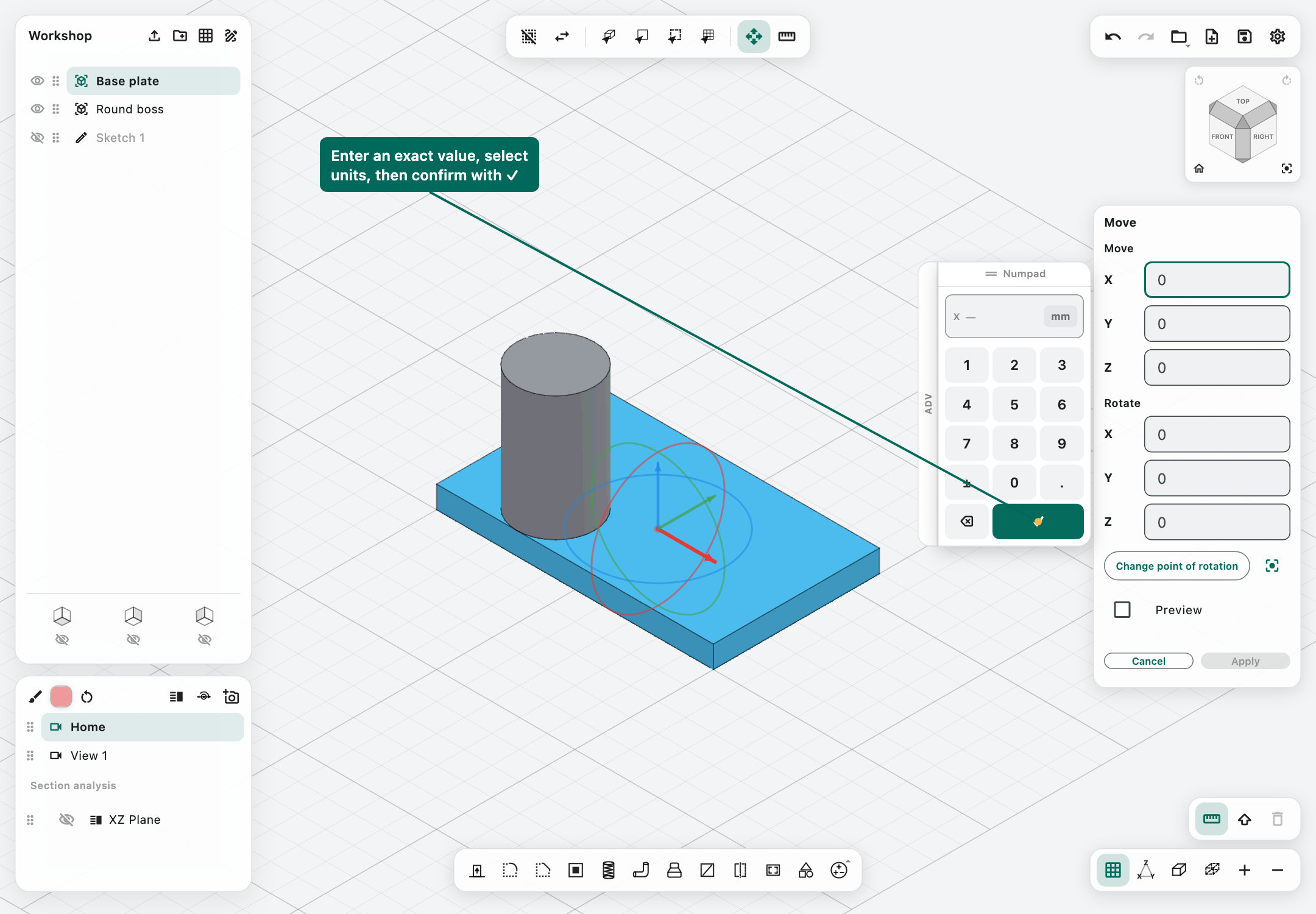
The panel separates Move X/Y/Z from Rotate X/Y/Z. Translation fields are lengths; rotation fields are angles. Drag the on-canvas arrows and rotation controls for visual positioning, or enter values for precision. Preview displays the pending transformation; Apply commits it.
Choose Change point of rotation to edit the pivot. Drag its arrows or enter offsets from the object centre. This moves the rotation reference, not the object itself. Reset point of rotation returns to the default pivot. Return to the main Move fields before entering the final rotation.
Hold Shift, or enable Shift lock on touch devices, to use the configured movement/rotation snapping increments. If a tool panel is open, check whether a numeric confirmation also applies the operation before pressing Apply again.
Scale
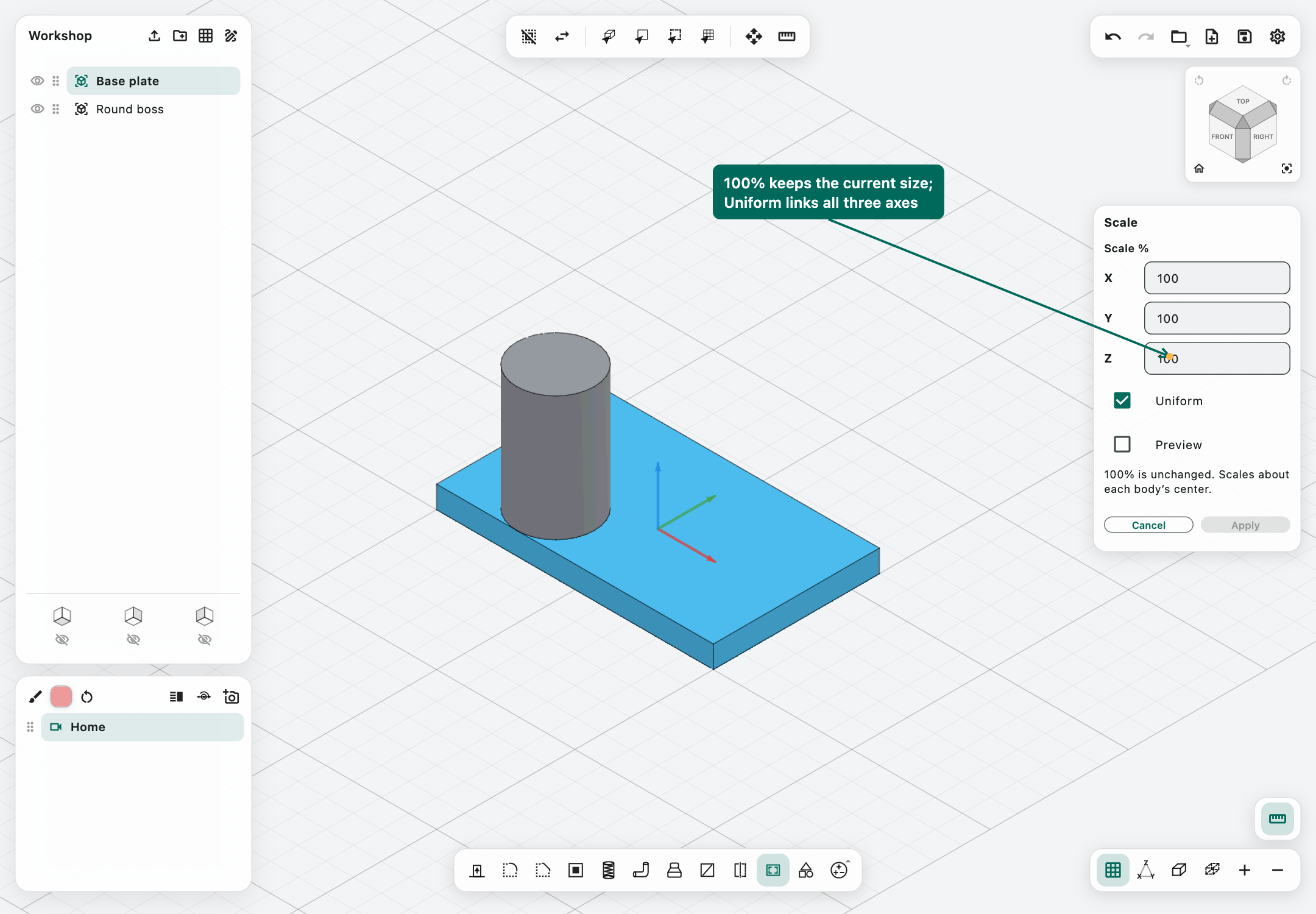
Select one or more solid bodies, activate Scale, and enter percentages for X, Y, and Z.
- 100%: unchanged size.
- 200%: twice the size along that axis.
- 50%: half the size along that axis.
- Uniform: links the axes so proportions stay the same.
- Preview: shows the pending scale before Apply.
Scaling is based on the selected bodies' local geometry and centres. It is not a command to automatically increase every gap in an assembly around a shared global origin. Inspect the resulting placement when scaling several bodies.
Supported nonsingular affine scaling retains native BREP, including transformed curved surfaces. A nonuniformly scaled cylinder may become elliptic and no longer be a compatible target for a cylindrical Threads operation. Preserving BREP does not mean all later tools interpret a transformed surface as its original primitive.
Mirror bodies
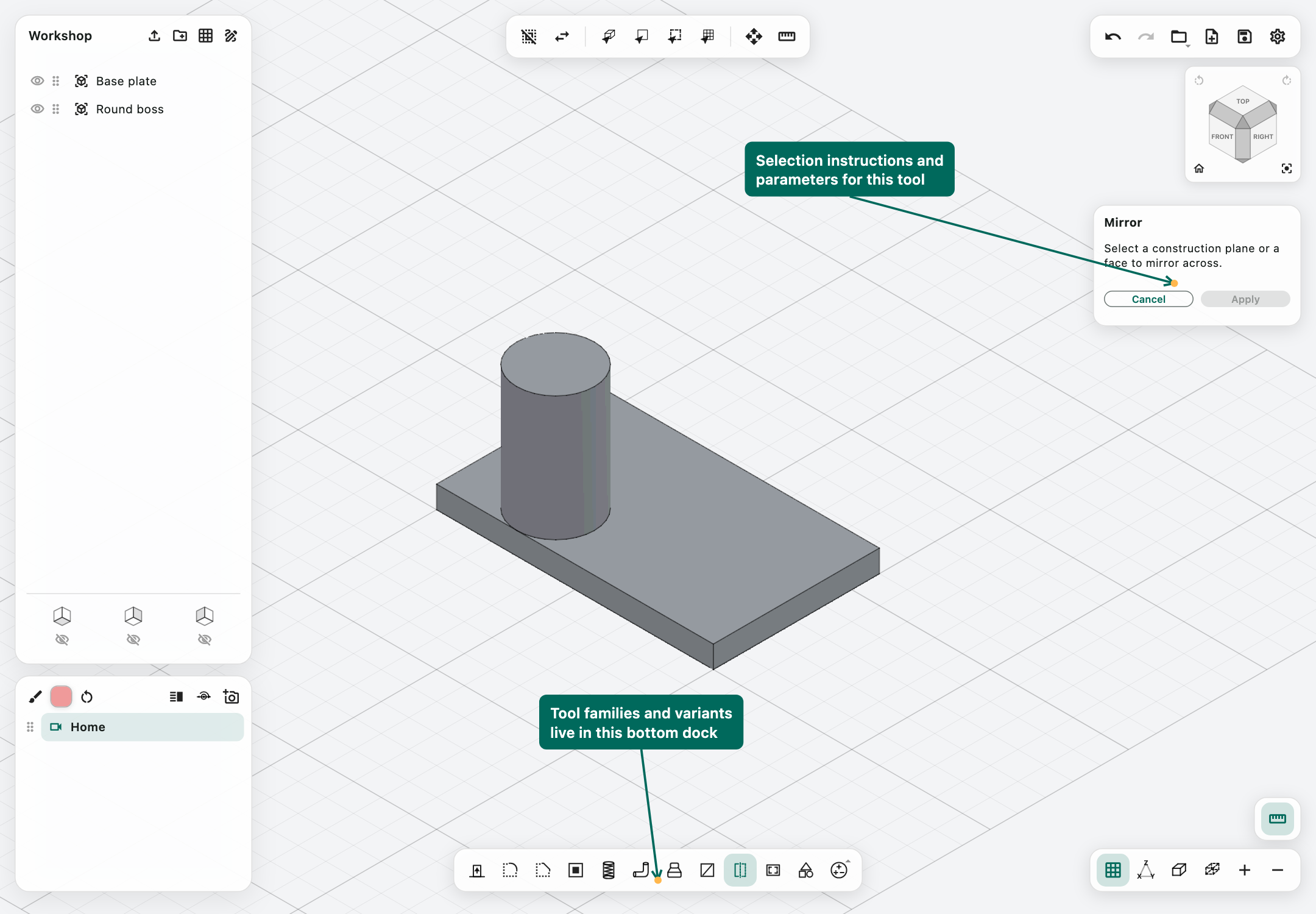
Activate Mirror, choose a construction plane or suitable planar face, and select the bodies to reflect. The panel reports the mirror plane and body count. Inspect the ghost copies and Apply.
Mirror creates new bodies and retains the originals. It does not automatically join the copies to the source. Use a separate Union when the reflected parts form a supported connected solid.
Measure and dimensions
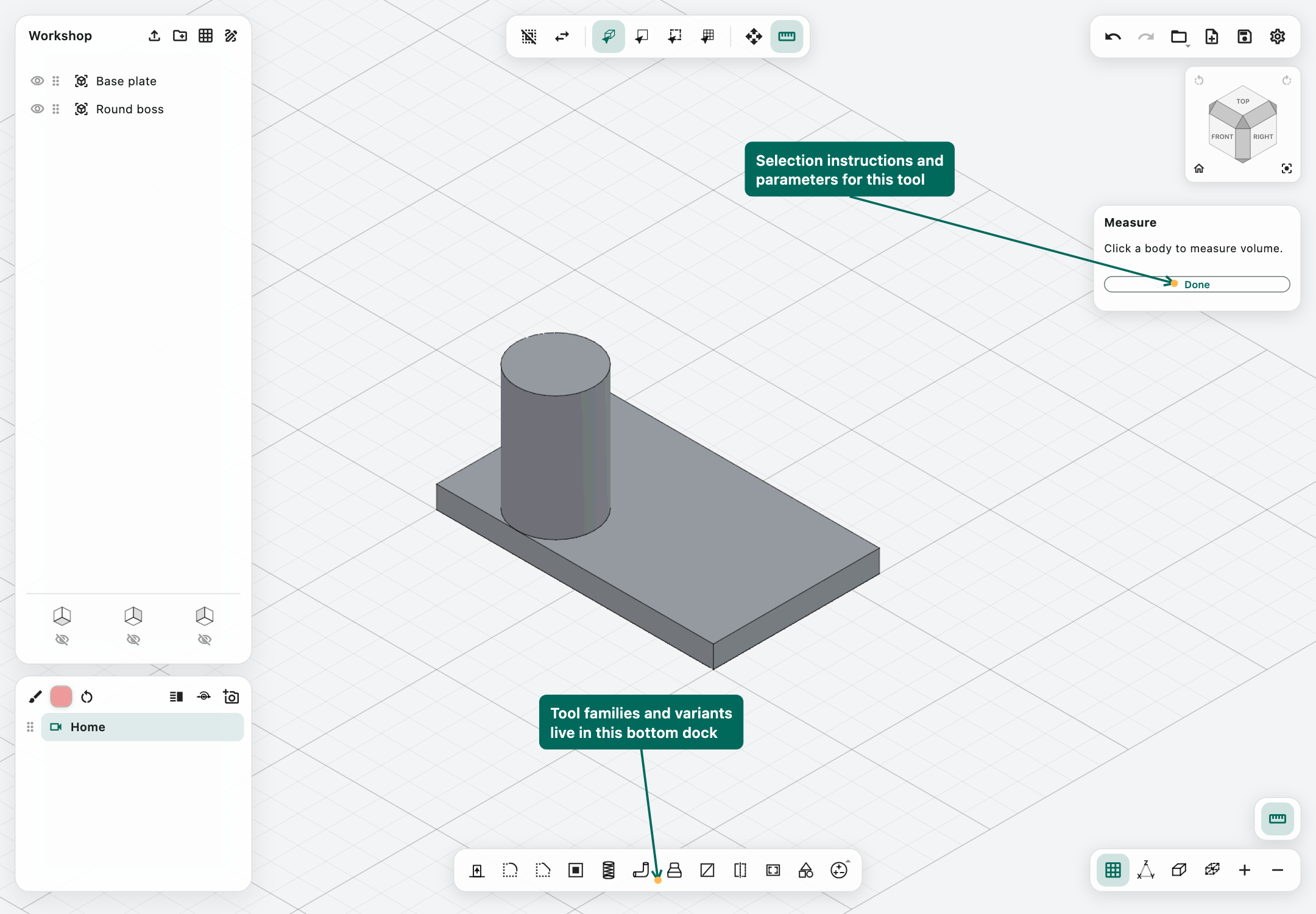
The Measure/Ruler tool reports information appropriate to the current selection. It does not require you to modify the model.
In 3D, choose the appropriate object, face, or edge selection and inspect the panel:
- Edges report lengths; multiple edges can report a total.
- Faces report area; multiple faces can report a total.
- Bodies report volume, surface area, and mesh vertex/face counts; multiple bodies can report a combined volume.
In a sketch, click an edge, two vertices, or a closed region. A circular edge reports circumference plus radius/diameter/area details. Two vertices report distance and coordinate differences. A closed region's area subtracts its holes.
When available, use Add measurement to sketch, Add diameter to sketch, or the relevant ellipse-width action to create a persistent annotation. Drag its label to a clearer position. Select it to remove or update it. Clear all measurements removes the annotations after confirmation; it does not delete the sketch geometry.
Measurements use the geometry available to the app. Curved or trimmed regions may use numerical integration or tessellation-derived values. Printed precision is not a guarantee of manufacturing accuracy or an exact symbolic result.
Paint and transparency
The brush and colour swatch are in the Views widget header.
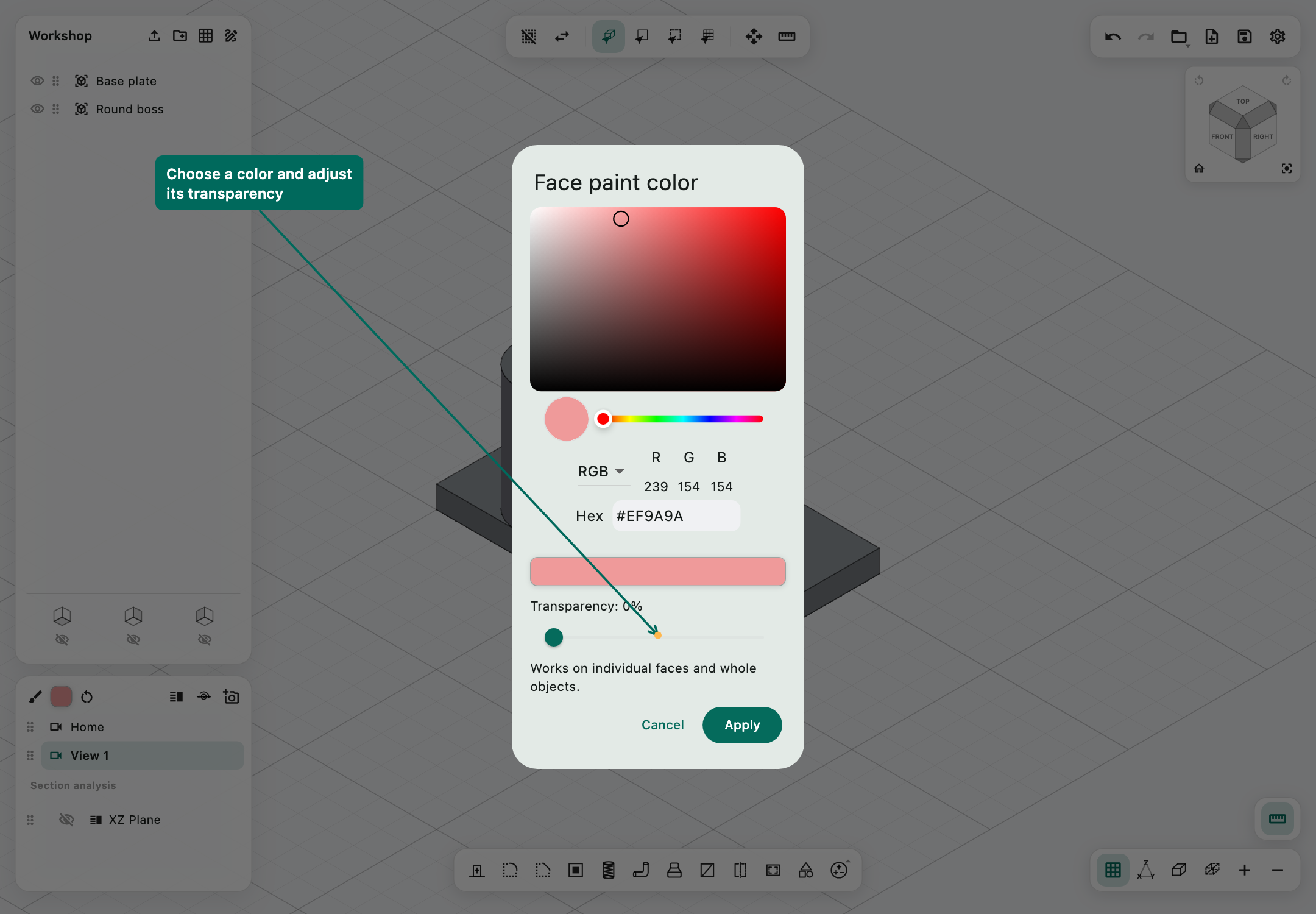
- Click the colour swatch to open Face paint color.
- Choose a colour using the palette, hue control, numeric values, or hex input.
- Set Transparency if desired, then Apply the colour choice.
- Activate the Paint faces brush.
- Click a face to paint it. Shift-click paints the whole object; use Shift lock for that action on iPad.
- Turn off the brush when finished. Activating a modelling tool also exits paint mode.
Transparency works on individual faces and whole objects. A value of 0% is opaque; 100% is fully transparent. Intermediate values are useful for windows, guards, or seeing components inside a housing.
Painting one face of a closed solid does not automatically make all the material behind it transparent. For a glass panel represented by a whole body, paint the entire object if you want consistent transparency from every side.
The picker remembers up to five recent paint colours in the project. Reset all face colors asks for confirmation and removes custom painting, returning to the default object appearance.
Paint changes appearance, not wall thickness, mass, or collision geometry. X-ray is a separate viewport display mode. Native .pali saves preserve painting; STL does not store colours, and an interchange format should not be assumed to preserve every appearance feature.
Saved views, sections, and joints
Saved camera views
Arrange the camera, then choose Save current view in the Views widget. The new entry records the camera composition so you can return to it later. Name views by purpose, such as Front mounting face, Underside, or Assembly overview.
Click a view to recall it. Its context menu provides applicable Rename, Duplicate, and Delete actions. Reorder entries with their handles. Home is a special default view and has different menu restrictions from ordinary saved views.
A saved view changes how you look at the model. It does not copy the model, and it is not a saved alternate geometry configuration.
Section analysis
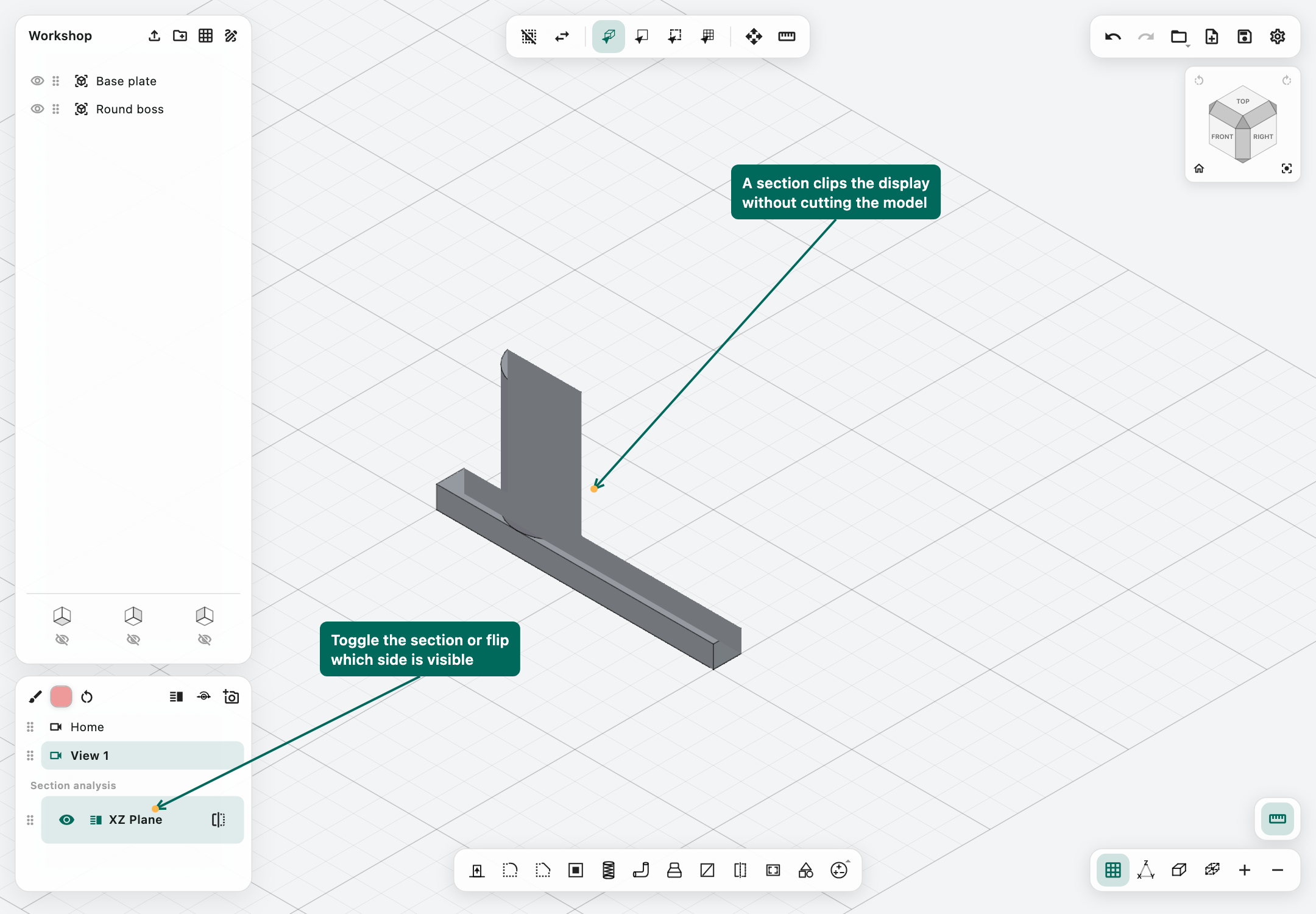
Section analysis clips the displayed model to reveal its interior without removing geometry.
- Select a construction plane, or choose Create section analysis and pick a plane when prompted.
- Find the new entry under Section analysis in the Views widget.
- Enable it with its toggle.
- Use Flip section to show the opposite side.
- Disable it to restore the complete display.
A construction-plane context menu also offers Create section analysis. Move the reference plane when you need a different cut position. The section entry refers to that plane; changing the plane changes the inspection reference.
Use this to inspect a bore, wall thickness, or overlap before exporting. To physically divide the body, use Split, not section analysis. Turning a section on does not change the exported solid's underlying shape.
Joints
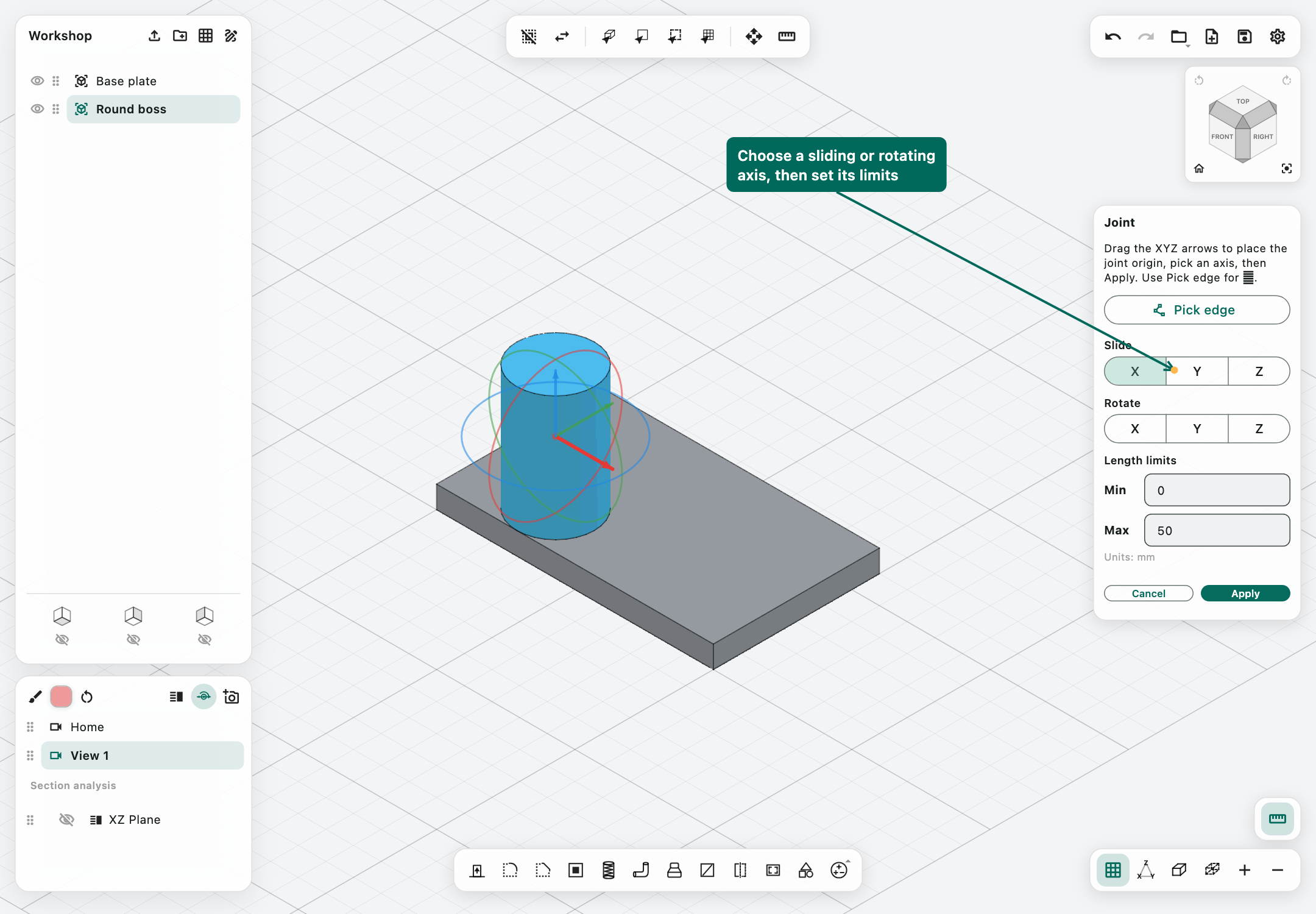
Joints provide a controlled sliding or rotating motion for selected bodies or a browser folder's bodies. They are useful for manually exploring a part's travel or an assembly pose.
- Select the object(s) or folder to move.
- Choose Create joint in the Views widget.
- Drag the XYZ arrows to place the joint origin.
- Choose one axis under Slide or Rotate.
- Optionally use Pick edge to define an axis parallel (∥) to a selected edge.
- Enter the movement limits and Apply.
A sliding/prismatic joint uses a length along its axis. A rotating/revolute joint uses an angle around its axis. These are alternative joint types; selecting an axis under Rotate does not add a second simultaneous degree of freedom to a sliding joint.
The created joint appears under Joints in the Views widget. Use its enabled state and value/drag controls to explore motion. Open Slide position or Rotation angle for exact entry, and its context menu's Length limits or Angle limits to adjust allowed travel. Delete the joint when no longer needed.
This is not a complete assembly constraint solver, contact/collision simulator, load analysis, or automatic animation system. Check the geometry yourself: a permitted joint value does not certify that the moving parts avoid collisions.
iPad, Apple Pencil, and touchscreen controls
Finger and Pencil input
Finger tapping is enabled by default; Pencil is optional. Both can activate ordinary app controls and selections. A Pencil drag in navigable 3D model space can orbit the camera, while active tool handles still receive their intended manipulation gestures.
Use two fingers for pan/pinch navigation. In sketch mode, follow the point-placement confirmation controls rather than expecting every drag to orbit. The sketch view lock determines whether the view is held on its plane.
Settings → General → Draw sketch with touch controls whether fingers may place sketch drawing geometry on native iPad. With it off, Pencil is used for those drawing tools; ordinary touch controls and navigation are still available. Turning it off is not a requirement for using Pencil.
A mouse or trackpad connected to iPad uses desktop-style pointer bindings. This can feel different from a finger gesture on the same screen.
Touch numpad and Shift lock
Touch-friendly numeric fields open the app's dimension numpad. Enter exact values, select the unit, and confirm with ✓; cancel to abandon the current numeric interaction. The visible field label identifies whether the value is a length, angle, percentage, pitch, or another quantity.
Shift lock acts like holding a keyboard Shift key for multi-selection, snapping, and whole-object painting. Turn it off after the action if later taps behave additively or unexpectedly.
Long-press applicable browser entries for context menus. Long-press tool-family icons for variants. A long-press is a context action, not a double tap.
Desktop touchscreen mode and window sizes
On desktop, Touchscreen mode enables the app's touch-oriented input controls. Desktop drawing retains click-to-place; the park-and-confirm point workflow is specific to native iPad. Native iPad already uses its touch interface, so it shows Draw sketch with touch instead of requiring that desktop switch.
The workspace uses the same browser and tool layout at smaller sizes, with centre toolbars wrapping into additional rows. iPadOS controls the actual range of window sizes and multitasking arrangements. Widen the window when a large tool panel and the model need more simultaneous space; portrait and landscape can expose different amounts of working area.
Settings and preferences
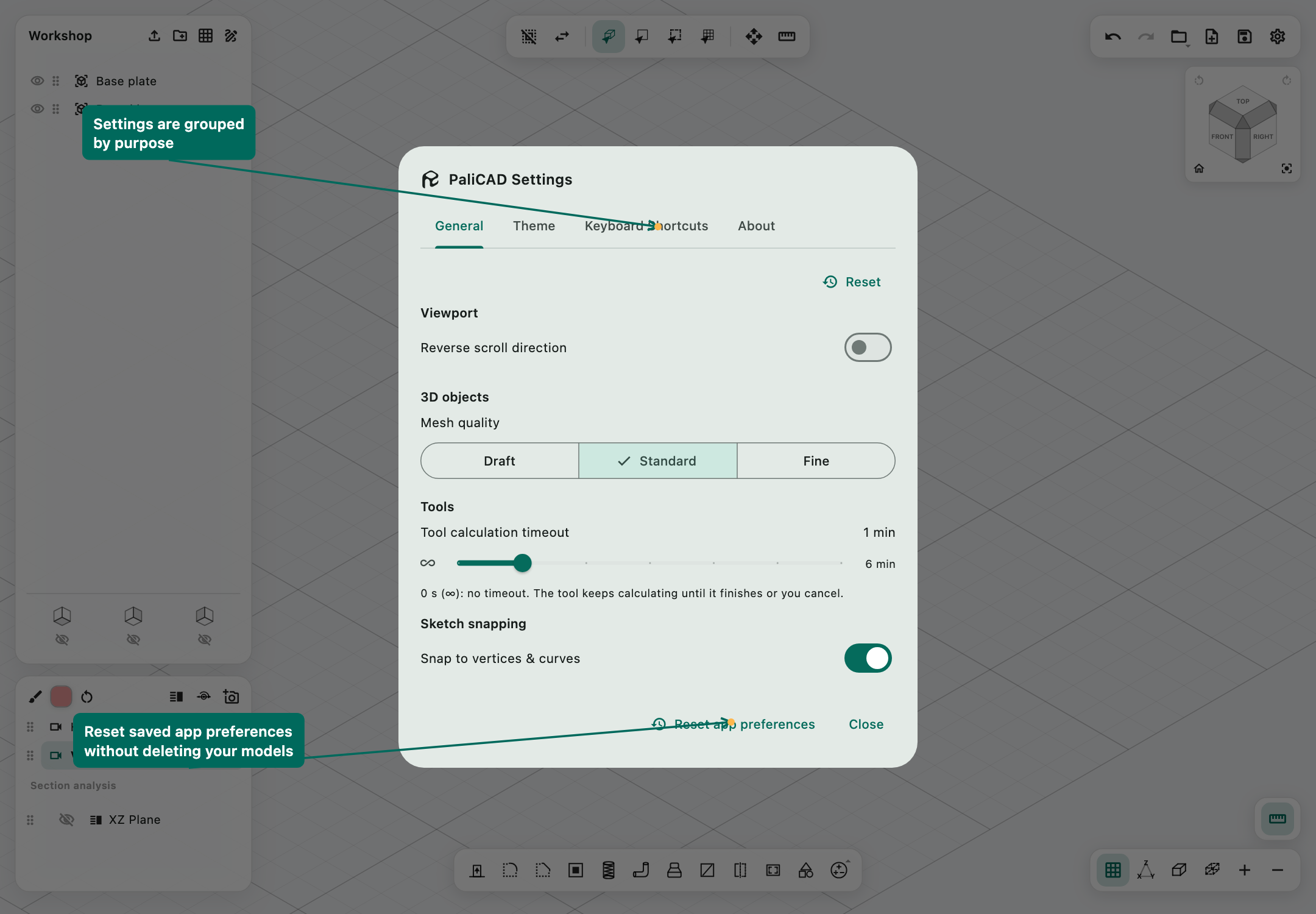
Open the gear icon from the title screen or the workspace. Settings are organized into General, Theme, Keyboard Shortcuts, and About. Scroll inside a tab to reach items below the visible portion.
General
Viewport — Reverse scroll direction. Reverses zoom scrolling. The factory direction is platform-dependent: the macOS default differs from Windows/Linux.
3D objects — Mesh quality. Choose Draft, Standard, or Fine. Standard is the default. This controls the density used when producing curved display meshes in applicable operations. Fine can improve curved tessellation at the cost of more triangles and memory; it does not recreate an original analytic surface in an imported STL or guarantee instantaneous retessellation of every existing mesh.
Tools — Tool calculation timeout. Defaults to 1 minute. The slider supports minute steps up to 6 minutes. 0 s / ∞ removes the timeout; the calculation continues until completion or cancellation. More time may help a valid complex operation, but it cannot make unsupported geometry supported.
Sketch snapping — Snap to vertices & curves. Enables geometric snapping; on by default. This is separate from the drawing toolbar's grid snap.
Touchscreen mode appears on desktop. Draw sketch with touch appears on native iPad. Their behaviours are explained in the touch controls section.
Move tool snapping — Snap length / Snap rotation. Sets Shift-assisted move increments. Defaults are 1 mm and 11.25°.
Files — Autosave. Enabled by default. Autosave every accepts 1–120 minutes, with a default of 5. Undo history accepts 1–100 steps, default 25. Autosave needs an existing save destination, and Undo history does not survive a file reopen.
Export. Exports all effectively visible solids as one 3MF or STEP file. The buttons show the current count and are unavailable when there are no visible solids with geometry to export.
The General tab's Reset restores general options. It is narrower in scope than Reset app preferences at the bottom of the dialog.
Theme
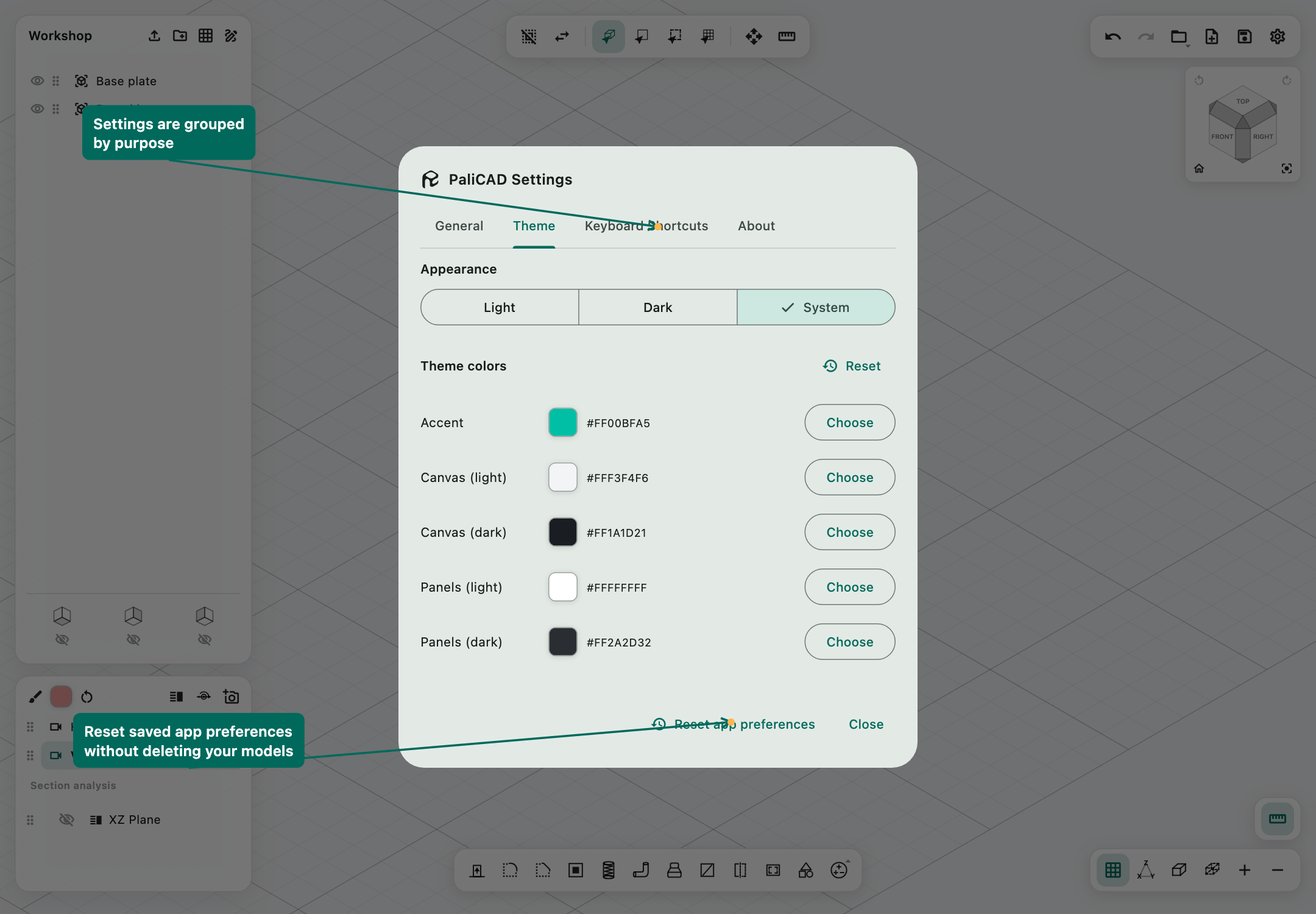
Appearance offers Light, Dark, and System. System is the default and follows the device's selected appearance. An explicit saved Light/Dark choice remains in effect until changed or reset.
Theme colour controls are:
- Accent: selected and emphasized UI controls.
- Canvas (light) and Canvas (dark): workspace backgrounds for each appearance.
- Panels (light) and Panels (dark): floating panel backgrounds.
- Object color: default body appearance.
- Selected object: selection highlight colour.
The Theme colours Reset restores these colours. It does not erase per-face painting stored in a model; use the paint reset for that. A colour picker change applies to the relevant preference, not to geometry dimensions.
Keyboard Shortcuts
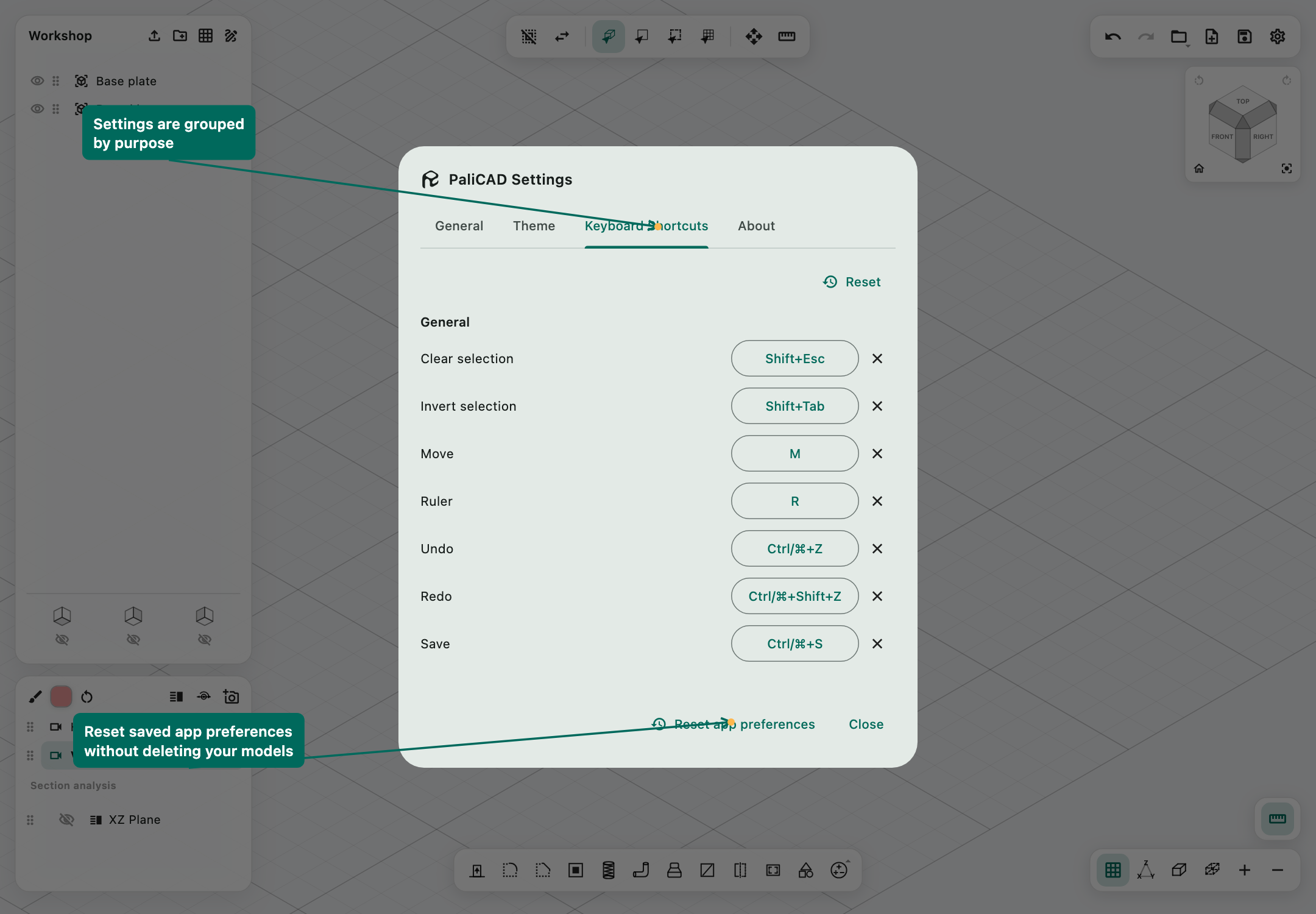
The shortcut tab lists commands grouped by purpose and context. Click an action's binding, press the desired key combination, and resolve any reported conflict. Clear a binding to leave the command unassigned. Reset shortcuts to defaults restores the factory bindings.
Some actions are available only in sketch mode or model mode. A binding may therefore be valid in one context and inactive in another. The catalogue contains more commands than are preassigned; a blank binding is not a missing key you need to guess.
About
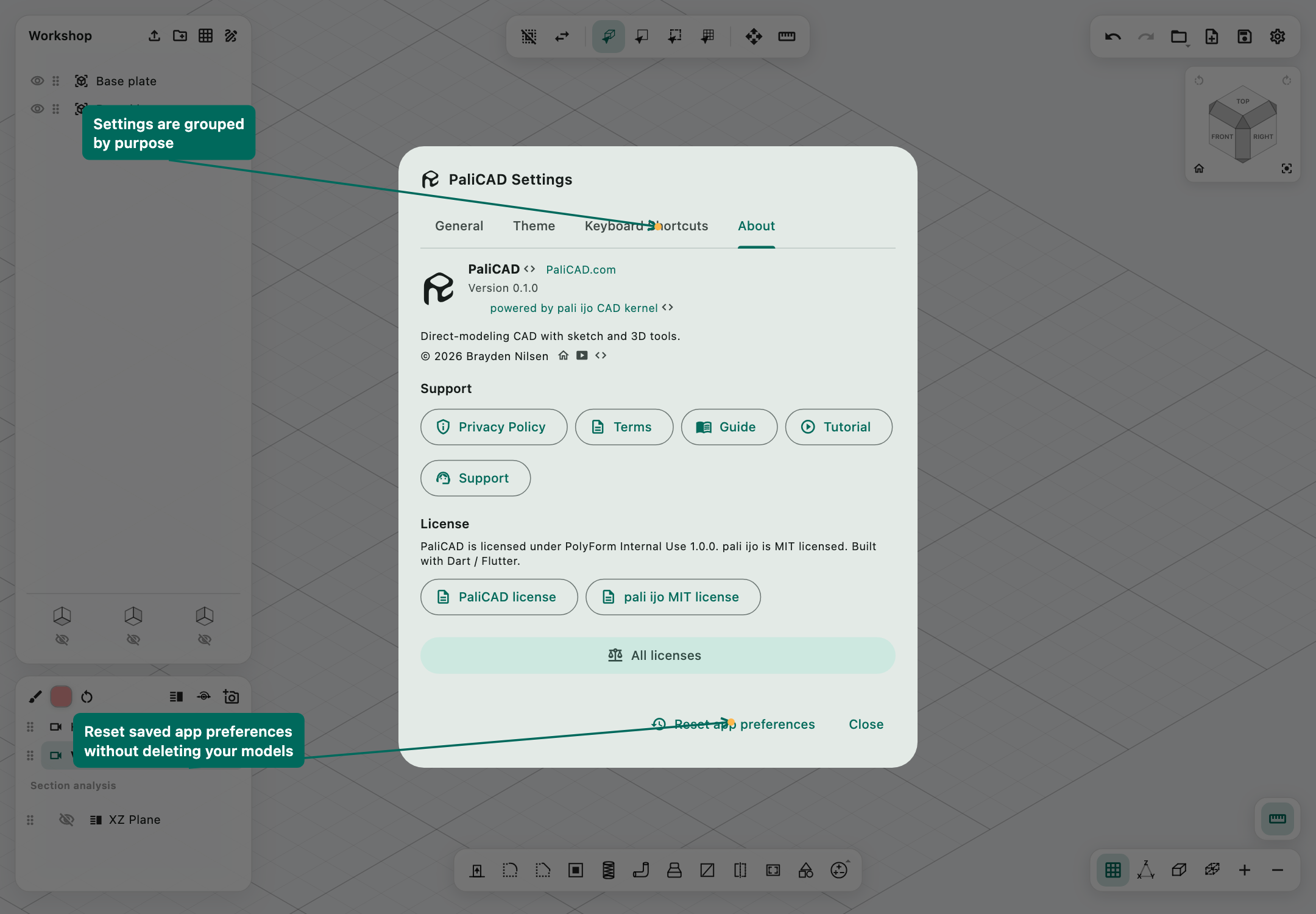
About shows the PaliCAD release and kernel information, author/copyright details, project and author links, and support resources. Its links include Guide, Tutorial, Privacy Policy, Terms, and Support, together with relevant website/social/GitHub links.
PaliCAD's licence is PolyForm Internal Use 1.0.0, with copyright belonging to Brayden Nilsen. Pali Ijo is licensed separately under MIT. All licenses exposes third-party licence notices. Read the actual licence and Terms for their conditions; the presence of source links does not make all components identically licensed.
The title screen also provides the guide, GitHub, settings, and tutorial entry points. The guided tutorial is a useful first-run companion to this reference.
Reset app preferences
Choose Reset app preferences at the bottom of Settings, then confirm Reset preferences.
This restores the saved app defaults, including theme and colours, grids, XYZ labels, projection/display choices, input preferences, shortcuts, autosave, and related stored app settings. It clears the recent-documents list and resets the active Shift lock. Factory display defaults include an orthographic shaded scene, visible grid, and hidden XYZ text.
It does not delete your .pali files, change the open model's geometry, or erase its saved views. Clearing recent files only removes the shortcut list; reopen a file with Open document to use it again. This is an app-preference reset, not a model reset or a secure file-erasure command.
Keyboard shortcuts
These are the factory defaults. Your saved overrides in Settings take precedence. ⌘/Ctrl means Command on a Mac keyboard or Control on a PC keyboard; the app accepts the supported modifier chord in its shortcut dispatcher.
General
- ⌘/Ctrl + S: Save.
- ⌘/Ctrl + Z: Undo.
- ⌘/Ctrl + Shift + Z: Redo.
- M: Move.
- R: Ruler/Measure.
- Shift + Esc: Clear selection.
- Shift + Tab: Invert selection.
3D selection and creation
- O: Select object.
- F: Select face.
- E: Select edge.
- P: Select plane.
- Shift + P: New construction plane.
- Shift + S: New sketch.
- Shift + E: Extrude.
- Shift + F: Fillet.
- Shift + C: Chamfer.
Contextual keys and pointer modifiers
- Enter / numeric-keypad Enter: confirms the active numeric or tool action where supported. A drawing dimension field may own the confirmation before the tool panel does.
- Esc: cancels the applicable active interaction, placement, tool, or import; in sketch selection it can clear the current selection.
- Tab: cycles/reselects active drawing-dimension fields. It is not normal toolbar focus traversal in the CAD workspace.
- Delete / Backspace: removes selected sketch geometry or measurements when a text field is not being edited. Use browser Delete for model objects.
- Shift-click: adds to selections where supported; in paint mode it paints a whole body.
- Shift-drag: uses a tool's snapping behaviour; primary mouse Shift-drag can pan in the desktop navigation context.
- Right-click / long-press: opens supported context menus or tool variants.
Other tools and camera actions are unbound by default. Assign shortcuts in Settings for Home, Fit to view, zoom, painting, Hollow, Threads, Pipe, Loft, Split, Mirror, Scale, Primitives, Boolean operations, and individual sketch tools as desired. Do not assume conventional CAD keys such as L for Line or C for Circle are factory bindings in PaliCAD.
How Pali Ijo works and current limitations
Pali Ijo is the open-source CAD kernel under PaliCAD. It is a separate project, released under the permissive MIT License, so its geometry and modelling tools can be used in other software.
BREP and display mesh
Pali Ijo is PaliCAD's Dart geometry kernel. It represents supported native solids using faces, edges, vertices, curves, surfaces, and their shared boundaries. A cylinder can retain a cylindrical surface and circular boundaries even though the screen draws it as triangles.
The BREP is the solid. The mesh is the drawable approximation derived from it. Supported native operations update the BREP and then produce a display mesh. Imported STL/3MF bodies and explicitly converted bodies instead have a mesh representation. Smoother-looking shading does not turn a faceted mesh into an analytic cylinder.
PaliCAD runs expensive geometry jobs and import work outside the main interaction path, with cancellation/timeout support for applicable jobs. The kernel library itself is independent of Flutter; responsiveness is also a responsibility of its host application.
What the current kernel can do
Supported paths include planar and curved extrusion geometry, native primitives, a substantial set of BREP booleans, supported analytic hollowing, pipes with cylindrical runs and toroidal elbows, parallel-section lofts, slices, mirror/affine transformations, bounded fillet/chamfer constructions, and native helical threads.
Supported native threads retain helix curves and ruled surfaces. Mirror and nonsingular scale retain transformed BREP instead of automatically baking it into triangles. Booleans include supported curved interactions such as cylinder/sphere intersections; that pair should not be described as wholly unimplemented in this release.
Saving .pali preserves available native geometry. STEP exchanges supported surfaces and curves, sometimes through exact rational representations and sometimes through controlled approximations. STL and 3MF are tessellations by design.
What “validated” means
The kernel checks structural closure and requires a closed display tessellation for applicable solid results. Unsupported operations report a failure instead of silently substituting a mesh for a native BREP body.
These checks are useful but not a universal proof that a shape is free of every self-intersection or suitable for manufacture. Measurements use analytic domain information where available, with numerical integration; fallback measurements may use tessellation. “BREP,” “exact surface,” and “validated mesh” describe different properties.
Limitations to plan around in 1.0.0 / 0.1.0
Direct modelling, not a full parametric history system. Sketches and dimensions are useful construction data, but there is no general feature-history regeneration tree or comprehensive geometric constraint solver. Editing a source sketch should not be expected to rebuild every later body automatically.
Boolean coverage is substantial but incomplete. Highly complex trims, coincident surface patches, singular/tangent contact, and general freeform intersections can still reject. A successful pair of primitive booleans does not establish support for every subsequent blend or thread intersection on the result.
Fillets and chamfers use supported constructions. Planar corners, circular cap rims, and supported extrusion rims are covered. General rolling-ball blends between arbitrary freeform surfaces, isolated partial rims needing endpoint patches, and general multi-surface vertex blends remain limited. A nonuniformly scaled round edge is not automatically equivalent to a constant-radius fillet.
Hollowing is not a universal offsetter. Wall offsets can collapse or intersect, and not every surface type/junction has an implemented offset path. The UI removes one selected opening face; the kernel's sealed-cavity API is not an extra option in that panel.
Loft is bounded in scope. The app exposes two compatible closed regions on parallel planes, including supported paired holes. Arbitrary guide rails, unlimited sections, and general nonparallel surface lofting are not provided by this panel.
Pipe controls are narrower than the kernel API. PaliCAD exposes diameter and combine controls. Kernel hollow-tube support does not imply a tube-wall control in the current UI. Singular bends and reversing paths can fail.
Thread complexity is limited. Extreme turn/start counts are guarded to prevent excessive allocation. Interrupted walls and complex subsequent intersections can still be unsupported. Taper and gradual runout exist in the kernel API/CLI but are not exposed in the current PaliCAD panel. Thread geometry does not assign manufacturing tolerance classes.
STEP interoperability is not universal. General assembly occurrence graphs are not supported. Unsupported or missing surface data can reject an import rather than dropping faces. Some intersection curves and helices use fitted spline representations on export; a checked fitting tolerance should not be described as a certified global error bound for every possible input.
Mesh bodies remain meshes. Triangle formats do not recover sketches or analytic features. Closed, well-formed meshes are more suitable for solid operations than open, self-intersecting, or nonmanifold imports. Native/mesh combinations may require explicit conversion with a loss of analytic editability.
Display and resources remain finite. Fine tessellation, dense imports, long threads, translucent overlapping bodies, and extensive Undo snapshots can increase memory and rendering work. Use an appropriate mesh quality and hide unnecessary geometry. A timeout protects the session from an endlessly waiting operation; disabling it is not a correctness fix.
Joints are motion controls, not engineering simulation. They do not provide a general assembly-mate solver, collision guarantee, stress analysis, or dynamics.
Some registered sketch actions are legacy. The primary drawing families are the recommended interface. The Curve action is incomplete, and extra registered actions do not all have the same numeric/preview polish as the main tools.
For developers, the authoritative implementation notes are in the repository's Pali Ijo README and its blend/thread documentation. User-facing availability is determined by the PaliCAD panels, not by every public kernel API.
Troubleshooting
A closed area will not select for Extrude
Make the sketch visible, finish sketch editing, activate Extrude, and click inside the desired material region. Zoom in on narrow rails. Inspect for tiny gaps, duplicate edges, self-crossings, and an accidentally selected hole. A sketch's browser selection alone is not the same as choosing its extrusion region.
Apply is disabled or appears to do nothing
Read the tool panel for the next required selection. Check nonzero dimensions, target/tool order, and whether a calculation is still running. A sketch line without a closed region is not a solid extrusion profile. If a failure message appears, change the unsupported input or cancel; repeated Apply does not repair the geometry.
Subtract removes the wrong material
Confirm the target name, tool name, overlap, and direction. With Extrude, choose explicit Sub and a length entering the target. With the Boolean tool, select the retained body first and the cutter second. Hide any originals retained by Keep originals when inspecting the result.
Hollow does not show a cavity while setting the wall
Hollow has no live hollowed-solid preview. Verify the opening face highlight and thickness, then Apply. Inspect the result with section analysis. If an incorrect opening or a rejected offset persists, preserve a copy of the .pali file and the exact selected face for a reproducible report.
Threads says no compatible surface is selected
Pick the cylindrical side wall, not its flat cap. For a female thread, select the inside bore wall. A faceted import or nonuniformly scaled cylinder may not be recognized as an eligible cylindrical surface. Check the detected diameter and standard before applying.
A tool reports unsupported geometry or a broken solid
The operation has failed validation and should not replace the source body. Cancel the session, inspect the selection, and try a simpler sequence or smaller radius/thickness. Save a copy before explicit mesh conversion. Record the tool, dimensions, selections, and input file if you need to report the case.
An imported file has the wrong size
Measure a known dimension and identify the format. STL is unitless; confirm millimetres in the exporting and importing programs. Prefer unit-bearing 3MF or supported STEP exchange. Do not scale blindly until you know whether the mismatch is a unit conversion or an actual modelling dimension error.
Navigation seems locked
Check whether you are in sketch mode with its view lock enabled, dragging an active tool gizmo, or using Shift lock. Finish/cancel the current interaction, return to model mode, and try a blank-space orbit. On iPad, use two fingers for pan/pinch and confirm the pointer type when a mouse is attached.
The model is difficult to see
Use Fit to view, inspect browser/folder visibility, and turn off an active section if it hides the part you need. Check X-ray and painted transparency. A stray distant object can make the whole scene fit very small.
Appearance or controls no longer match the defaults
Check Theme and the relevant General option first. Use Reset app preferences for a complete preference reset. Your model and saved files remain; the recent-document shortcuts are cleared.
An error remains after closing a tool
Reopen the tool with a fresh valid selection. Tool sessions are intended to clear old operation errors when cancelled/closed. If stale text persists in a particular build, report the exact tool and steps; do not treat an old message alone as evidence that a newly selected body is invalid.
Glossary
- Body / solid: a bounded 3D volume used as a modelling object.
- BREP: a boundary representation storing faces and their shared curves/edges/vertices.
- Mesh / tessellation: vertices and triangles used to approximate a surface for display or interchange.
- Face: a surface region of a body. A display triangle is not necessarily an entire CAD face.
- Edge: a boundary between faces, or a selected segment of a sketch.
- Vertex: a geometric endpoint or corner.
- Sketch: plane-local 2D construction geometry.
- Profile / closed region: an enclosed sketch area, possibly with holes, suitable for an operation such as Extrude.
- Construction plane: a reference coordinate frame for sketching, cuts, mirroring, and inspection.
- Boolean: a volume operation: Union, Subtract, or Intersect.
- Gizmo: an on-canvas arrow, ring, or handle used to manipulate a tool parameter.
- Orthographic: projection without perspective size change.
- Section analysis: a display cut used for inspection; it does not remove solid material.
- Pitch: thread-crest spacing along the axis. Thread lead is pitch multiplied by the number of starts.
- App preferences: saved interface/input defaults, distinct from data stored inside a model.